

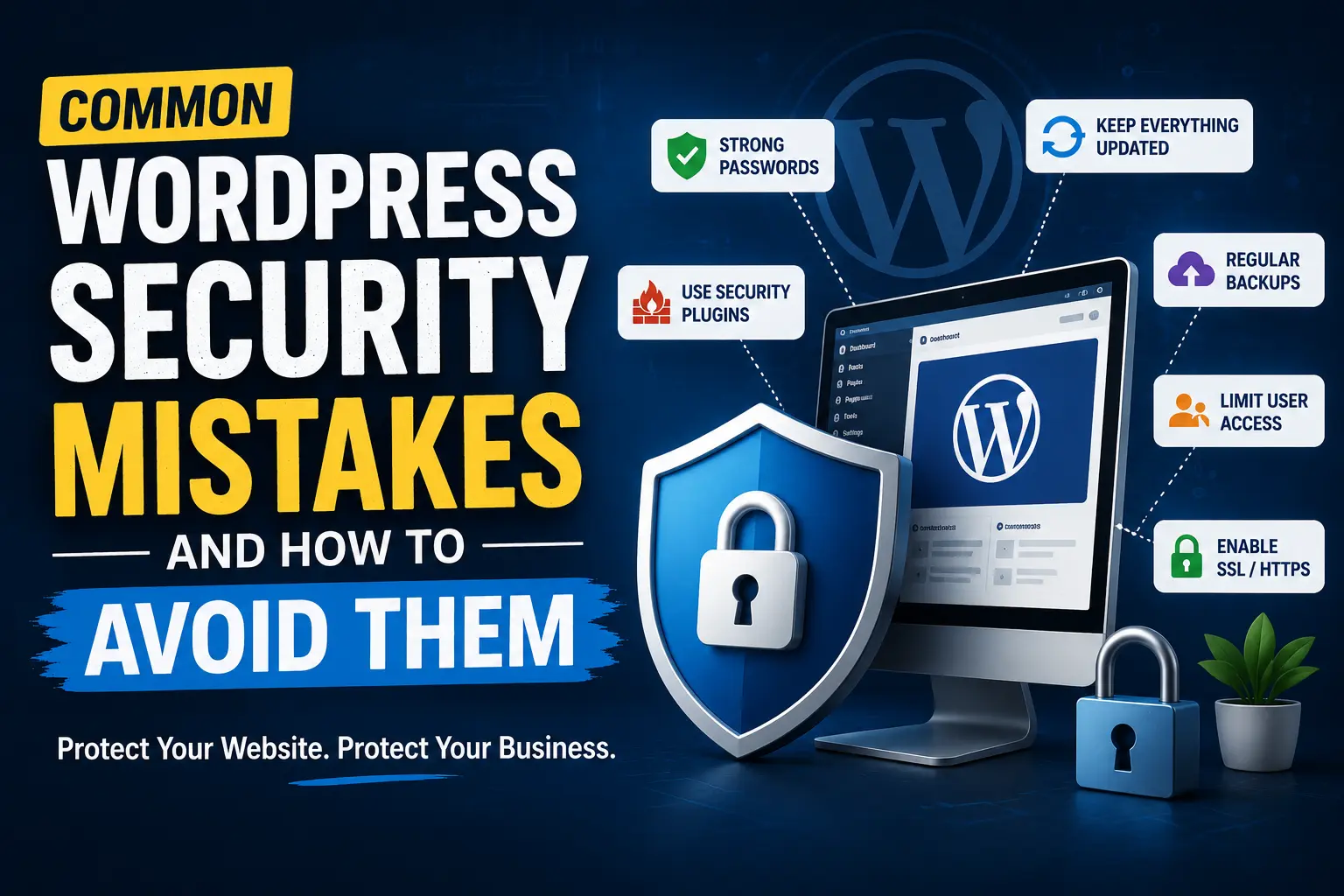

If you’re running a WordPress website, security should never be an afterthought. Whether you own a business website, an online store, or a personal blog, your site is constantly exposed to automated attacks, malware, and hackers looking for vulnerabilities.
The good news is that WordPress itself is a secure platform. The majority of security issues occur because of poor maintenance, weak passwords, outdated plugins, or simple configuration mistakes. Most of these problems are completely avoidable with a few best practices.
In this guide, we’ll explore the most common WordPress security mistakes and show you practical ways to protect your website from cyber threats.
Why WordPress Security Matters
WordPress powers more than 40% of all websites on the internet, making it the world’s most popular content management system. Its popularity also makes it a frequent target for attackers.
A compromised website can lead to:
- Loss of customer trust
- Stolen customer data
- Malware infections
- Search engine blacklisting
- Website downtime
- Financial losses
Fortunately, securing a WordPress website doesn’t require advanced technical skills. By avoiding a few common mistakes, you can significantly reduce your risk.
1. Ignoring WordPress Updates
One of the biggest mistakes website owners make is delaying updates for WordPress core, themes, and plugins.
Developers regularly release updates to fix bugs, improve performance, and patch security vulnerabilities. Running outdated software leaves known security holes that attackers can easily exploit.
How to avoid it
- Keep WordPress core updated.
- Update plugins and themes regularly.
- Remove unused plugins and themes instead of leaving them inactive.
- Always back up your website before major updates.
2. Using Weak Passwords
Weak passwords remain one of the easiest ways for hackers to gain access to a website through brute-force attacks.
Passwords like:
- admin123
- password
- 123456
- companyname2026
can often be cracked within minutes.
How to avoid it
Use strong passwords that include:
- Uppercase letters
- Lowercase letters
- Numbers
- Special characters
A secure password manager can generate and store complex passwords, so you don’t have to remember them.
Also encourage every user with website access to use strong, unique passwords.
3. Using the Default “admin” Username
Many WordPress websites still use “admin” as the administrator username.
If hackers already know your username, they only need to guess your password.
How to avoid it
Create a new administrator account with a unique username and delete the old “admin” account.
Examples:
- john_admin
- magexweb_owner
- yourcompany_admin
Avoid obvious usernames that are easy to guess.
4. Installing Nulled Themes and Plugins
Free versions of premium plugins from unofficial websites may seem tempting, but they often contain hidden malware, spam links, or backdoors.
These malicious files can silently:
- Steal customer data
- Redirect visitors
- Create hidden administrator accounts
- Damage your SEO rankings
How to avoid it
Always download plugins and themes from trusted sources such as:
- The official WordPress Plugin Directory
- The official developer’s website
- Reputable marketplaces
If a premium plugin seems “too good to be free,” it’s usually not worth the risk.
5. Installing Too Many Plugins
More plugins don’t necessarily mean better functionality.
Every additional plugin increases your website’s attack surface. Poorly coded or abandoned plugins can introduce serious vulnerabilities.
How to avoid it
Instead of counting plugins, focus on quality.
Before installing a plugin, check:
- Is it actively maintained?
- Does it have positive reviews?
- Is it compatible with your WordPress version?
- How many active installations does it have?
Remove plugins you no longer use.
A lean website is generally safer and easier to maintain.
6. Choosing Cheap or Insecure Web Hosting
Your hosting provider plays a critical role in website security.
Low-quality hosting often lacks:
- Malware scanning
- Server-level firewalls
- Regular backups
- DDoS protection
- Performance monitoring
If one website on a poorly managed shared server gets infected, others may also be affected.
How to avoid it
Choose a reliable hosting provider that offers:
- Free SSL certificates
- Automatic backups
- Web application firewall (WAF)
- Malware scanning
- Server monitoring
- Regular security updates
Although quality hosting may cost a little more, it’s far less expensive than recovering from a hacked website.
7. Not Using an SSL Certificate
An SSL certificate encrypts the data exchanged between your website and visitors. Without HTTPS, sensitive information such as login credentials or contact form submissions can be intercepted.
In addition, modern browsers display “Not Secure” warnings for websites without SSL, which can reduce visitor trust and even affect conversions.
How to avoid it
- Install a valid SSL certificate from your hosting provider or a trusted certificate authority.
- Force all traffic to use HTTPS.
- Update your WordPress Address (URL) and Site Address (URL) to use https://
- Check for mixed-content issues after enabling SSL.
Most reputable hosting providers now include free SSL certificates, so there’s little reason to leave your website unsecured.
8. Not Using a Security Plugin
Many website owners assume their hosting provider handles all security. While good hosting adds an important layer of protection, it’s not enough on its own.
A reliable WordPress security plugin can help detect malware, block suspicious login attempts, scan files for changes, and notify you of potential threats.
How to avoid it
Install a trusted security plugin and configure its essential features, such as:
- Malware scanning
- Login protection
- Firewall
- File integrity monitoring
- Security alerts
Remember, a security plugin is only effective if you keep it updated.
9. Not Taking Regular Backups
Imagine waking up one morning to find your website hacked or accidentally deleted. Without a recent backup, restoring your website can be difficult—or even impossible.
Backups are your safety net.
How to avoid it
Follow the 3-2-1 backup rule:
- Keep 3 copies of your data.
- Store them on 2 different storage locations.
- Keep 1 copy offsite, such as cloud storage.
Schedule automatic backups daily for busy websites or weekly for smaller sites. Test your backups occasionally to ensure they can actually be restored.
10. Giving Every User Administrator Access
Not every team member needs full control over your website.
Granting administrator access to writers, editors, or freelancers increases the risk of accidental changes or compromised accounts.
How to avoid it
Use WordPress roles wisely:
- Administrator – Full website control
- Editor – Manage content
- Author – Publish their own posts
- Contributor – Write but cannot publish
- Subscriber – Basic account access
Follow the principle of least privilege by giving users only the permissions they need.
11. Ignoring Two-Factor Authentication (2FA)
Passwords alone are no longer enough to protect your website.
Even a strong password can be exposed through phishing, malware, or data breaches.
How to avoid it
Enable Two-Factor Authentication (2FA) for administrator accounts.
With 2FA enabled, users must verify their identity using an authentication app or one-time code in addition to their password.
This extra step significantly reduces the risk of unauthorized access.
12. Leaving the Login Page Unprotected
The default WordPress login page (/wp-login.php) is one of the most common targets for brute-force attacks.
Hackers use automated bots to repeatedly guess usernames and passwords.
How to avoid it
Protect your login page by:
- Limiting failed login attempts
- Using CAPTCHA
- Enabling 2FA
- Changing the login URL (optional)
- Blocking suspicious IP addresses
These measures make it much harder for automated bots to attack your website.
WordPress Security Best Practices
In addition to avoiding the mistakes above, adopt these habits:
- Keep WordPress updated.
- Remove unused plugins and themes.
- Use trusted plugins only.
- Enable HTTPS across your website.
- Perform regular malware scans.
- Schedule automatic backups.
- Monitor user activity.
- Review administrator accounts regularly.
- Use a Web Application Firewall (WAF).
- Audit your website’s security every few months.
Security isn’t a one-time task. It’s an ongoing process that requires regular attention.
WordPress Security Checklist
Use this quick checklist to strengthen your website’s security:
- Update WordPress core regularly
- Update themes and plugins
- Delete unused plugins and themes
- Use strong, unique passwords
- Enable Two-Factor Authentication
- Install a trusted security plugin
- Schedule automatic backups
- Use HTTPS with an SSL certificate
- Limit login attempts
- Assign proper user roles
- Choose reliable web hosting
- Monitor your website for malware
If you can check every item on this list, your website will be far better protected than many WordPress sites online.