

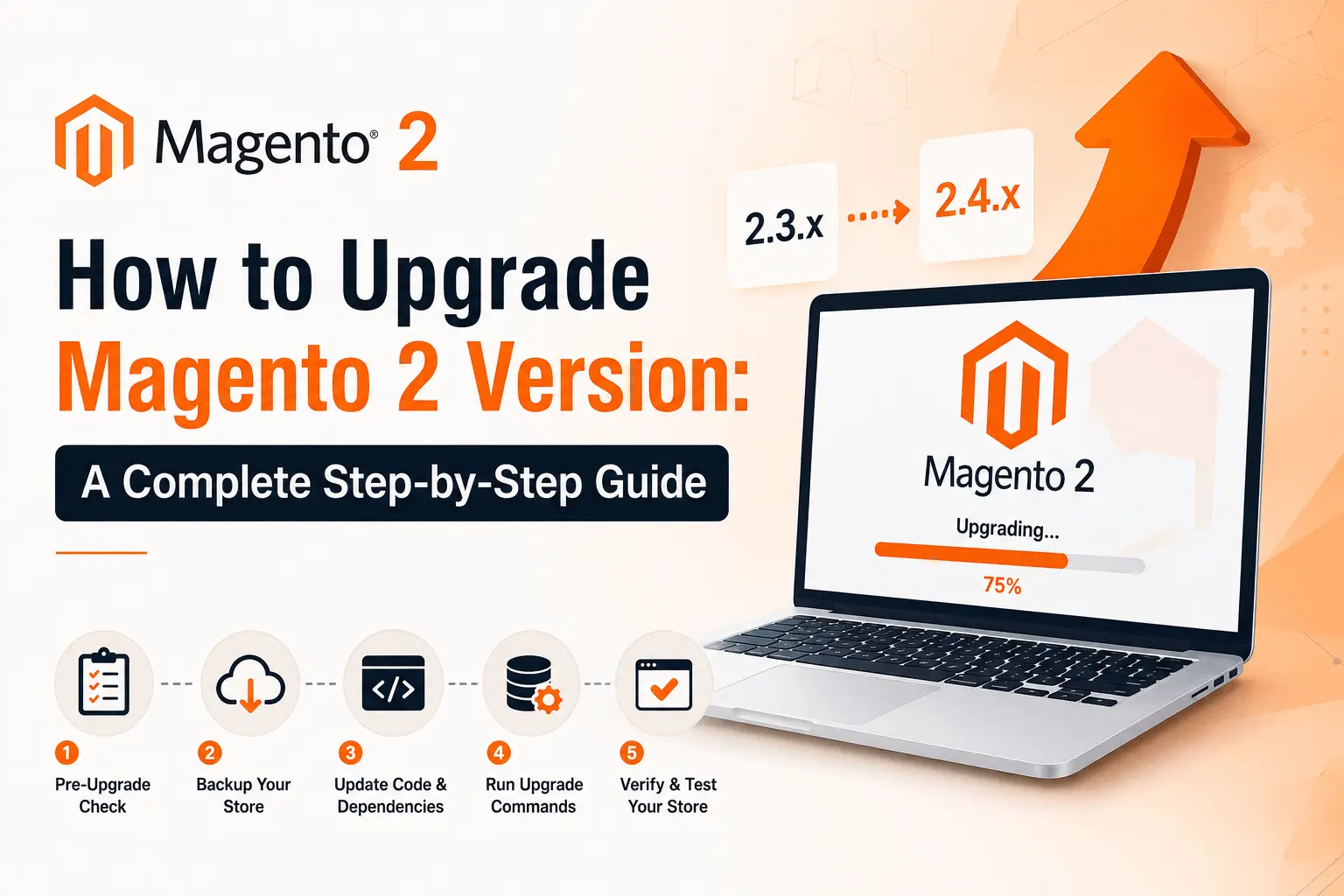

Running an outdated Magento 2 store is one of the fastest ways to expose your business to security vulnerabilities, poor performance, and compatibility issues with modern extensions. As of mid-2026, Magento 2.4.9 is the latest generally available release, and Adobe now ships security patches on a monthly cadence with a major version release every May. If your store is on version 2.4.6 or earlier, you’re likely running unsupported code with unpatched CVEs.
This guide walks you through exactly how to upgrade your Magento 2 store — safely, methodically, and with minimal downtime.
Why Upgrading Magento 2 Matters
Before diving into the technical steps, it’s worth understanding what you gain (and risk) with each upgrade cycle:
- Security – Every Magento release line gets three years of support from its GA date. Once that window closes, no more security patches are issued. Version 2.4.6, for example, reaches end of life in August 2026.
- Performance – Newer versions bring framework, indexing, and caching improvements that reduce page load times and server load.
- Compatibility – Extensions, payment gateways, and third-party integrations increasingly require newer PHP, MySQL, and search engine versions.
- New features – Each major release (like 2.4.9) introduces improvements to checkout, admin UI, APIs, and B2B functionality.
Before You Upgrade: Pre-Upgrade Checklist
Skipping preparation is the single biggest cause of failed Magento upgrades. Work through this checklist first:
- Check your current version – Run bin/magento –version or check the admin footer.
- Review system requirements – Confirm your PHP, MySQL/MariaDB, Elasticsearch/OpenSearch, and Redis versions match what the target Magento version needs. For example, Magento 2.4.9 requires PHP 8.4 or 8.5, and drops support for PHP 8.2.
- Audit your extensions and custom modules – Confirm every third-party extension has a version compatible with your target release.
- Back up everything – Full database dump, app/code, app/design, .env, composer.json, and media files.
- Set up a staging environment – Never test an upgrade directly on production.
- Check hosting compatibility – Confirm your hosting provider supports the required PHP/database versions before you commit to a version.
Method 1: Upgrade Magento 2 Using Composer (Recommended)
Composer is the officially recommended way to upgrade Magento 2, since it manages dependency resolution automatically.
Step 1: Put the Store in Maintenance Mode
bin/magento maintenance:enable
Step 2: Update composer.json to the Target Version
composer require magento/product-community-edition=2.4.8-p4 --no-update
(Replace the version number with your target release — for example, 2.4.9 for the latest GA version. Adobe Commerce users should use magento/product-enterprise-edition instead.)
Step 3: Run Composer Update
composer update
This resolves and downloads all compatible dependency versions. Expect this step to take time and potentially surface version conflicts you’ll need to resolve manually.
Step 4: Run Setup Upgrade
bin/magento setup:upgrade
This updates the database schema and data to match the new codebase.
Step 5: Compile Dependency Injection
bin/magento setup:di:compile
Step 6: Deploy Static Content
bin/magento setup:static-content:deploy -f
Step 7: Clean the Cache
bin/magento cache:clean
bin/magento cache:flush
Step 8: Disable Maintenance Mode
bin/magento maintenance:disable
Method 2: Manual Upgrade (Not Recommended for Production)
If Composer isn’t an option, you can manually download the Magento 2 release package from the official Magento GitHub repository or Adobe Commerce Marketplace, extract it over your existing installation, and run the same setup:upgrade, setup:di:compile, and setup:static-content:deploy commands. This method is riskier because it bypasses Composer’s dependency resolution, so it’s best reserved for isolated testing rather than live stores.
Post-Upgrade Testing
Once the upgrade commands complete, don’t just assume everything works. Test thoroughly:
- Storefront – Homepage, category pages, product pages, cart, and checkout.
- Admin panel – Order management, product creation, and configuration screens.
- Extensions – Every third-party module you rely on, especially payment and shipping integrations.
- Indexing – Run
bin/magento indexer:reindexand confirm indexers show “Ready.” - Cron jobs – Verify scheduled tasks are still firing correctly.
- Performance – Run page speed and load tests to catch regressions early.
Only after staging tests pass cleanly should you repeat the same steps on production.
Common Upgrade Errors and How to Fix Them
- Composer dependency conflicts – Usually caused by outdated third-party extensions. Update or temporarily remove the conflicting package, then re-add it once a compatible version is available.
- White screen or 500 errors after upgrade – Clear
generated/code,generated/metadata,var/cache, andvar/page_cache, then re-runsetup:di:compile. - Database schema errors during
setup:upgrade– Often caused by custom modules with brokendb_schema.xmldeclarations. Check module logs for the specific table or column at fault. - Static content not updating – Re-run
setup:static-content:deploy -fand confirm the correct theme and locale flags are set.
How Often Should You Upgrade Magento 2?
Adobe now follows a predictable cadence: monthly isolated security fixes as needed, aggregated security patch bundles in May and November, and one major version release each May. A sensible approach for most merchants is to apply security patches within 30 days of release and plan a full version upgrade at least once a year, well ahead of your current version’s end-of-life date.
Upgrading Magento 2 isn’t just a maintenance chore — it’s core to keeping your store secure, fast, and compatible with the extensions your business depends on. Following a structured process — checking requirements, backing up, testing on staging, and validating thoroughly before going live — turns what could be a risky migration into a routine, predictable operation.
FAQ
Q1: How do I check my current Magento 2 version?
Run bin/magento –version from your Magento root directory, or check the footer of the admin panel.
Q2: Can I skip versions when upgrading Magento 2 (e.g., go straight from 2.4.4 to 2.4.9)?
Technically yes, since Composer resolves the target version’s dependencies directly. However, skipping multiple versions increases the risk of extension incompatibilities and schema conflicts, so testing on staging is essential.
Q3: How long does a Magento 2 upgrade take?
A typical upgrade, including extension compatibility testing, takes anywhere from a few days to several weeks depending on store complexity and the number of custom modules involved.
Q4: Will upgrading Magento 2 cause downtime?
Some downtime is expected while maintenance mode is enabled during the upgrade commands, typically minutes to a few hours depending on store size. Careful staging and rehearsal minimizes production downtime.
Q5: Do I need to upgrade PHP and MySQL before upgrading Magento?
Yes. Each Magento version has minimum and maximum supported PHP, MySQL/MariaDB, and search engine versions. Check these requirements before starting the upgrade, since an incompatible server stack will cause the upgrade to fail.
Q6: What happens if I don’t upgrade my Magento 2 store?
Once your version reaches end of life, Adobe stops issuing security patches. This leaves your store exposed to known vulnerabilities and unable to use newer extensions or integrations.