

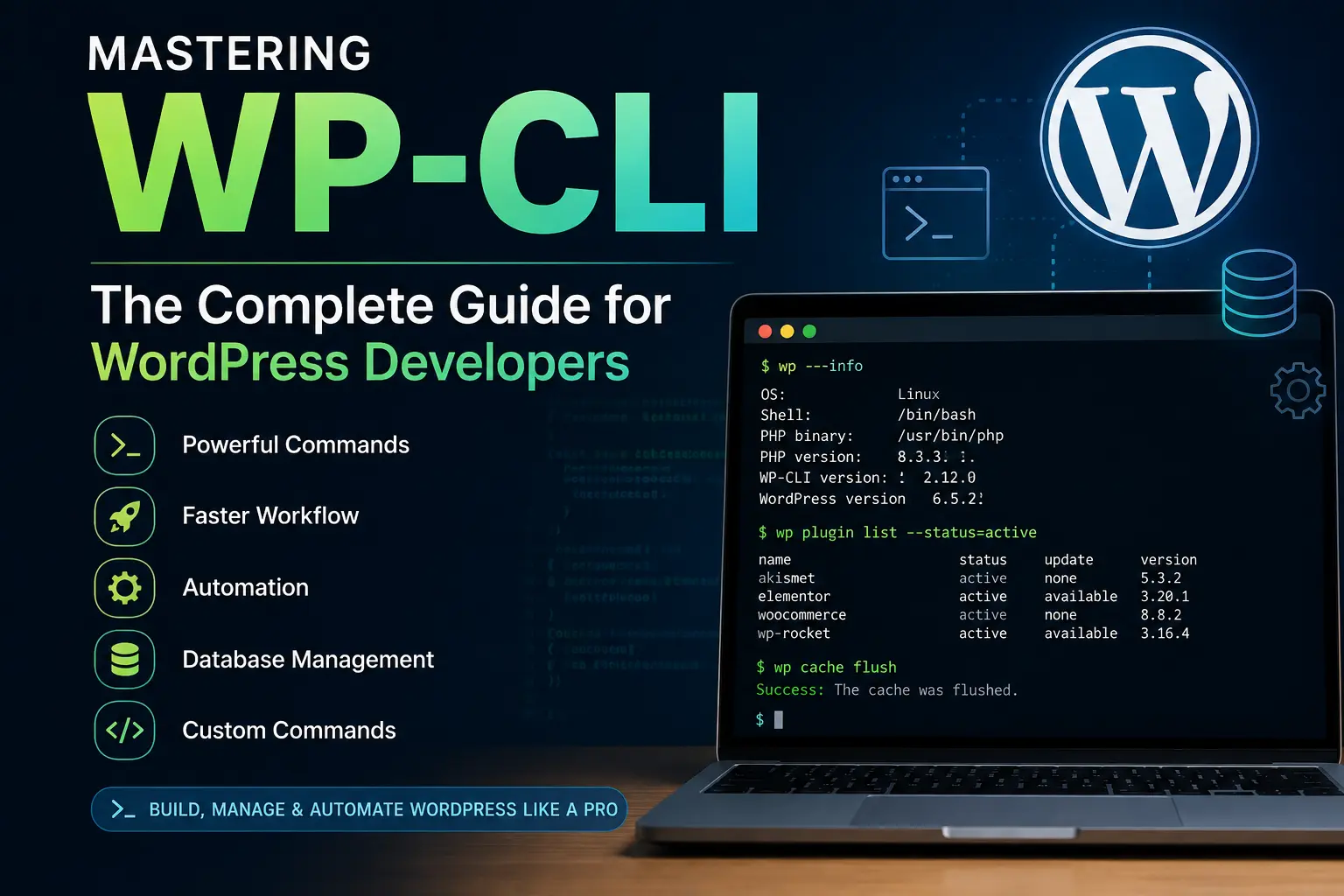

If you’ve been developing WordPress websites for a while, you’ve probably spent countless hours clicking through the WordPress admin dashboard to install plugins, update themes, create users, clear caches, or perform database migrations.
Now imagine doing all of those tasks in seconds from your terminal.
That’s exactly what WP-CLI is built for.
WP-CLI (WordPress Command Line Interface) is one of the most powerful tools available for WordPress developers. While beginners often overlook it, experienced developers rely on it every day to automate repetitive tasks, manage multiple websites, speed up deployments, and even build custom development workflows.
In this guide, you’ll learn how to use WP-CLI effectively, explore real-world examples, and discover practical tips that can significantly improve your WordPress development workflow.
What is WP-CLI?
WP-CLI is the official command-line interface for WordPress.
Instead of interacting with WordPress through the browser, you execute commands directly from the terminal.
For example, instead of:
- Logging into wp-admin
- Navigating to Plugins
- Searching for a plugin
- Clicking Install
- Clicking Activate
You simply run:
wp plugin install contact-form-7 --activate
The entire process takes only a few seconds.
Why Every Intermediate WordPress Developer Should Learn WP-CLI
Learning WP-CLI isn’t just about saving a few clicks.
It fundamentally changes how you work.
Here are some benefits:
- Faster development workflow
- Easier deployment automation
- Better server management
- Simplified database operations
- Batch processing thousands of posts
- Better compatibility with Git and CI/CD pipelines
- Reduced manual errors
- Easier management of multiple WordPress installations
Once you start using WP-CLI daily, it’s difficult to go back to doing everything through the admin panel.
Installing WP-CLI
Most managed WordPress hosting providers already include WP-CLI.
To verify your installation:
wp --info
You should see something similar to:
OS: Linux
 PHP binary: /usr/bin/php
 PHP version: 8.3
 WP-CLI version: 2.12
If WP-CLI isn’t installed, follow the installation instructions from the official WP-CLI website.
Understanding the Basic Syntax
Almost every command follows the same pattern:
wp <entity> <action> [options]
Examples:
wp plugin list
wp theme update --all
wp user create
wp post list
Once you understand this structure, learning new commands becomes much easier.
Essential WP-CLI Commands Every Developer Should Know
1. WordPress Core Commands
Check your WordPress version:
wp core version
Download WordPress:
wp core download
Update WordPress:
wp core update
Update database after upgrading:
wp core update-db
Verify WordPress core files:
wp core verify-checksums
This command is especially useful for detecting hacked or modified core files.
2. Plugin Management
List installed plugins:
wp plugin list
Install a plugin:
wp plugin install woocommerce
Install and activate:
wp plugin install woocommerce --activate
Update all plugins:
wp plugin update --all
Delete inactive plugins:
wp plugin delete hello
3. Theme Management
Install a theme:
wp theme install astra
Activate a theme:
wp theme activate astra
Update every installed theme:
wp theme update --all
4. User Management
Create a new administrator:
wp user create john john@example.com --role=administrator
List users:
wp user list
Reset a password:
wp user update admin --user_pass="NewPassword"
5. Database Management
Export database:
wp db export backup.sql
Import database:
wp db import backup.sql
Optimize tables:
wp db optimize
Repair corrupted tables:
wp db repair
Search and Replace Like a Pro
One of the most useful WP-CLI commands is search-replace.
Imagine migrating a website from staging to production.
Instead of opening phpMyAdmin, simply run:
wp search-replace "staging.example.com" "example.com"
WP-CLI safely updates serialized data, making it far more reliable than running raw SQL queries.
Always preview changes first:
wp search-replace oldsite.com newsite.com --dry-run
Managing WordPress Options
Retrieve an option:
wp option get blogname
Update an option:
wp option update blogdescription "Custom WordPress Development"
Delete an option:
wp option delete temporary_setting
Working with Posts
Create a post:
wp post create --post_title="Hello WP-CLI" --post_status=publish
List posts:
wp post list
Delete a post:
wp post delete 145
Clearing Cache
Many caching plugins integrate with WP-CLI.
For WordPress object cache:
wp cache flush
Delete expired transients:
wp transient delete --all
Managing Cron Jobs
List scheduled events:
wp cron event list
Run all scheduled events:
wp cron event run --all
This is especially useful when debugging scheduled tasks.
Flushing Rewrite Rules
Instead of visiting Settings → Permalinks, simply run:
wp rewrite flush
Generating Plugin Boilerplates
WP-CLI can scaffold plugin files instantly.
wp scaffold plugin awesome-plugin
You’ll get:
awesome-plugin/
 ├── awesome-plugin.php
 ├── readme.txt
 ├── uninstall.php
 └── languages/
This saves valuable setup time.
Creating Custom WP-CLI Commands
One of the lesser-known but incredibly powerful features of WP-CLI is the ability to create your own commands.
For example:
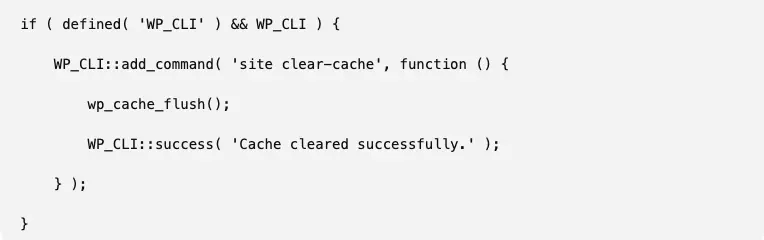
Run it using:
wp site clear-cache
This approach is excellent for plugins that require maintenance tasks, data imports, or bulk processing.
Automating Development Workflows
Instead of manually performing updates:
- Pull latest code
- Install Composer packages
- Update database
- Flush cache
- Flush rewrite rules
Create a deployment script:
git pull
 composer install --no-dev
 wp core update-db
 wp plugin update --all
 wp cache flush
 wp rewrite flush
One command can complete the entire deployment.
Real-World Use Cases
WP-CLI shines in everyday development tasks. Here are a few examples:
- Migrating websites between staging and production
- Bulk updating plugin settings
- Creating hundreds of demo users
- Importing WooCommerce products
- Updating custom fields across thousands of posts
- Automating deployments
- Managing multisite networks
- Cleaning orphaned transients
- Running scheduled maintenance
- Building custom developer tools inside plugins
WP-CLI is more than just a collection of terminal commands—it’s a productivity multiplier for WordPress developers. As projects grow and deployments become more frequent, relying solely on the WordPress admin dashboard becomes increasingly inefficient.
Start by incorporating a few commands into your daily workflow, such as listing plugins, exporting the database, or flushing rewrite rules. As you gain confidence, explore automation, scripting, and custom WP-CLI commands tailored to your projects.
The more comfortable you become with WP-CLI, the more you’ll appreciate how much time it saves and how it enables cleaner, more reliable development practices.
Frequently Asked Questions
Is WP-CLI safe to use on production websites?
Yes, provided you understand the commands you’re running. For operations that modify data, such as search-replace or database imports, create a backup first and use –dry-run when available to preview changes.
Can I use WP-CLI with WooCommerce?
Absolutely. WooCommerce includes WP-CLI support for tasks like managing products, customers, orders, and maintenance tools, making it valuable for large eCommerce stores.
Does WP-CLI work on shared hosting?
Many shared hosting providers include WP-CLI, but availability varies. If you have SSH access, check by running wp –info.
Can I create my own WP-CLI commands?
Yes. Plugin and theme developers can register custom commands using WP_CLI::add_command(), allowing you to automate project-specific tasks and streamline development workflows.
Is WP-CLI faster than using the WordPress admin dashboard?
For repetitive and administrative tasks, yes. WP-CLI eliminates browser interactions, making operations like updates, migrations, and bulk processing significantly faster and easier to automate.