

How a Free Shipping Bar Can Increase Your Magento 2 Store’s Average Order Value
Shipping costs are a common reason shoppers abandon a cart. Here’s how a free shipping bar nudges them to add one more item instead.
A step-by-step guide to upgrading your store to the latest Magento 2 release, and why running an old version costs you.
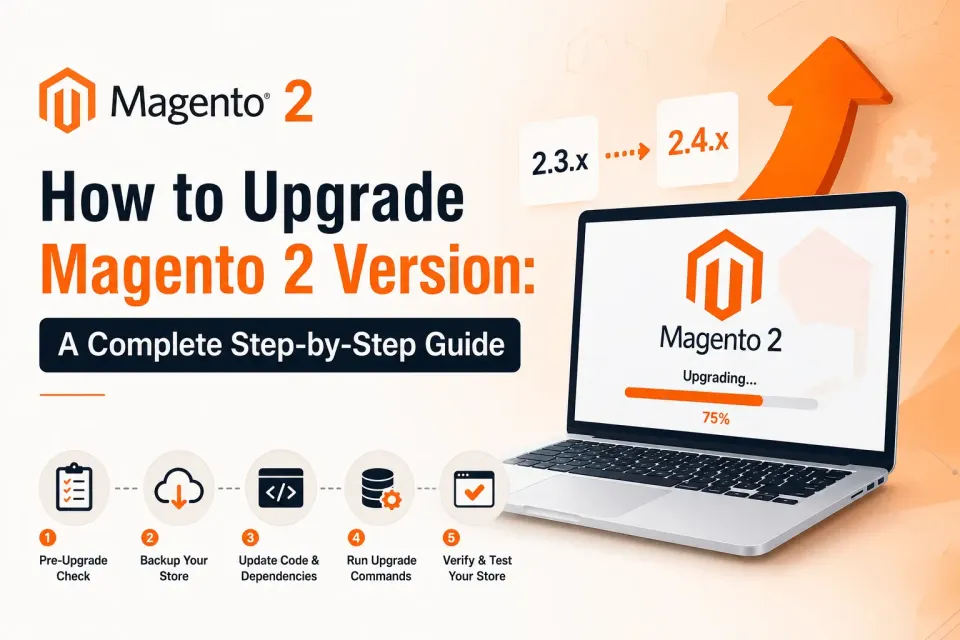
Running an outdated Magento 2 store is one of the fastest ways to expose your business to security vulnerabilities, poor performance, and compatibility issues with modern extensions. As of mid-2026, Magento 2.4.9 is the latest generally available release, and Adobe now ships security patches on a monthly cadence with a major version release every May. If your store is on version 2.4.6 or earlier, you’re likely running unsupported code with unpatched CVEs.
This guide walks you through exactly how to upgrade your Magento 2 store — safely, methodically, and with minimal downtime.
Before diving into the technical steps, it’s worth understanding what you gain (and risk) with each upgrade cycle:
Skipping preparation is the single biggest cause of failed Magento upgrades. Work through this checklist first:
Composer is the officially recommended way to upgrade Magento 2, since it manages dependency resolution automatically.
Step 1: Put the Store in Maintenance Mode
bin/magento maintenance:enableStep 2: Update composer.json to the Target Version
composer require magento/product-community-edition=2.4.8-p4 --no-update(Replace the version number with your target release — for example, 2.4.9 for the latest GA version. Adobe Commerce users should use magento/product-enterprise-edition instead.)
Step 3: Run Composer Update
composer updateThis resolves and downloads all compatible dependency versions. Expect this step to take time and potentially surface version conflicts you’ll need to resolve manually.
Step 4: Run Setup Upgrade
bin/magento setup:upgradeThis updates the database schema and data to match the new codebase.
Step 5: Compile Dependency Injection
bin/magento setup:di:compileStep 6: Deploy Static Content
bin/magento setup:static-content:deploy -fStep 7: Clean the Cache
bin/magento cache:clean
bin/magento cache:flush
Step 8: Disable Maintenance Mode
bin/magento maintenance:disableIf Composer isn’t an option, you can manually download the Magento 2 release package from the official Magento GitHub repository or Adobe Commerce Marketplace, extract it over your existing installation, and run the same setup:upgrade, setup:di:compile, and setup:static-content:deploy commands. This method is riskier because it bypasses Composer’s dependency resolution, so it’s best reserved for isolated testing rather than live stores.
Once the upgrade commands complete, don’t just assume everything works. Test thoroughly:
bin/magento indexer:reindex and confirm indexers show “Ready.”Only after staging tests pass cleanly should you repeat the same steps on production.
generated/code, generated/metadata, var/cache, and var/page_cache, then re-run setup:di:compile.setup:upgrade – Often caused by custom modules with broken db_schema.xml declarations. Check module logs for the specific table or column at fault.setup:static-content:deploy -f and confirm the correct theme and locale flags are set.Adobe now follows a predictable cadence: monthly isolated security fixes as needed, aggregated security patch bundles in May and November, and one major version release each May. A sensible approach for most merchants is to apply security patches within 30 days of release and plan a full version upgrade at least once a year, well ahead of your current version’s end-of-life date.
Upgrading Magento 2 isn’t just a maintenance chore — it’s core to keeping your store secure, fast, and compatible with the extensions your business depends on. Following a structured process — checking requirements, backing up, testing on staging, and validating thoroughly before going live — turns what could be a risky migration into a routine, predictable operation.
Run bin/magento –version from your Magento root directory, or check the footer of the admin panel.
Technically yes, since Composer resolves the target version’s dependencies directly. However, skipping multiple versions increases the risk of extension incompatibilities and schema conflicts, so testing on staging is essential.
A typical upgrade, including extension compatibility testing, takes anywhere from a few days to several weeks depending on store complexity and the number of custom modules involved.
Some downtime is expected while maintenance mode is enabled during the upgrade commands, typically minutes to a few hours depending on store size. Careful staging and rehearsal minimizes production downtime.
Yes. Each Magento version has minimum and maximum supported PHP, MySQL/MariaDB, and search engine versions. Check these requirements before starting the upgrade, since an incompatible server stack will cause the upgrade to fail.
Once your version reaches end of life, Adobe stops issuing security patches. This leaves your store exposed to known vulnerabilities and unable to use newer extensions or integrations.
More guides from the Magexweb blog.
Shipping costs are a common reason shoppers abandon a cart. Here’s how a free shipping bar nudges them to add one more item instead.
Why patching on time matters, and how to install Magento 2 security patches with Composer or by hand.
Install plugins, update themes, manage users and run database tasks from the terminal in seconds, instead of clicking through the admin.
Upgrades, security patches and platform moves are what we do every day. Tell us what your site needs, and we will reply with questions and next steps.
0 Comments
No comments yet. Be the first to comment.
Leave a Comment
Please sign in to comment. Sign in