
Overview
Advance FAQ is a Magento 2 extension from Magexweb that adds a complete, SEO-friendly FAQ and help center to your store. Customers find answers themselves on a dedicated FAQ page, on category and single question pages, in a product page tab and in a floating help widget. When they cannot find an answer, they ask a question that your team answers from the Magento admin.
Answering common questions before customers contact you reduces support requests, removes doubts that stop customers from buying, and gives search engines useful, well-structured content about your store.
Key features
- Unlimited FAQ categories with subcategories, icons and banner images
- Questions and answers with a WYSIWYG editor; a question can belong to several categories and be assigned to products
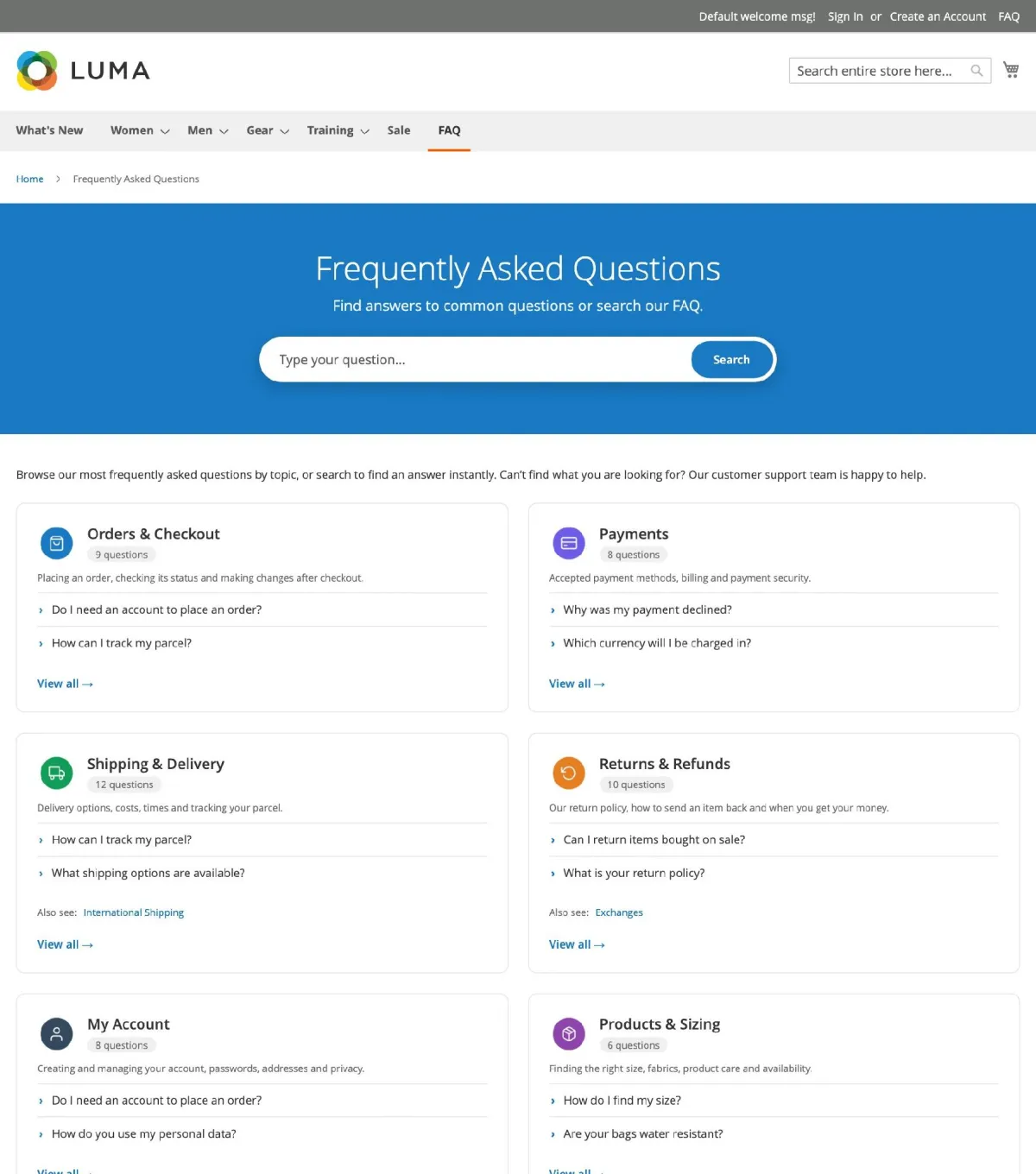
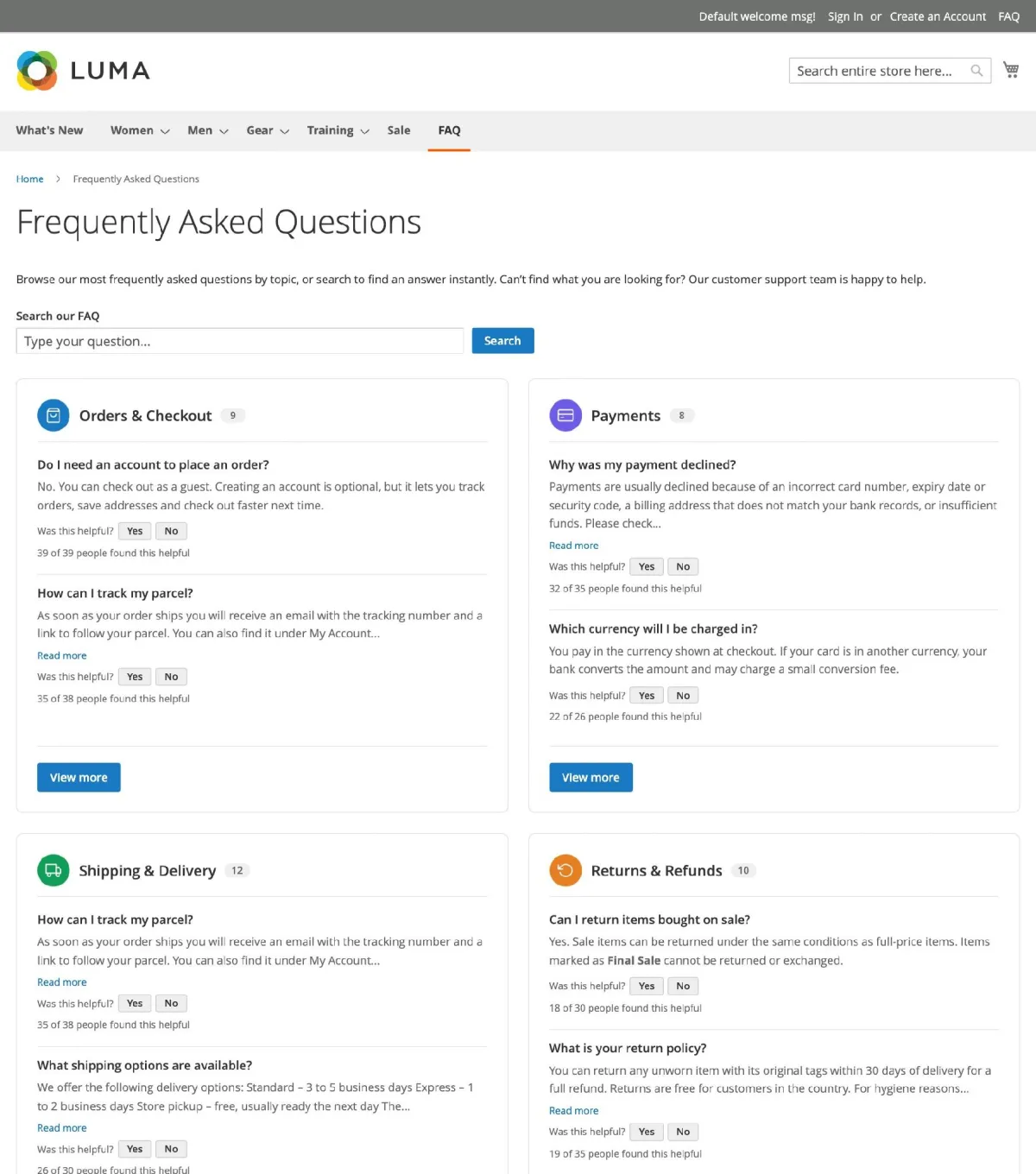
- Two page styles: Help Center (banner, search, category tiles, category sidebar) and Classic (category cards with answers)
- Dedicated pages: FAQ landing page, category pages, single question pages and search results, with a configurable URL and URL suffixes (old URLs are redirected automatically)
- Instant FAQ search with suggestions while typing
- FAQ tab on product pages showing the questions assigned to that product
- "Was this helpful?" voting, helpfulness statistics in the admin grid and "Most Helpful" sorting
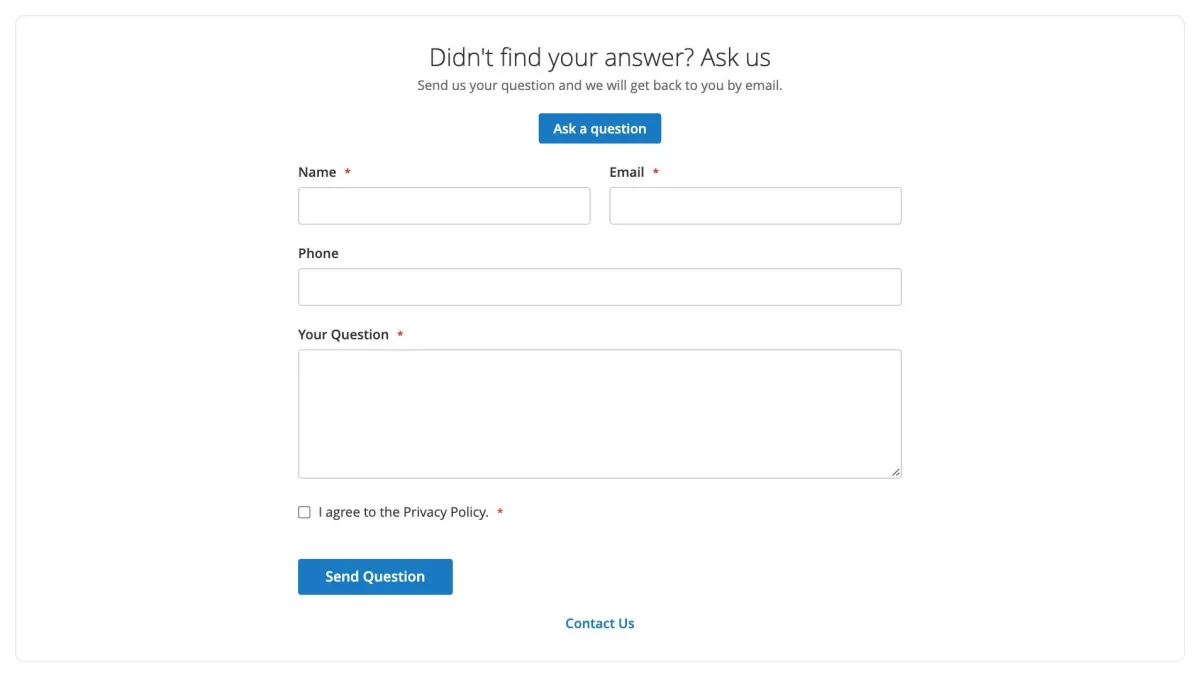
- "Ask a Question" enquiry form on FAQ pages, search results, the product tab and the help widget, with Google reCAPTCHA, privacy consent and rate limiting
- Enquiry management: statuses, internal notes, answer by email and one-click "Convert to FAQ"
- Email notifications to the admin and the customer, using editable email templates
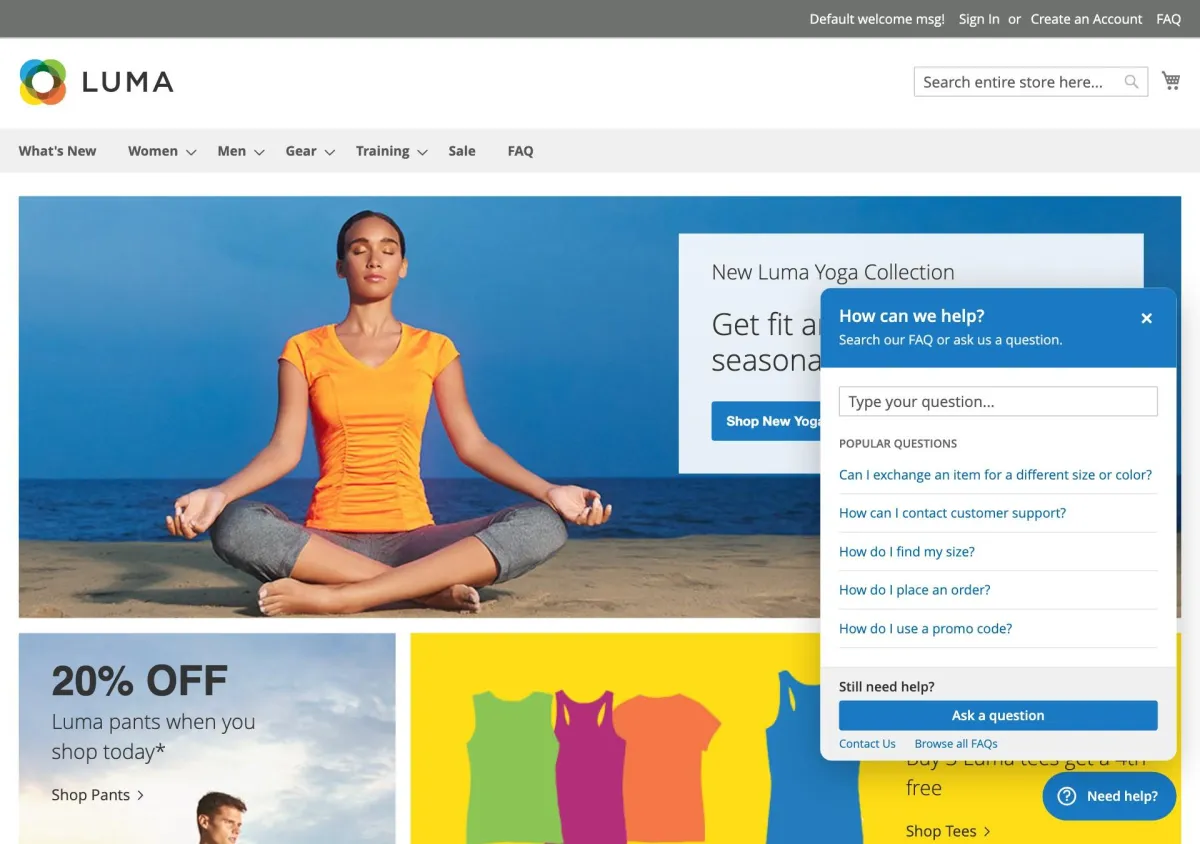
- Floating help widget on CMS, category, search, product and cart pages
- Three CMS widgets: All FAQs, Category FAQs and Product FAQs
- Related questions on single question pages
- SEO: meta tags per page, canonical URLs, FAQPage and BreadcrumbList structured data, Open Graph / Twitter tags and XML sitemap
- Store view and customer group visibility for every category and question
- FAQ link in the top menu and in the header links
- Import and export through System > Data Transfer, with sample CSV files and grid shortcuts
- Admin permissions (ACL) for every action, and full page cache support
How it works
You organise your FAQ into categories (optionally nested) and add questions to them in the admin. The extension then builds the storefront pages automatically:
- FAQ landing page: lists the top-level categories with their questions (for example
www.yourstore.com/faq). - Category pages: the questions of one category, followed by its subcategories.
- Single question pages: one question and its full answer, with related questions and voting.
- Search results: questions matching the customer's search text.
- Product FAQ tab, help widget and CMS widgets: show the same questions in other places of your store.
Every category and question can be limited to specific store views and customer groups, so each shopper only sees the content meant for them. If a shopper cannot find an answer, the enquiry form sends the question to your team. It appears under Advance FAQ > Enquiries, where you can answer it by email and turn it into a new FAQ with one click.
Help Center style
Classic style
Requirements and compatibility
| Item | Detail |
|---|---|
| Platform | Magento Open Source 2.4.8 and 2.4.9 |
| PHP | The PHP versions supported by your Magento version (check the module's composer.json before deploying to production) |
| Theme | Luma, Blank and themes based on them |
| Required Magento modules | Standard modules included in every Magento installation: Catalog, CMS, Widget, Import/Export, Sitemap, URL Rewrite and Google reCAPTCHA |
| Module code | Magexweb_Advancefaq |
| Composer package | magexweb/advancefaq |
Installation
Composer installation (recommended)
- Place the extension in your project (via a private Composer repository, Packagist, or by copying it under
app/code). - From the Magento root, run the following commands:
| Command | Purpose |
|---|---|
composer require magexweb/advancefaq | Only if distributed via a Composer repository |
php bin/magento module:enable Magexweb_Advancefaq | Registers and enables the module |
php bin/magento setup:upgrade | Creates the FAQ database tables and registers the module |
php bin/magento setup:di:compile | Recommended for production mode |
php bin/magento setup:static-content:deploy -f | Required in production mode |
php bin/magento cache:flush | Clears the Magento cache |
Manual (ZIP) installation
- Copy the Advancefaq folder to
app/code/Magexweb/Advancefaqin your Magento installation. - Run the same
bin/magentocommands listed above (module:enable, setup:upgrade, di:compile, static-content:deploy, cache:flush). - Check the module is active:
php bin/magento module:status Magexweb_Advancefaq
Note: after installation, a new Advance FAQ menu appears in the admin. Enable the extension under Advance FAQ Configuration > General (see Admin configuration) and add your first categories and questions. The FAQ page is then available at www.yourstore.com/faq.
Admin permissions
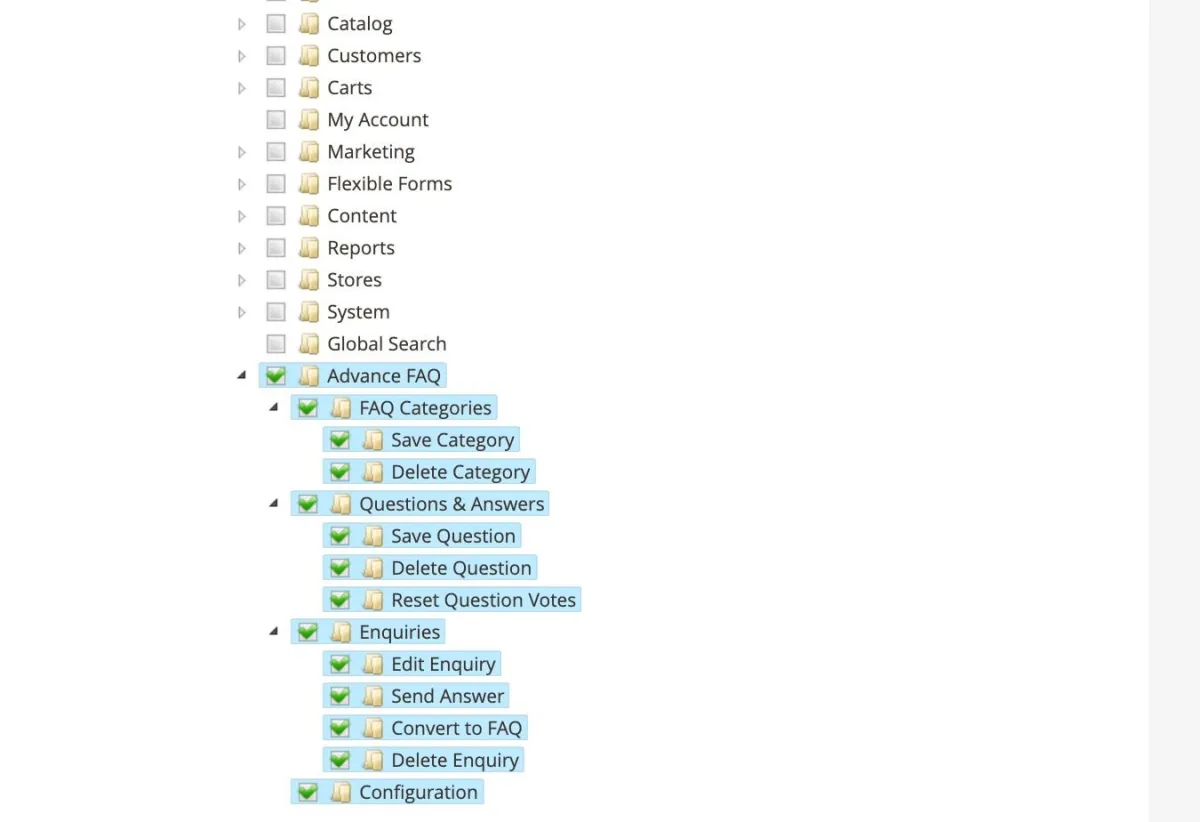
Advance FAQ registers its own Access Control List (ACL) resources, so you decide exactly which admin roles may view, edit or delete FAQ content, handle enquiries and change the configuration.
- Go to System > Permissions > User Roles and open (or add) a role.
- Click Role Resources.
- In the permissions tree, find Advance FAQ and check the resources the role needs.
- Click Save Role.
| Resource | Allows |
|---|---|
| Advance FAQ | Access to the Advance FAQ menu |
| FAQ Categories | View the category grid. Sub-permissions: Save Category, Delete Category |
| Questions & Answers | View the question grid. Sub-permissions: Save Question, Delete Question, Reset Question Votes |
| Enquiries | View the enquiry grid. Sub-permissions: Edit Enquiry, Send Answer, Convert to FAQ, Delete Enquiry |
| Configuration | Access to Stores > Configuration > Magexweb Extensions > Advance FAQ Configuration |
Note: the Import button on the FAQ grids is only shown to roles that also have the System > Data Transfer > Import permission and the Save permission of that grid.
Admin configuration
All settings are under Stores > Settings > Configuration > Magexweb Extensions > Advance FAQ Configuration (also available from Advance FAQ > Advance FAQ Configuration). Most settings can be set per website and per store view.
General

| Field | Description |
|---|---|
| Enable Advance FAQ | Master switch. Yes enables the FAQ pages, product tab, help widget and enquiry form on the storefront; No hides them completely. |
SEO settings
Search engine settings for the FAQ page, category pages and single question pages.
| Field | Description |
|---|---|
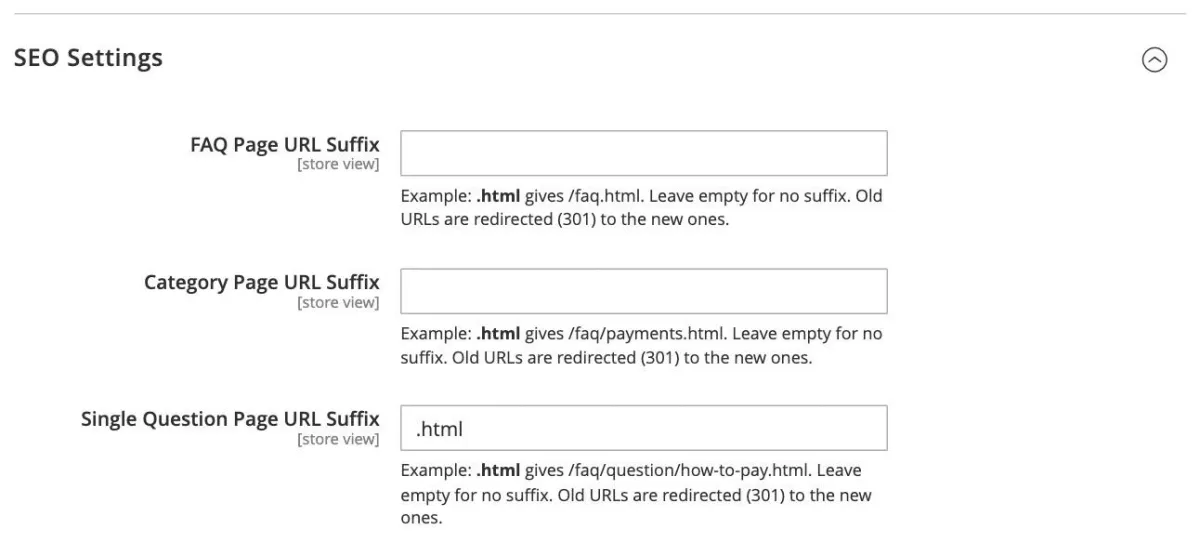
| FAQ Page / Category Page / Single Question Page URL Suffix | Optional suffix for each page type, e.g. .html gives /faq.html, /faq/payments.html and /faq/question/how-to-pay.html. Old URLs are redirected (301) to the new ones. |
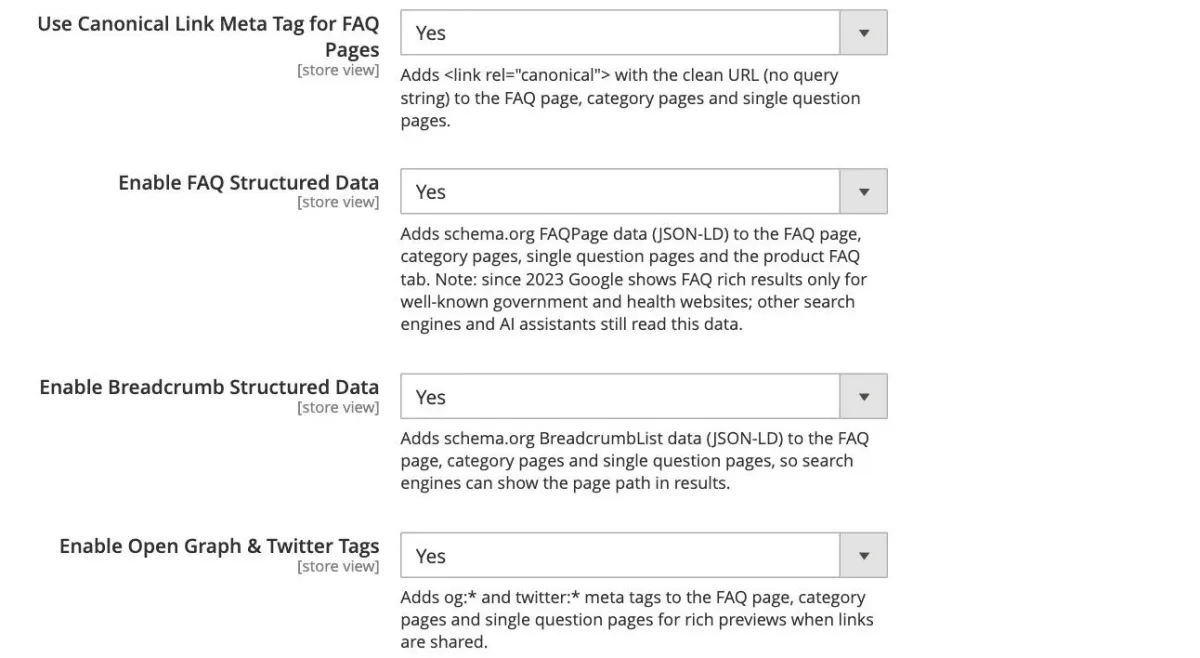
| Use Canonical Link Meta Tag for FAQ Pages | Adds a canonical link with the clean URL (no query string) to the FAQ pages. |
| Enable FAQ Structured Data | Adds schema.org FAQPage data (JSON-LD) to the FAQ pages and the product FAQ tab. |
| Enable Breadcrumb Structured Data | Adds schema.org BreadcrumbList data so search engines can show the page path in results. |
| Enable Open Graph & Twitter Tags | Adds og:* and twitter:* meta tags for rich previews when FAQ links are shared. |
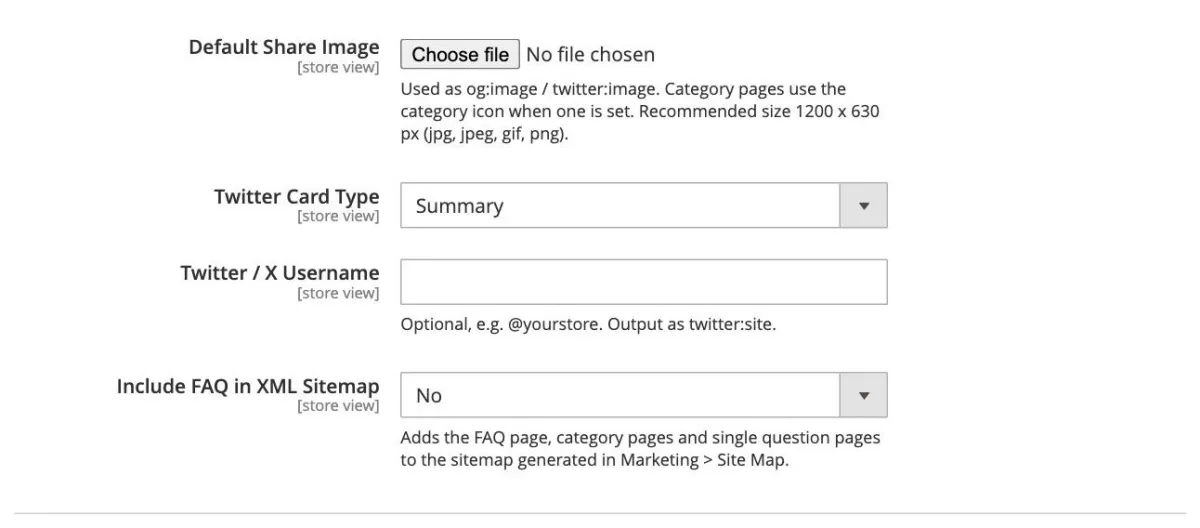
| Default Share Image | Image used for social previews (recommended 1200 x 630 px). Category pages use the category icon when one is set. |
| Twitter Card Type / Twitter / X Username | Card format and your optional @username (twitter:site). |
| Include FAQ in XML Sitemap | Adds the FAQ pages to the sitemap generated in Marketing > Site Map. |
| Change Frequency / Priority | Sitemap change frequency and priority (0.0 to 1.0) for the FAQ page, category pages and single question pages. |
Note: since 2023 Google shows FAQ rich results only for well-known government and health websites. The structured data is still valid and used by other search engines and AI assistants.
FAQ page settings
Settings of the FAQ landing page, and the design settings shared by all FAQ pages.
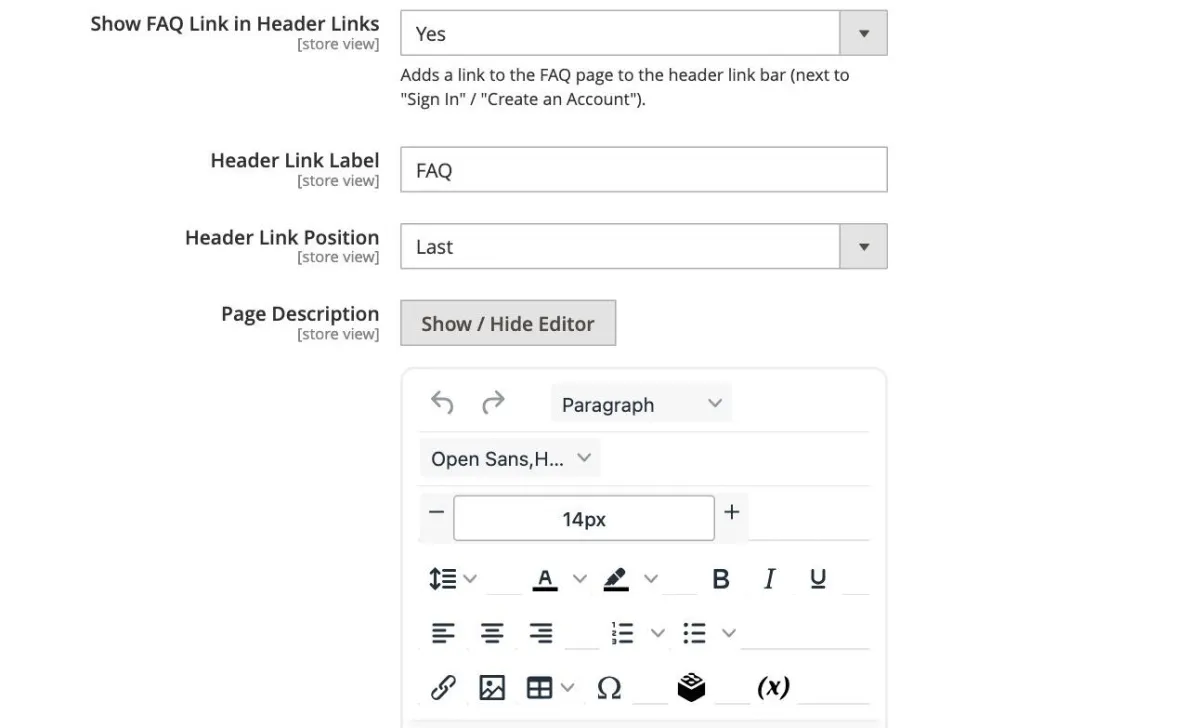
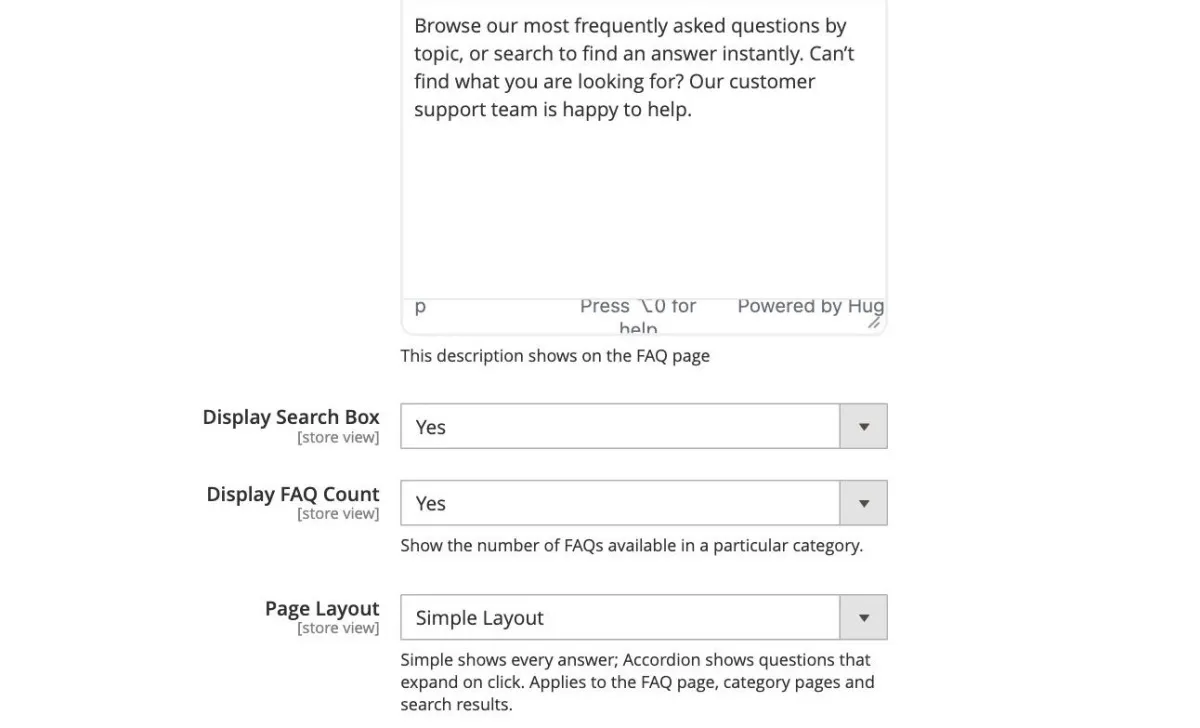
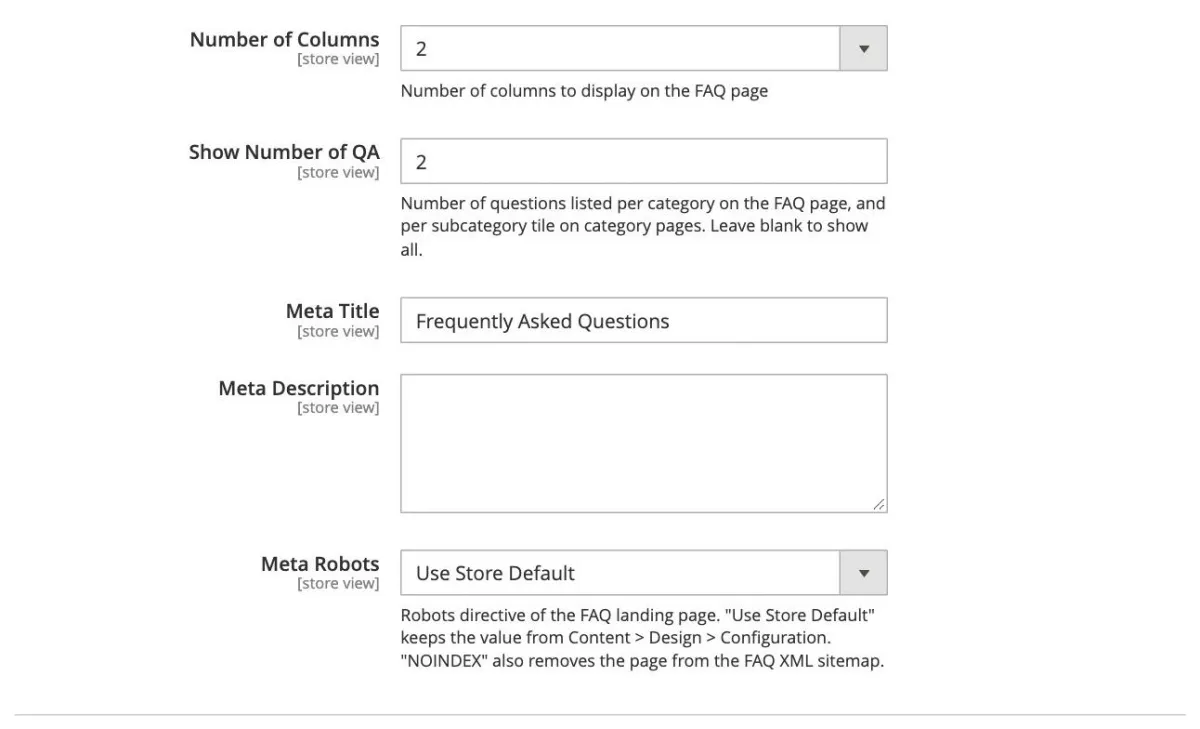
| Field | Description |
|---|---|
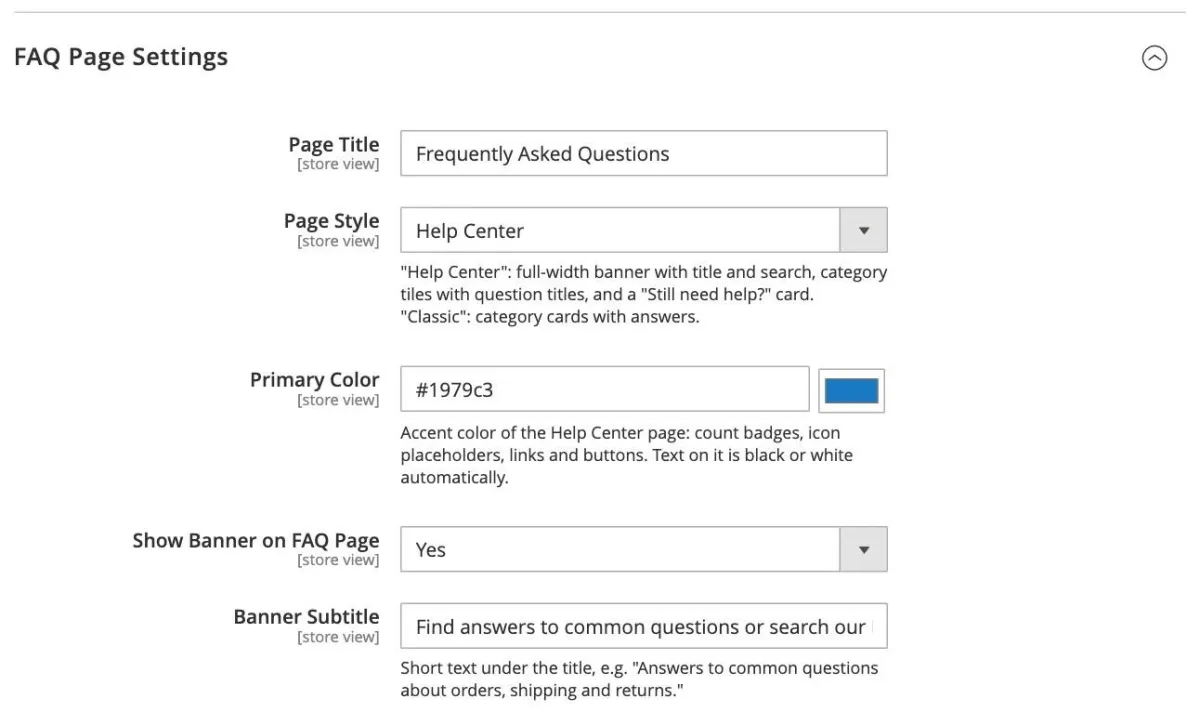
| Page Title | Title of the FAQ page (heading, browser title and menu link fallback). |
| Page Style | Help Center: full-width banner with title and search, category tiles with question titles, category sidebar and a "Still need help?" card. Classic: category cards with answers. |
| Primary Color | Help Center only. Accent color for badges, links and buttons. Text on it is set to black or white automatically. |
| Show Banner on FAQ Page | Help Center only. Shows the banner with title, subtitle and search box. |
| Banner Subtitle | Short text under the banner title. |
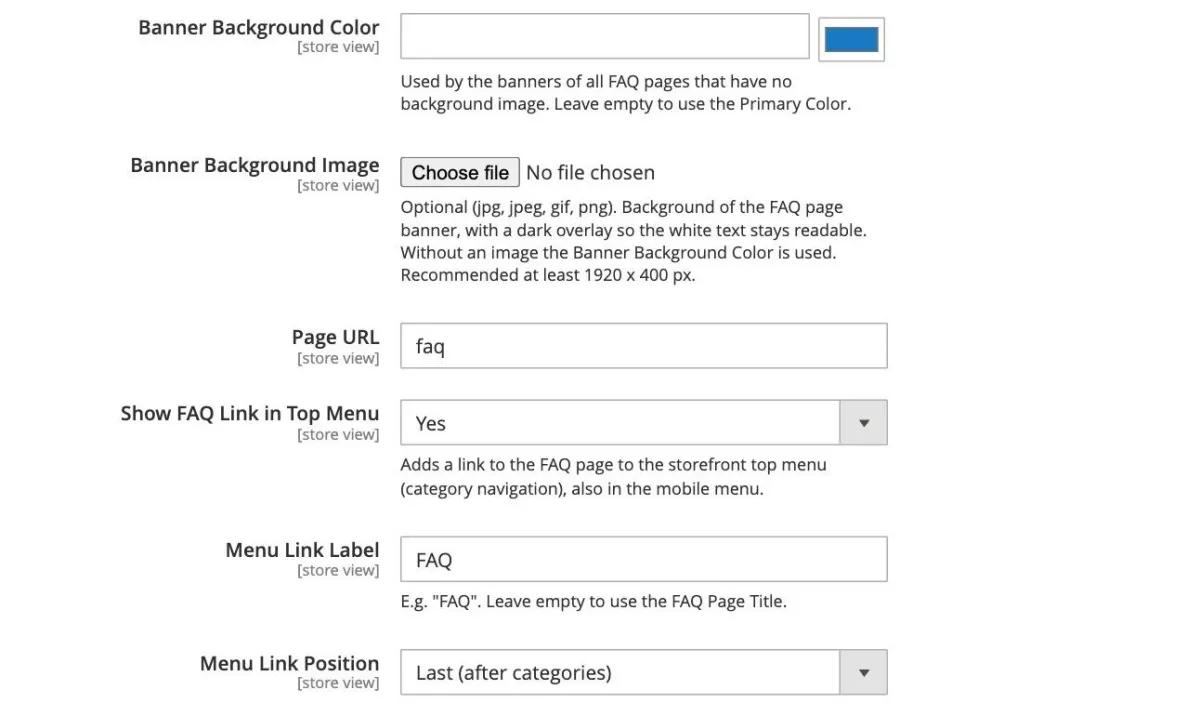
| Banner Background Color | Background color of all FAQ banners that have no background image. Leave empty to use the Primary Color. |
| Banner Background Image | Optional background image of the FAQ page banner (at least 1920 x 400 px). A dark overlay keeps the text readable. |
| Page URL | URL key of the FAQ page, e.g. faq gives www.yourstore.com/faq. |
| Show FAQ Link in Top Menu | Adds a FAQ link to the top menu (also in the mobile menu), with its own Menu Link Label and Menu Link Position (first or last). |
| Show FAQ Link in Header Links | Adds a FAQ link next to "Sign In" / "Create an Account", with its own Header Link Label and Header Link Position. |
| Page Description | Optional text shown on the FAQ page. |
| Display Search Box | Shows the FAQ search box with instant suggestions. |
| Display FAQ Count | Shows the number of questions of each category. |
| Page Layout | Simple shows every answer; Accordion shows questions that expand on click. Applies to the FAQ page, category pages and search results. |
| Number of Columns | Number of category columns on the FAQ page. |
| Show Number of QA | Questions listed per category on the FAQ page (and per subcategory tile on category pages). Leave blank to show all. |
| Show Voting on FAQ Page | Classic only. Shows "Was this helpful?" under the answers on the FAQ page. |
| Answer Display / Excerpt Word Limit | Classic only. Full Text, or an Excerpt of the first words followed by "Read more" (single question page) or "Show more". |
| Meta Title / Meta Description / Meta Robots | SEO meta data of the FAQ page. NOINDEX also removes the page from the FAQ XML sitemap. |
FAQ category page settings
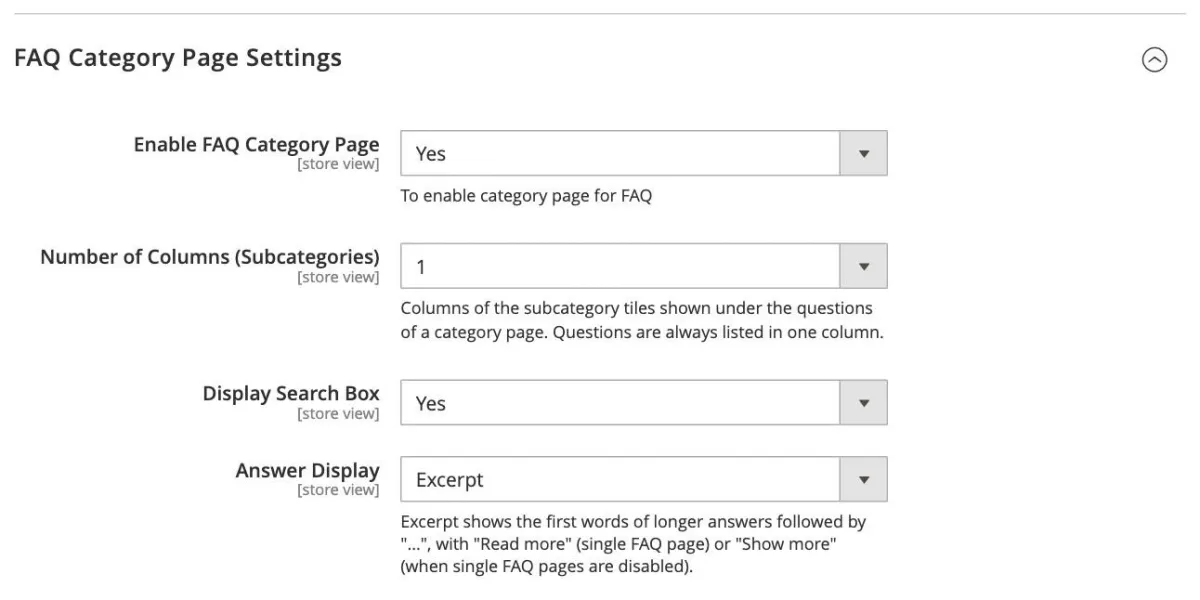
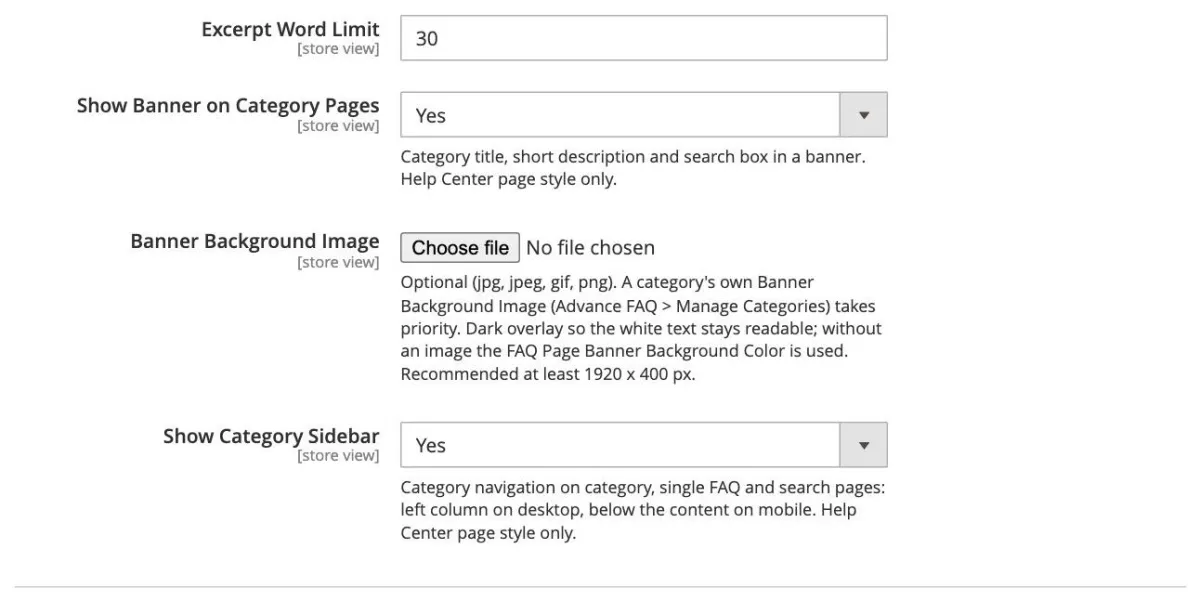
| Field | Description |
|---|---|
| Enable FAQ Category Page | Enables a separate page for each category. When disabled, categories are only shown on the FAQ page. |
| Number of Columns (Subcategories) | Columns of the subcategory tiles shown under the questions of a category page. |
| Display Search Box | Shows the search box on category pages (searching within the category). |
| Answer Display / Excerpt Word Limit | Full Text or Excerpt of the answers on category pages. |
| Show Banner on Category Pages | Help Center only. Category title, short description and search box in a banner. |
| Banner Background Image | Default banner image of category pages. A category's own Banner Background Image takes priority; without any image the Banner Background Color is used. |
| Show Category Sidebar | Help Center only. Category navigation on category, single question and search pages (left column on desktop, below the content on mobile). |
Single FAQ page settings
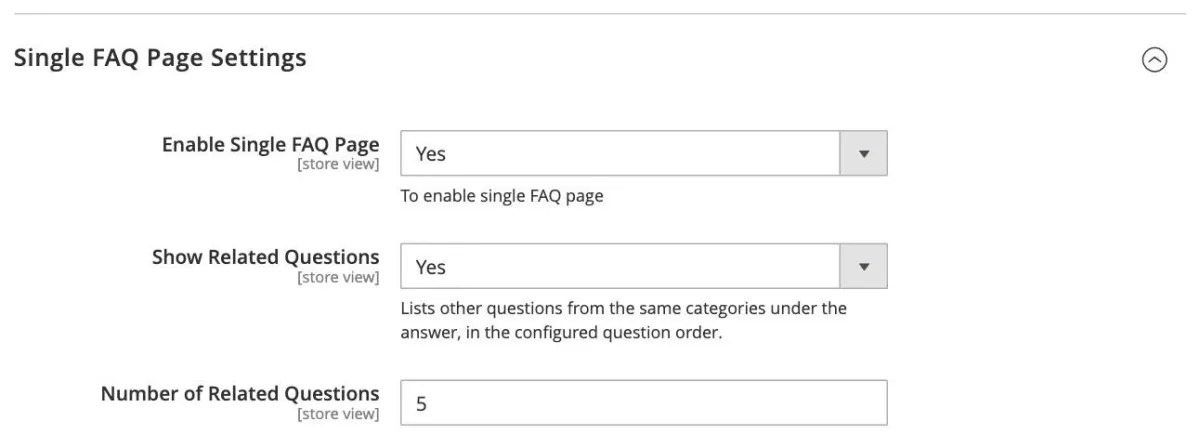
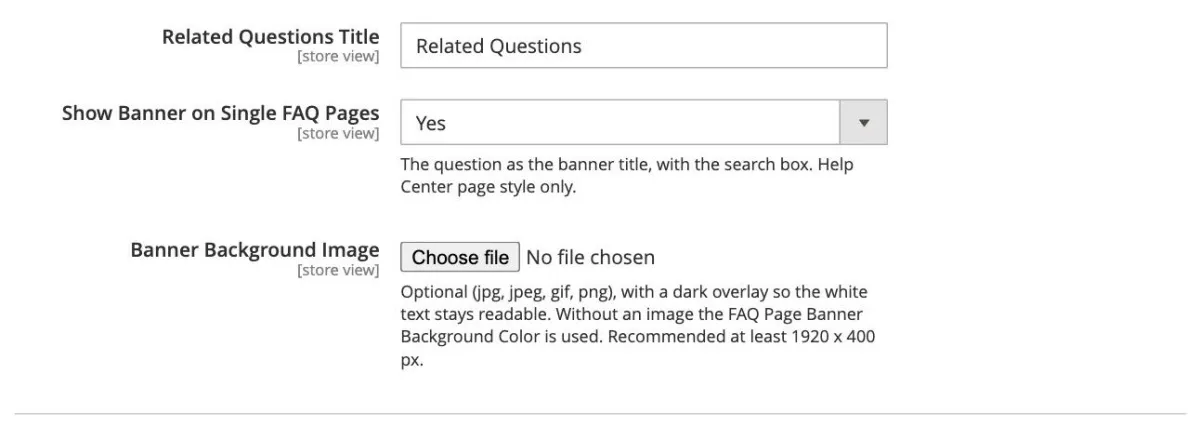
| Field | Description |
|---|---|
| Enable Single FAQ Page | Gives every question its own page. When disabled, questions are only shown in lists. |
| Show Related Questions | Lists other questions from the same categories under the answer. |
| Number of Related Questions / Related Questions Title | How many related questions to show, and the section title. |
| Show Banner on Single FAQ Pages | Help Center only. The question as the banner title, with the search box. |
| Banner Background Image | Optional banner image of single question pages. Without an image the Banner Background Color is used. |
FAQ search page settings
This group is only shown when Page Style is Help Center.
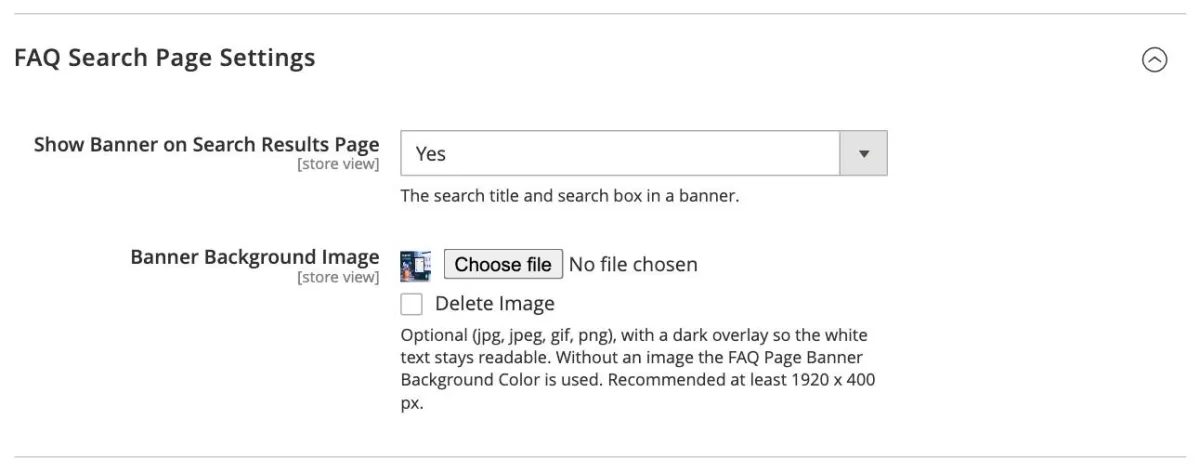
| Field | Description |
|---|---|
| Show Banner on Search Results Page | The search title and search box in a banner. |
| Banner Background Image | Optional banner image of the search results page. Without an image the Banner Background Color is used. |
Product page FAQ settings
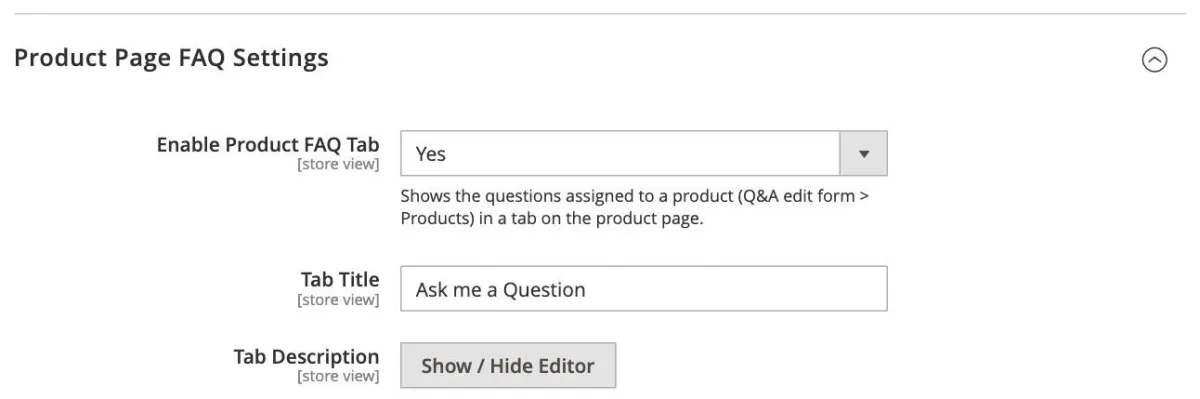
Shows the questions assigned to a product (Questions & Answers > Products) in a tab on the product page.
| Field | Description |
|---|---|
| Enable Product FAQ Tab | Shows the FAQ tab on product pages. |
| Tab Title | Title of the tab, e.g. "Ask me a Question". |
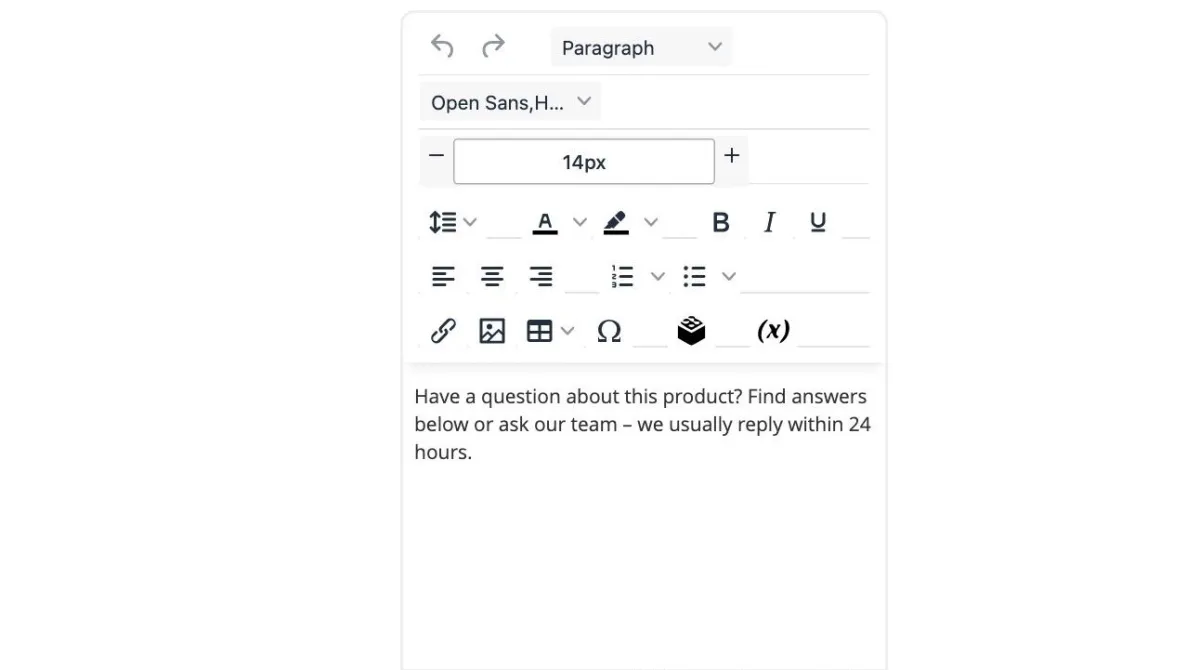
| Tab Description | Optional text at the top of the tab. |
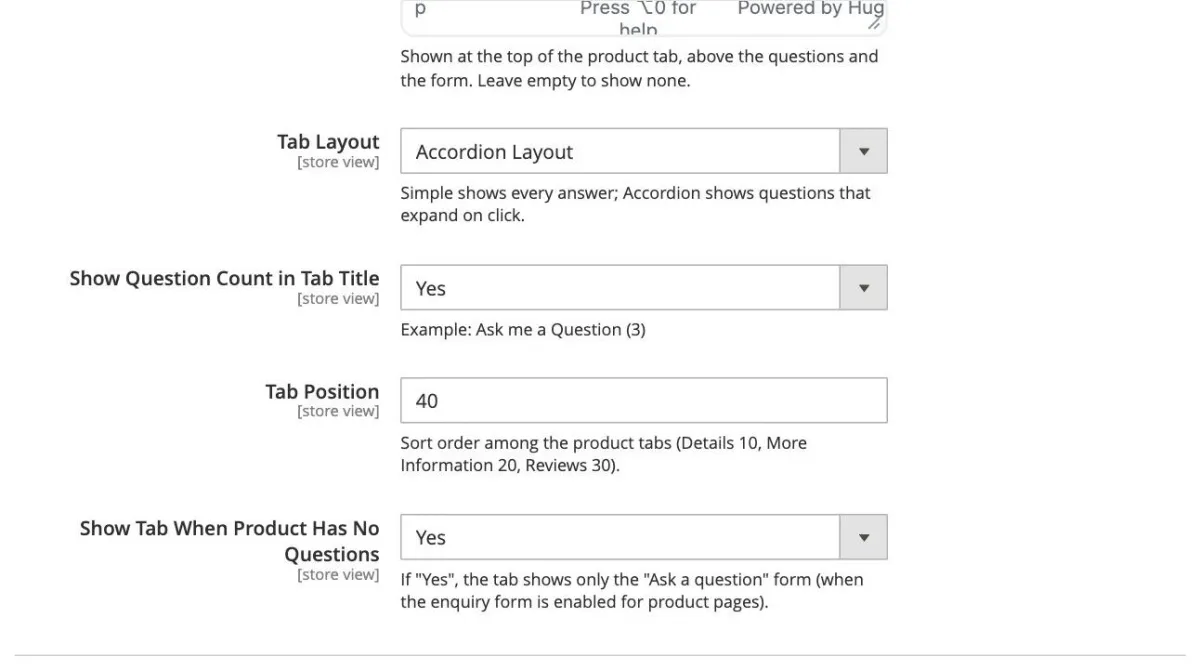
| Tab Layout | Simple or Accordion. |
| Show Question Count in Tab Title | E.g. "Ask me a Question (3)". |
| Tab Position | Sort order among the product tabs (Details 10, More Information 20, Reviews 30). |
| Show Tab When Product Has No Questions | If Yes, the tab shows only the "Ask a question" form (when the enquiry form is enabled for product pages). |
Helpfulness voting
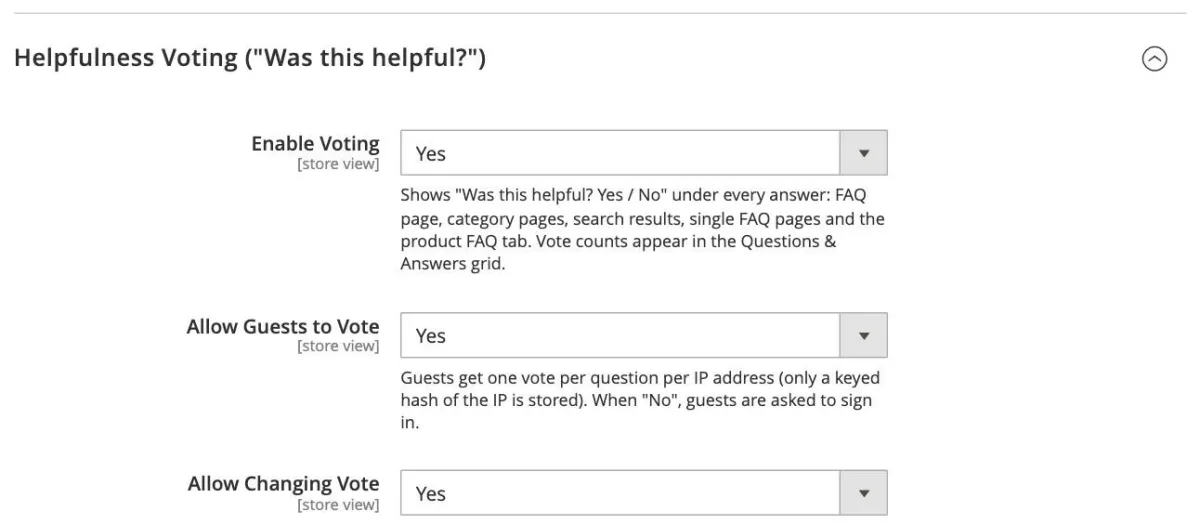
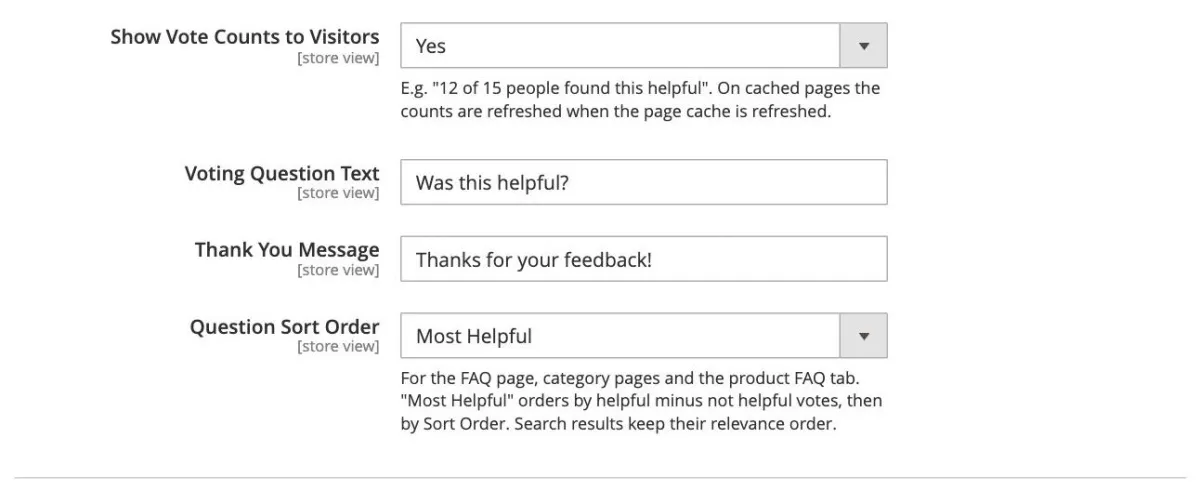
"Was this helpful? Yes / No" under every answer on the FAQ pages, search results and the product FAQ tab.
| Field | Description |
|---|---|
| Enable Voting | Shows the voting block. Vote counts appear in the Questions & Answers grid. |
| Allow Guests to Vote | Guests get one vote per question per IP address (only a keyed hash of the IP is stored). When No, guests are asked to sign in. |
| Allow Changing Vote | Lets shoppers change their vote. |
| Show Vote Counts to Visitors | E.g. "12 of 15 people found this helpful". |
| Voting Question Text / Thank You Message | Texts of the voting block. |
| Question Sort Order | Position (Sort Order), or Most Helpful (helpful minus not-helpful votes, then Sort Order). Search results keep their relevance order. |
Floating help widget
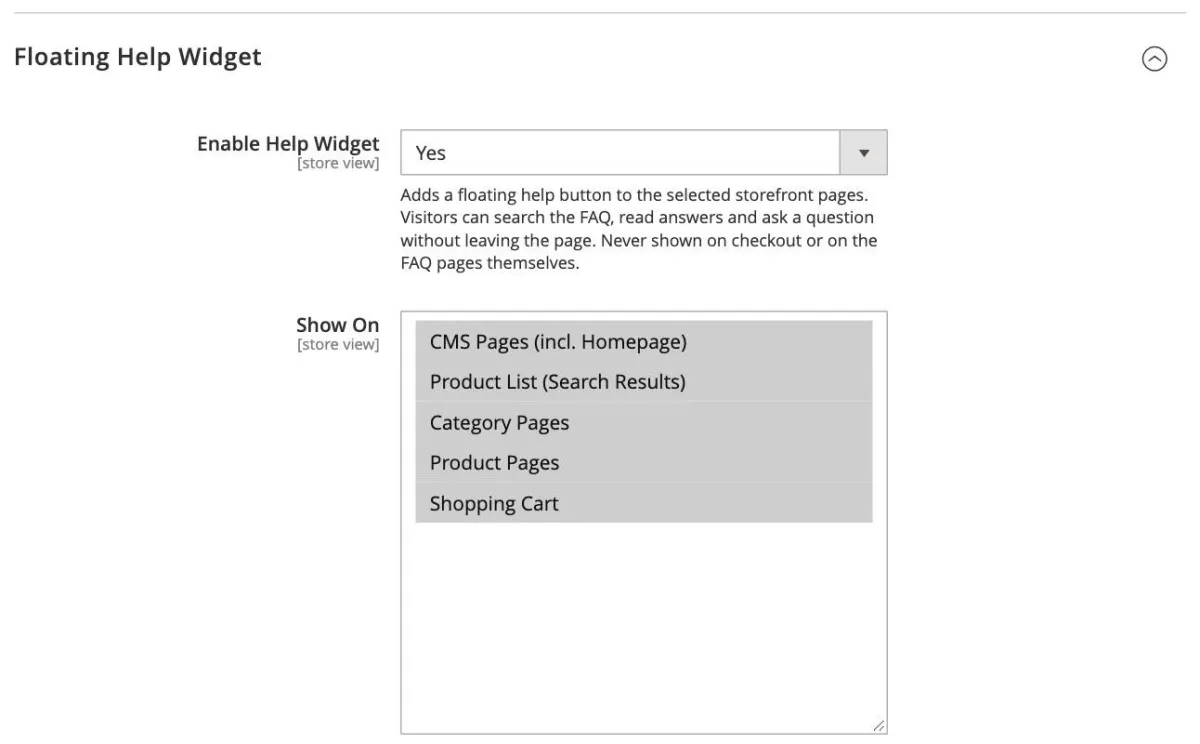
A floating help button that opens a panel where visitors can search the FAQ, read answers and ask a question without leaving the page. It is never shown on checkout or on the FAQ pages themselves.
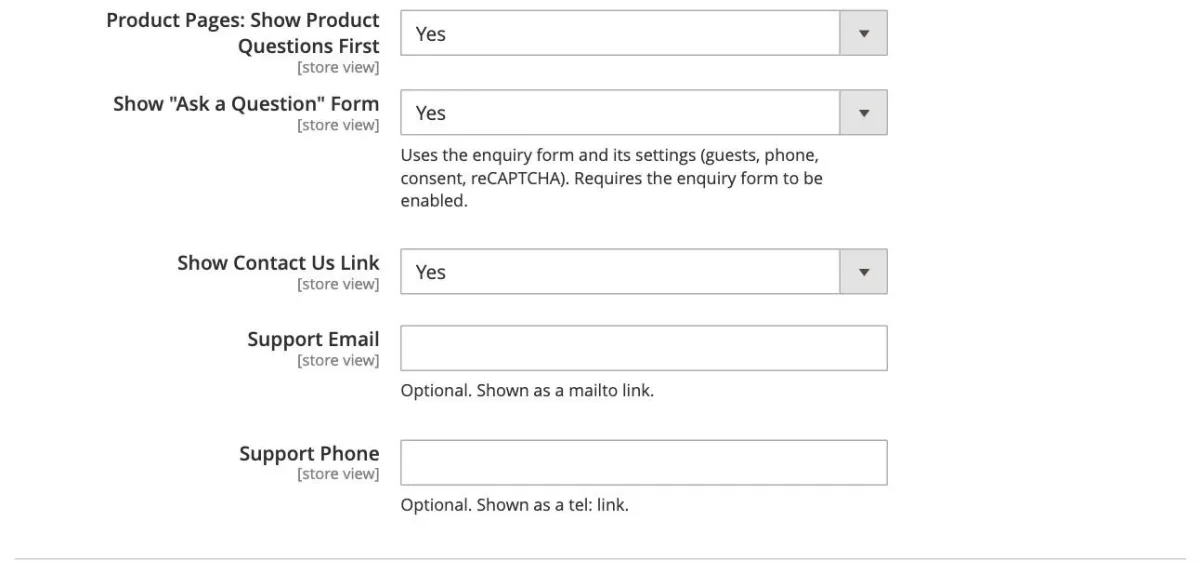
| Field | Description |
|---|---|
| Enable Help Widget | Shows the help button on the selected pages. |
| Show On | CMS Pages (incl. Homepage), Product List (Search Results), Category Pages, Product Pages, Shopping Cart. |
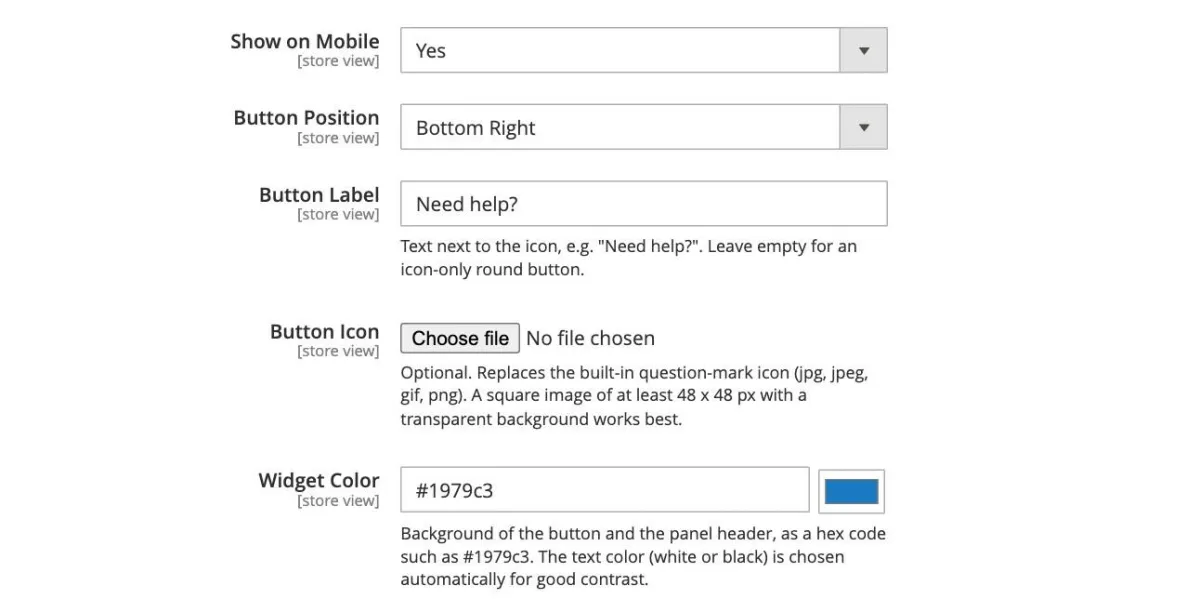
| Show on Mobile | Shows the widget on small screens. |
| Button Position | Bottom right or bottom left. |
| Button Label | Text next to the icon, e.g. "Need help?". Leave empty for a round icon-only button. |
| Button Icon | Optional custom icon (square, at least 48 x 48 px, transparent background). |
| Widget Color | Background of the button and the panel header. Text color is chosen automatically. |
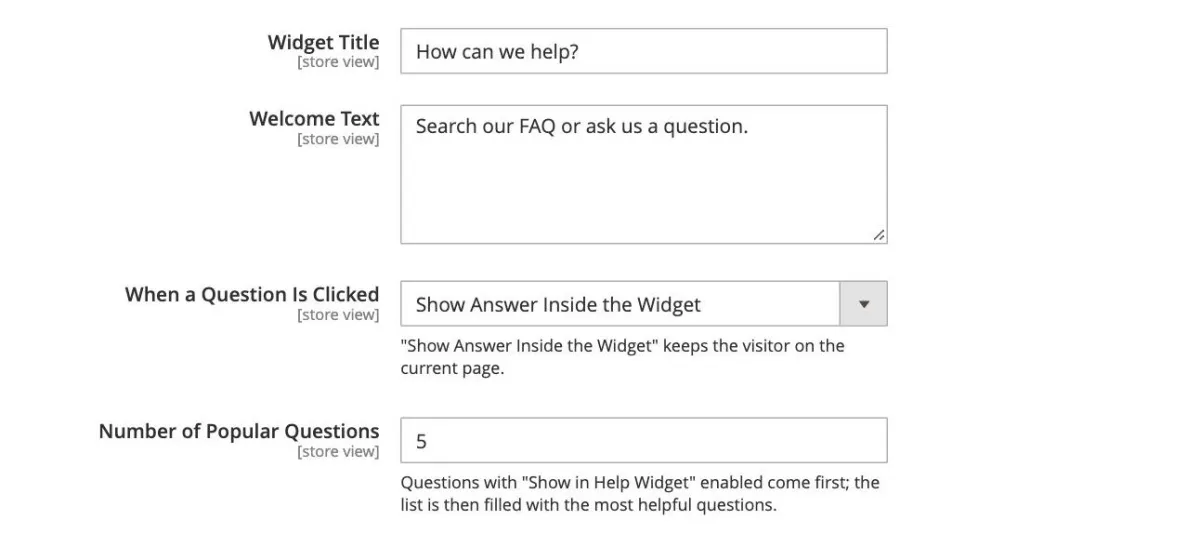
| Widget Title / Welcome Text | Texts at the top of the panel. |
| When a Question Is Clicked | Show Answer Inside the Widget, or Open the FAQ Page. |
| Number of Popular Questions | Questions with "Show in Help Widget" enabled come first; the list is then filled with the most helpful questions. |
| Product Pages: Show Product Questions First | On product pages, the product's own questions are listed first. |
| Show "Ask a Question" Form | Uses the enquiry form and its settings. Requires the enquiry form to be enabled. |
| Show Contact Us Link / Support Email / Support Phone | Contact options shown under "Still need help?". |
Enquiry form (Ask a Question)
Lets shoppers send a question when they cannot find an answer. Enquiries are listed under Advance FAQ > Enquiries.
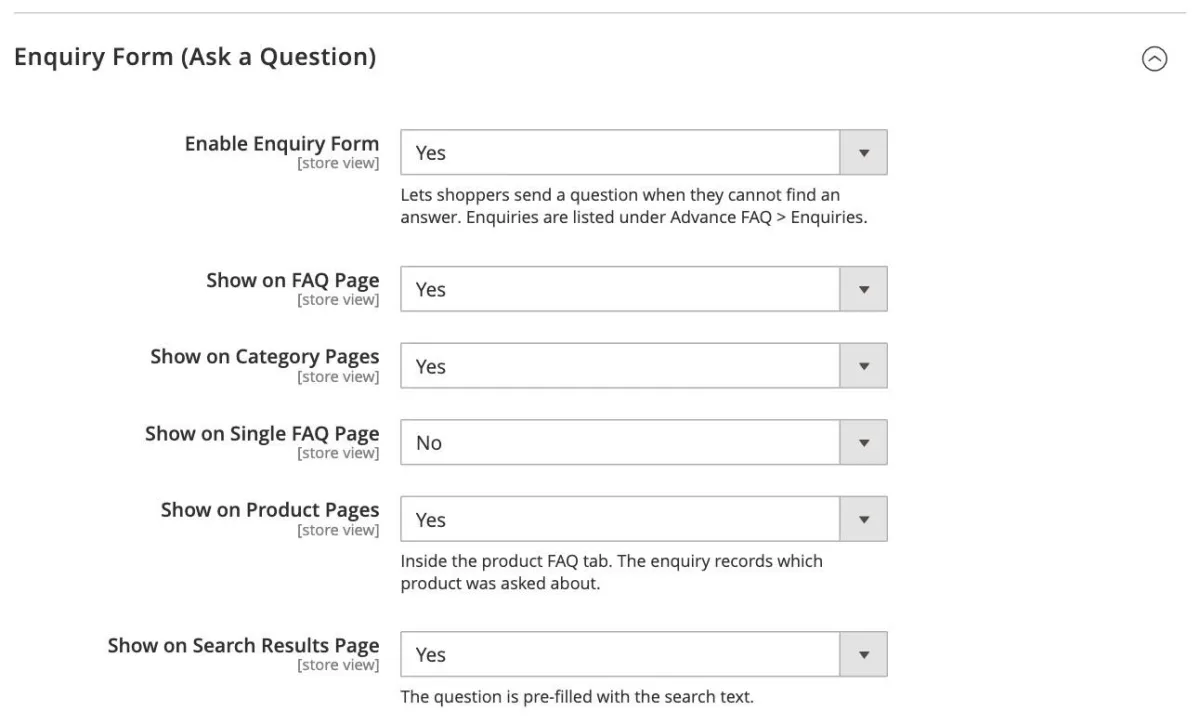
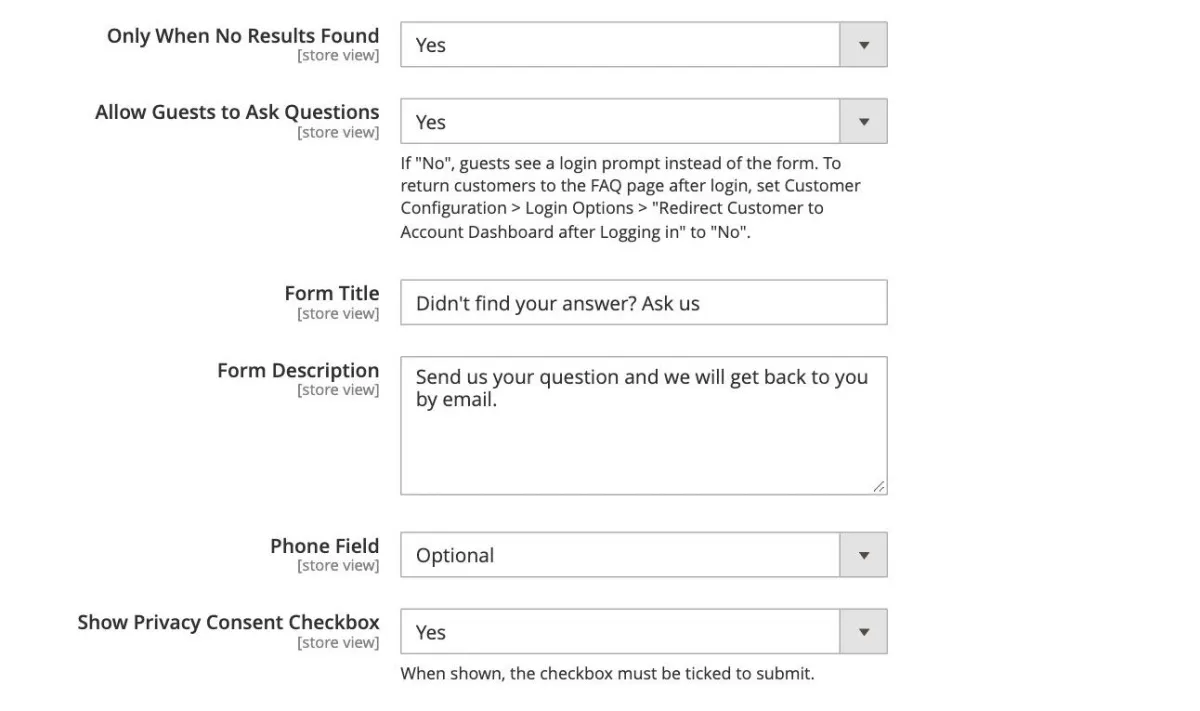
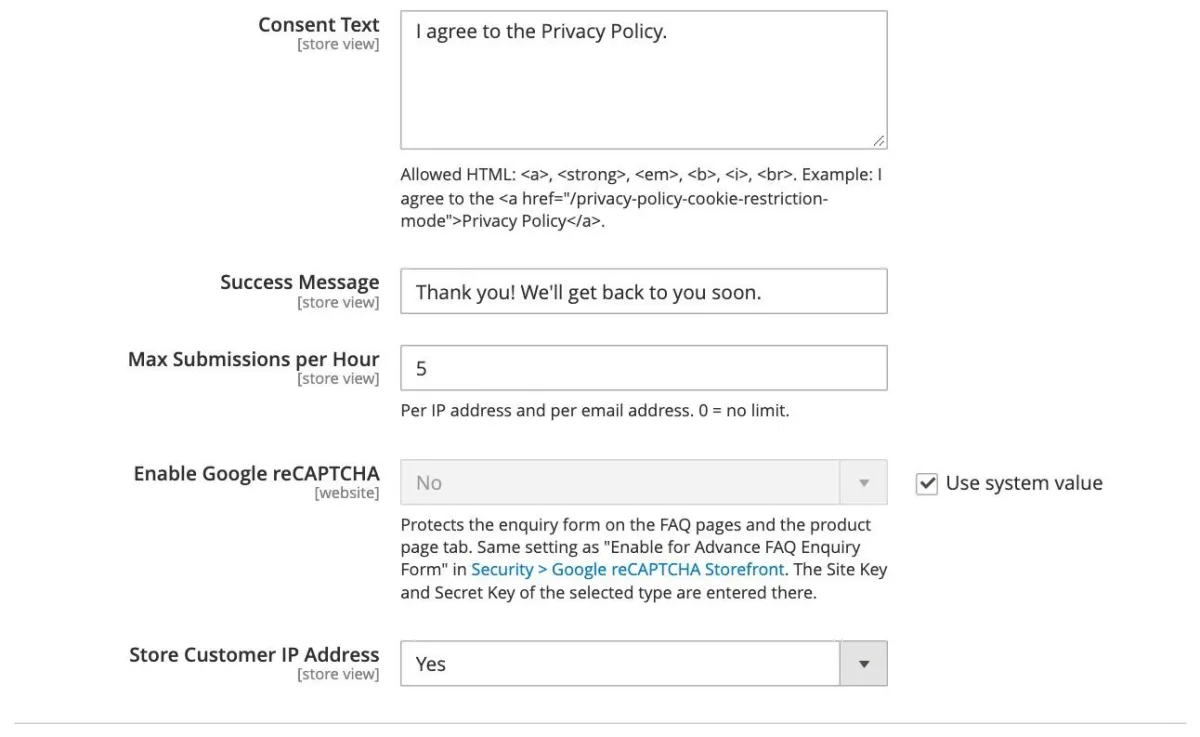
| Field | Description |
|---|---|
| Enable Enquiry Form | Master switch for the form. |
| Show on FAQ Page / Category Pages / Single FAQ Page | Where the form is shown. |
| Show on Product Pages | Inside the product FAQ tab. The enquiry records which product was asked about. |
| Show on Search Results Page / Only When No Results Found | The question is pre-filled with the search text; optionally only when nothing was found. |
| Allow Guests to Ask Questions | If No, guests see a login prompt instead of the form. |
| Form Title / Form Description | Texts above the form. |
| Phone Field | Hidden, Optional or Required. |
| Show Privacy Consent Checkbox / Consent Text | A checkbox that must be ticked to submit. The text may contain links (e.g. to your Privacy Policy). |
| Success Message | Message shown after sending. |
| Max Submissions per Hour | Spam protection per IP address and per email address. 0 = no limit. |
| Enable Google reCAPTCHA | Adds Google reCAPTCHA to the form (keys are set in Stores > Configuration > Security > Google reCAPTCHA Storefront). |
| Store Customer IP Address | Saves the sender's IP address with the enquiry. |
Enquiry email notifications
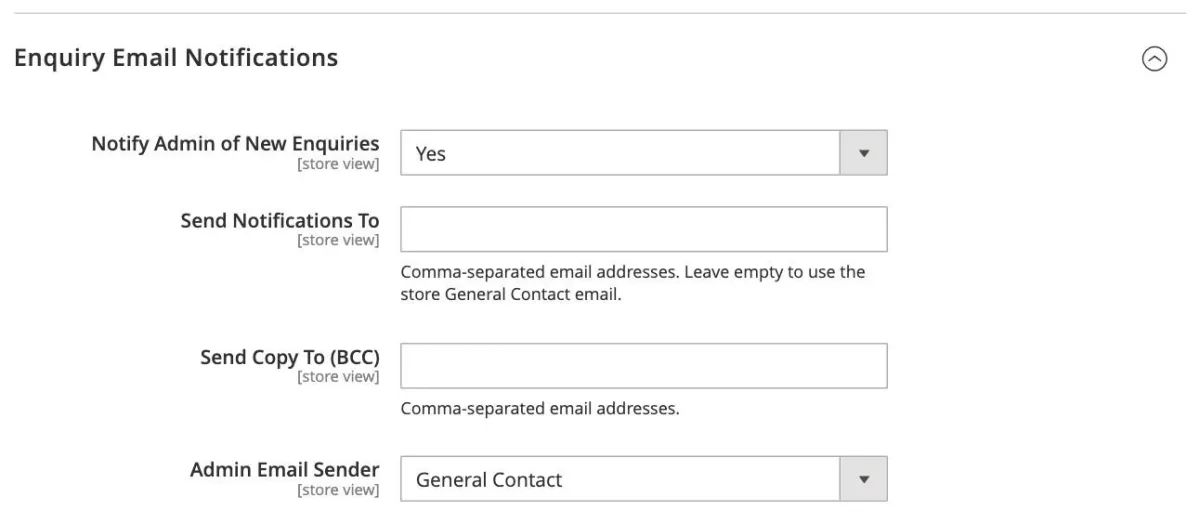
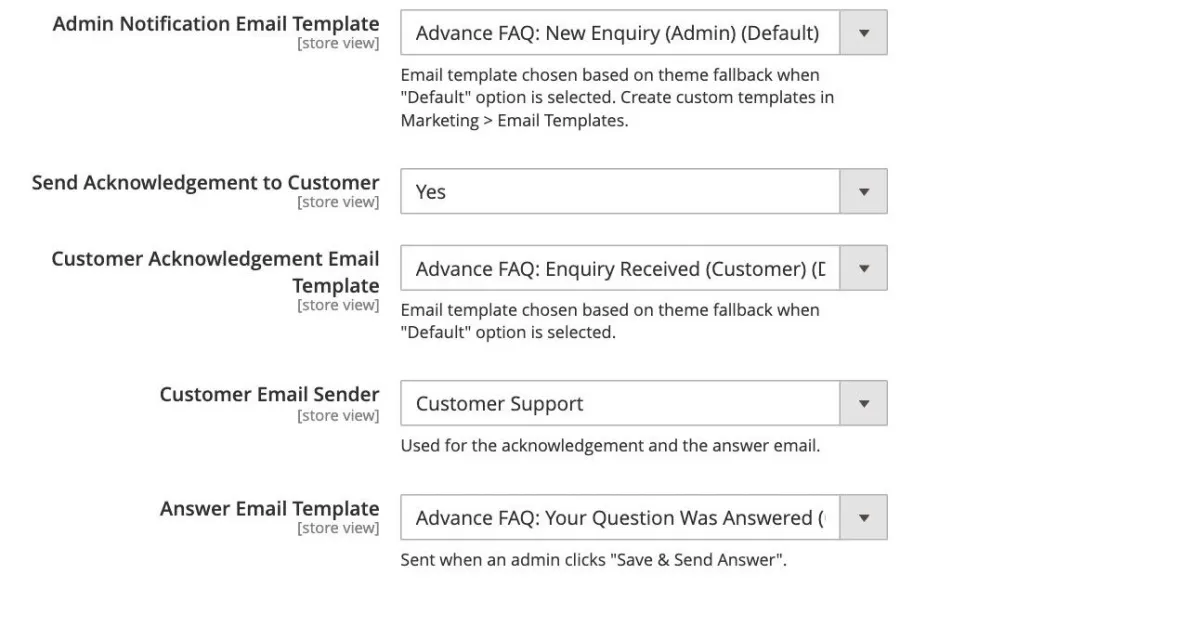
| Field | Description |
|---|---|
| Notify Admin of New Enquiries | Sends an email to your team for each new enquiry. |
| Send Notifications To / Send Copy To (BCC) | Comma-separated email addresses. Leave empty to use the store General Contact email. |
| Admin Email Sender / Admin Notification Email Template | Sender identity and template of the admin email. |
| Send Acknowledgement to Customer / Customer Acknowledgement Email Template | Confirms to the customer that the question was received. |
| Customer Email Sender | Sender of the acknowledgement and the answer email. |
| Answer Email Template | Email sent when an admin clicks "Save & Send Answer". |
Note: the email templates "Advance FAQ: New Enquiry (Admin)", "Enquiry Received (Customer)" and "Your Question Was Answered (Customer)" can be customised in Marketing > Email Templates (Add New Template > Load Template).
Managing FAQ categories
Go to Advance FAQ > FAQ Categories. The grid lists all categories with their parent category, sort order and status. Use Add New Category to create one, the Actions column to edit or delete, and the Import / Export CSV buttons as shortcuts to the import and export.
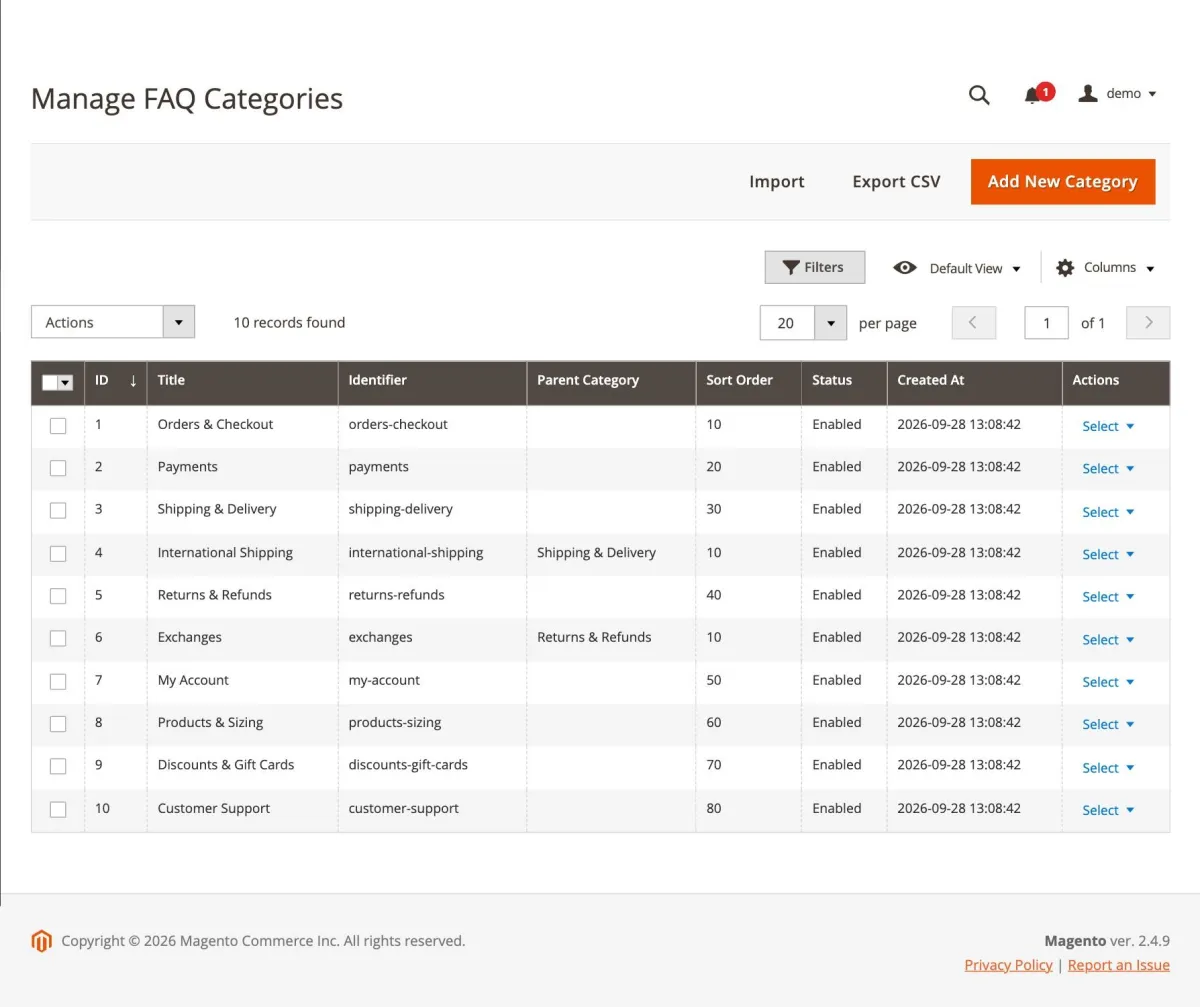
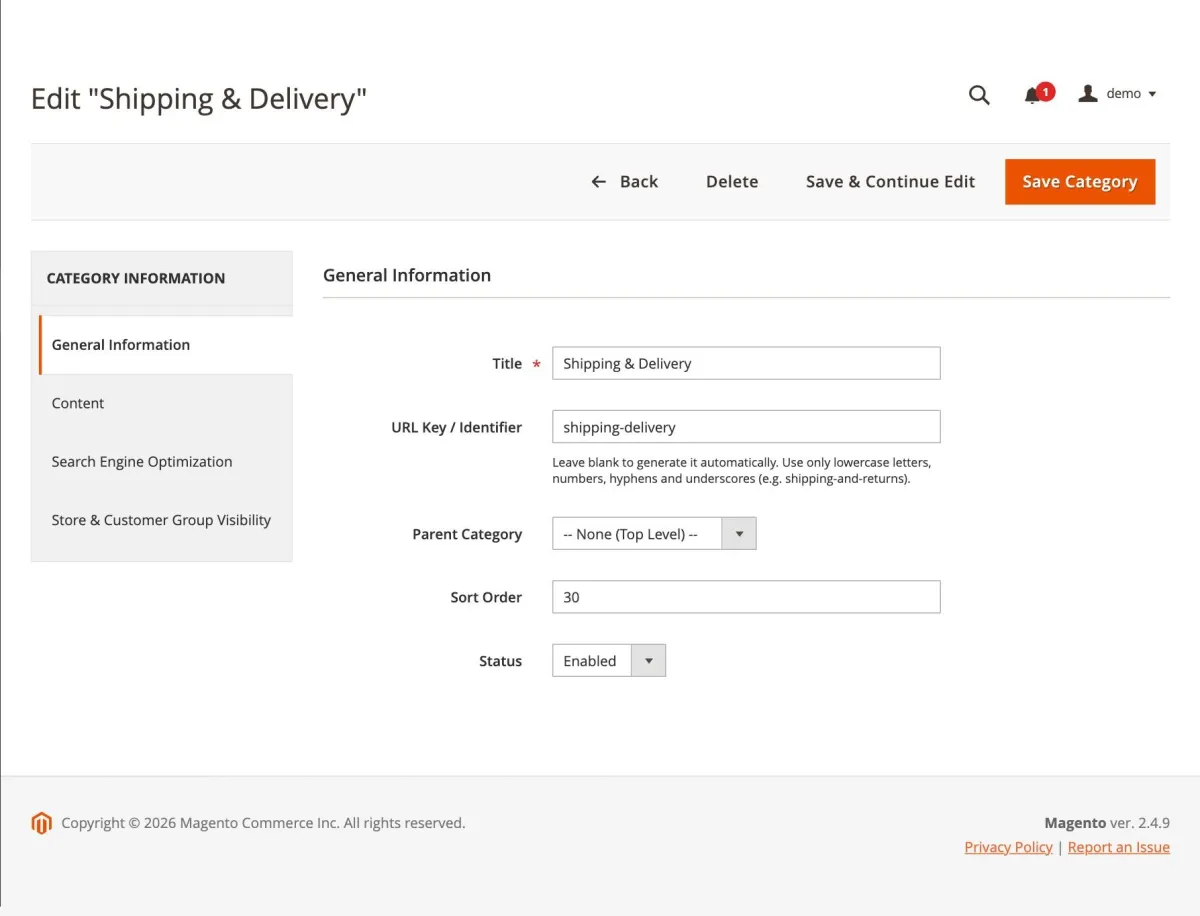
| Field | Description |
|---|---|
| Title | Name of the category. |
| URL Key / Identifier | Used in the category page URL (www.yourstore.com/faq/<url-key>). Generated from the title when left empty. |
| Parent Category | Makes the category a subcategory. Top-level categories are shown on the FAQ page; subcategories are shown on their parent's page. |
| Sort Order / Status | Position among the categories, and Enabled / Disabled. |
| Icon | Optional icon shown on category cards and tiles. |
| Banner Background Image | Optional banner image of this category's page (Help Center style). Overrides the image in FAQ Category Page Settings. |
| Description | Optional text shown on the category page and tiles. |
| Meta Title / Meta Description / Meta Robots | SEO meta data of the category page. |
| Store Views / Customer Groups | Where and for whom the category is visible. |
Managing questions and answers
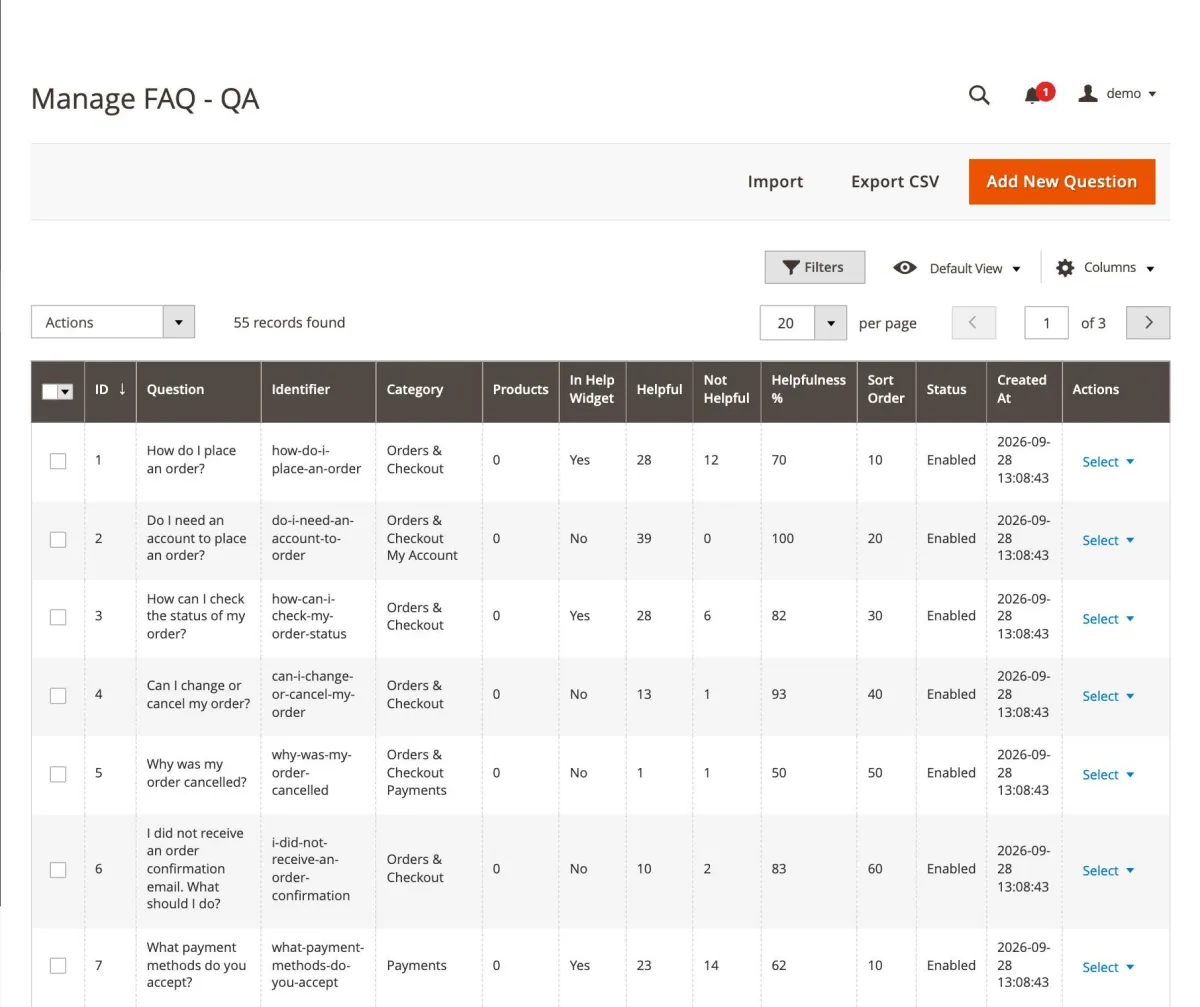
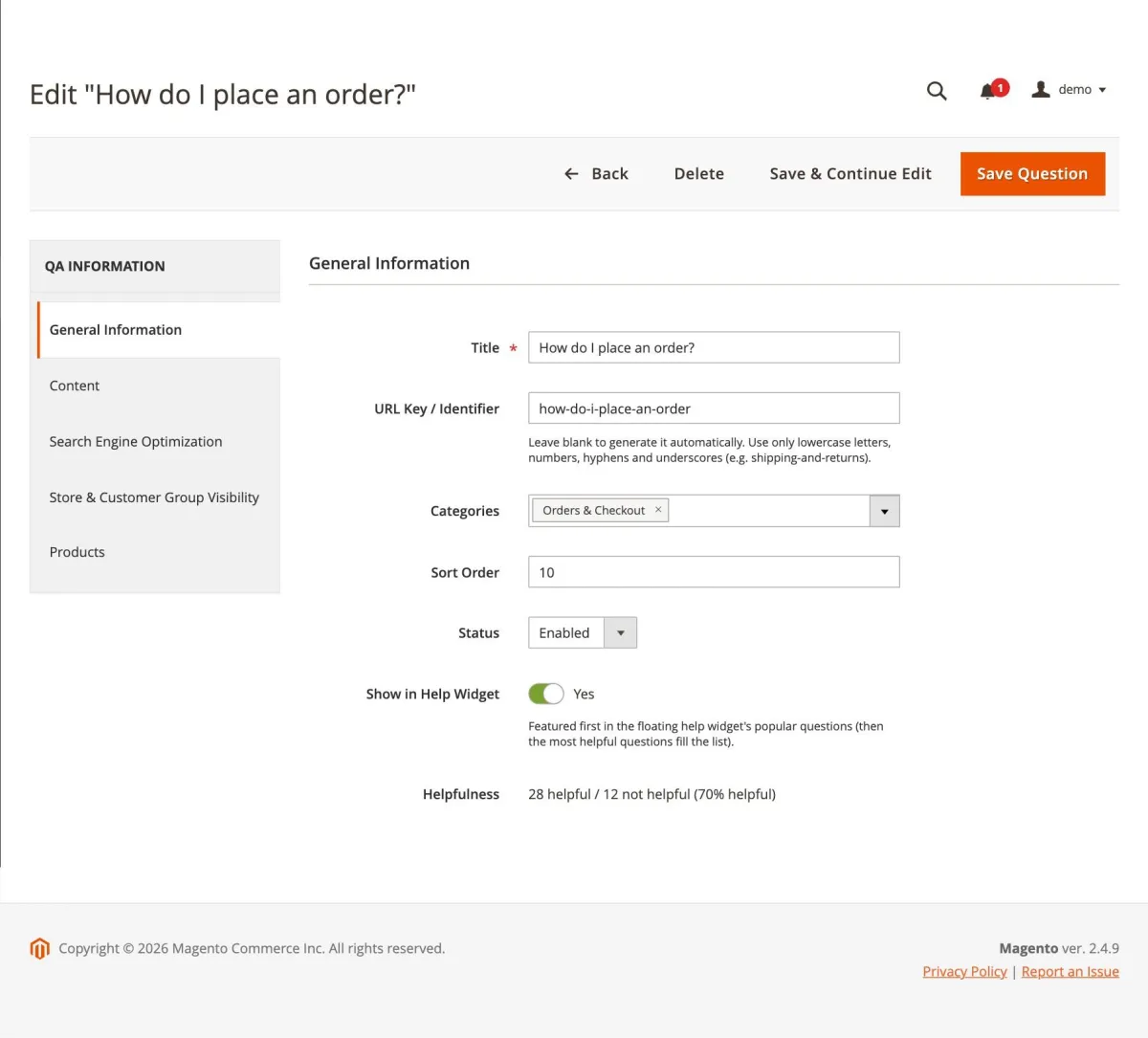
Go to Advance FAQ > Questions & Answers. Besides the question and its categories, the grid shows the number of assigned products and the helpfulness votes (Yes, No and Helpful %), so you can quickly find answers that need improvement. Select rows and use Actions > Delete or Reset Votes for mass actions.
| Field | Description |
|---|---|
| Title | The question. |
| URL Key / Identifier | Used in the single question page URL (www.yourstore.com/faq/question/<url-key>). Generated from the question when left empty. |
| Categories | One or more categories the question belongs to (searchable list). |
| Sort Order / Status | Position within its categories, and Enabled / Disabled. |
| Show in Help Widget | Lists the question first among the popular questions of the help widget. |
| Helpfulness | Read-only vote statistics of the question. |
| Answer | The answer, edited with the WYSIWYG editor (images, links and formatting are supported). |
| Meta Title / Meta Description / Meta Robots | SEO meta data of the single question page. |
| Store Views / Customer Groups | Where and for whom the question is visible. |
| Products | Assign products; the question then appears in their product FAQ tab. |
Managing enquiries
Questions sent through the "Ask a Question" form are listed under Advance FAQ > Enquiries, with the customer details, where the question was asked (FAQ page, category page, single FAQ page, search results, product page, help widget or FAQ widget) and its status.
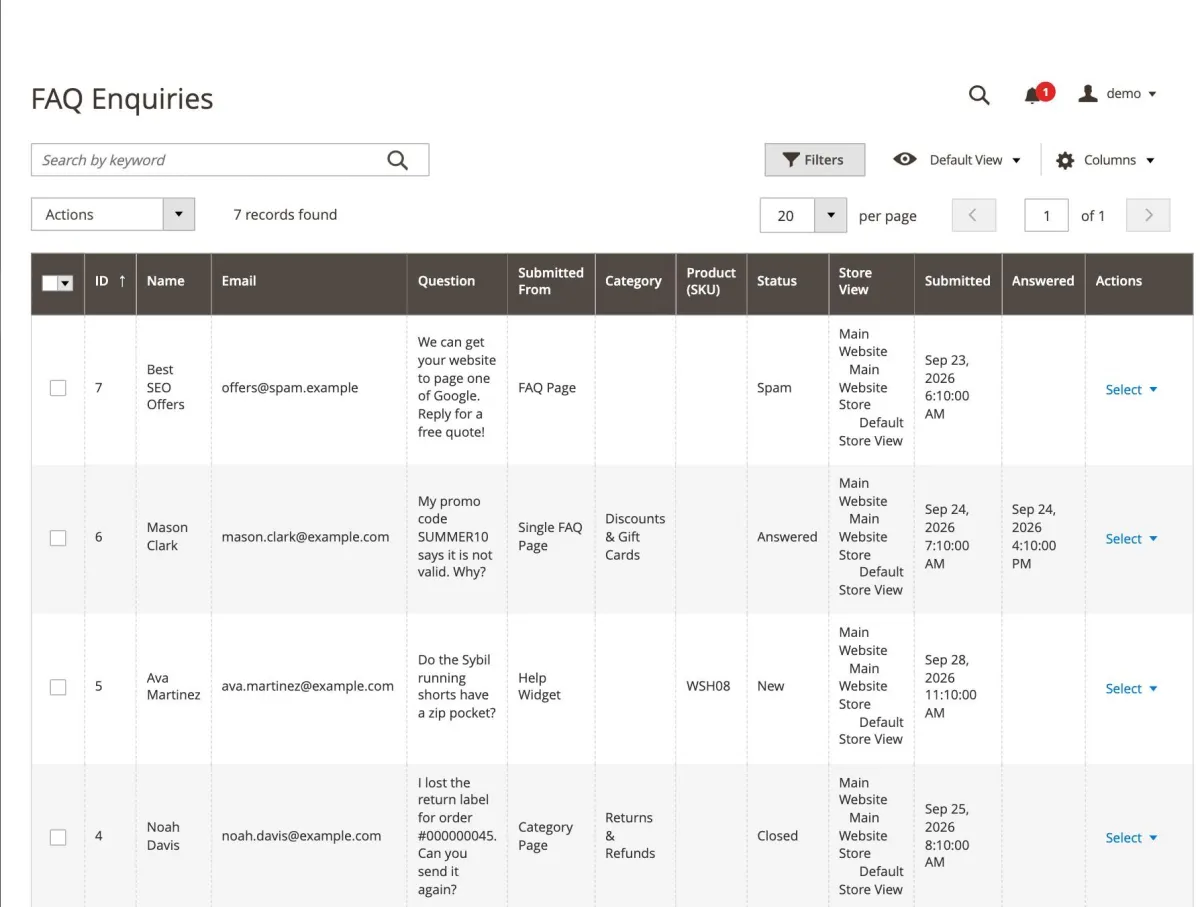
| Status | Meaning |
|---|---|
| New | Received and not handled yet. |
| In Progress | Your team is working on it. |
| Answered | An answer was sent to the customer. |
| Closed | Handled without an answer email. |
| Spam | Marked as spam. |
Open an enquiry to see all details (name, email, phone, store view, the page, category or product it came from, the search text, consent and IP address if stored). You can then:
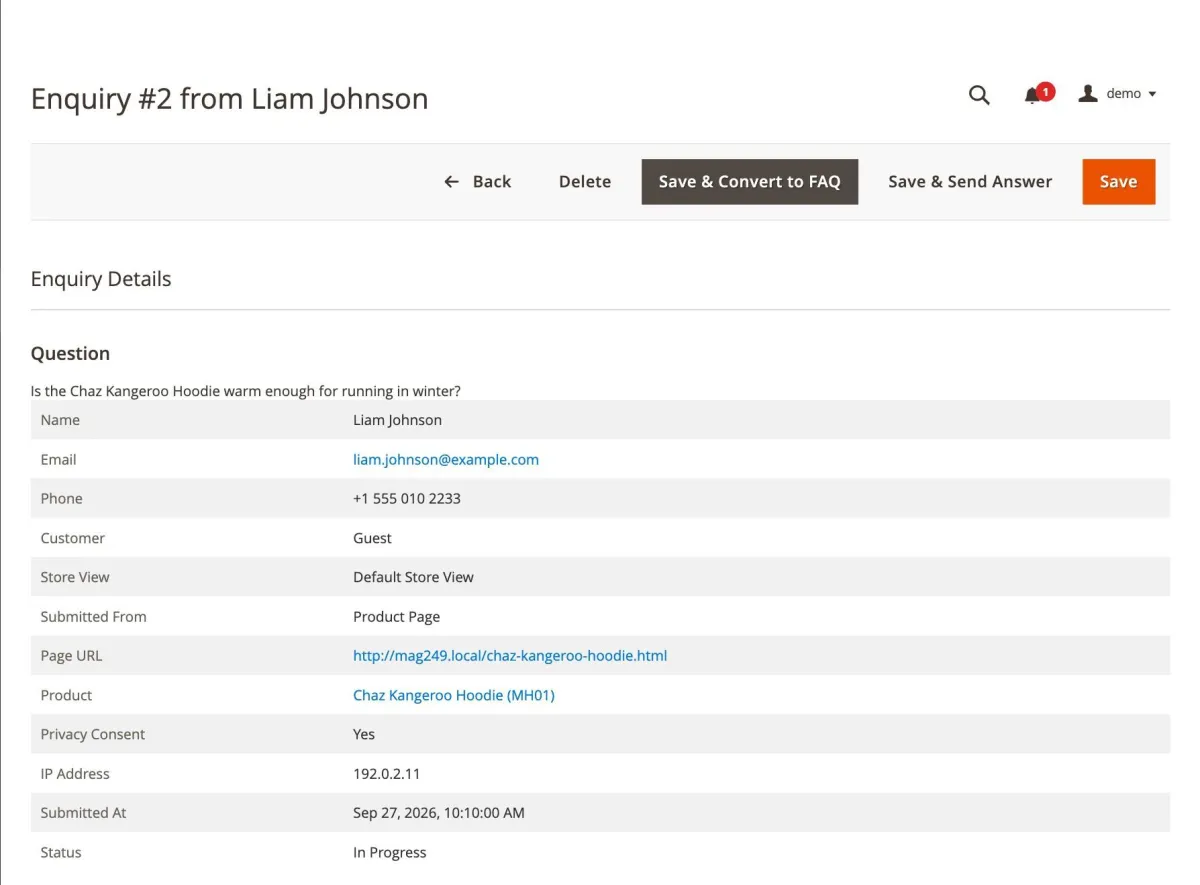
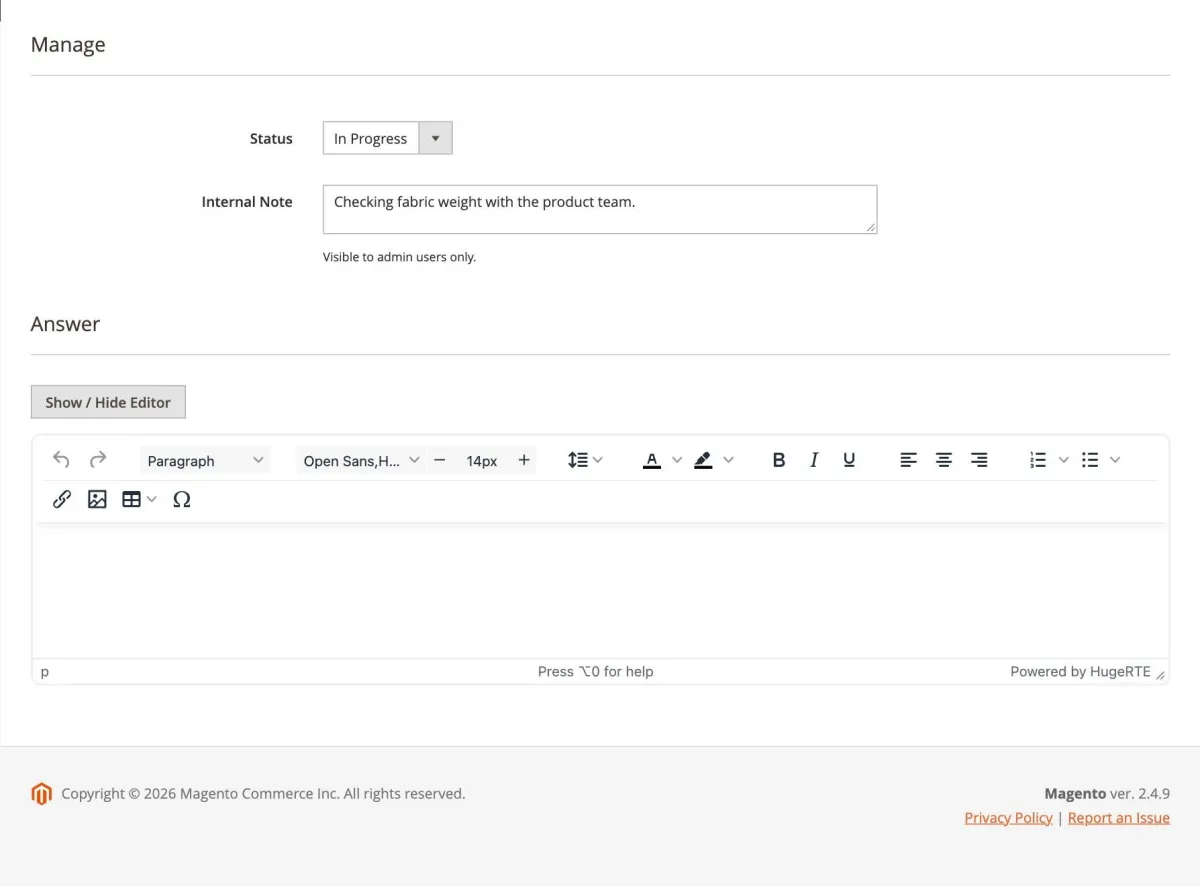
- Save: change the status or add an Internal Note (never shown to the customer).
- Save & Send Answer: emails your answer to the customer and sets the status to Answered.
- Save & Convert to FAQ: creates a new question from the enquiry (with its category and product) so other shoppers benefit from the answer.
- Delete: removes the enquiry. In the grid you can also change the status of, or delete, several enquiries at once.
CMS widgets
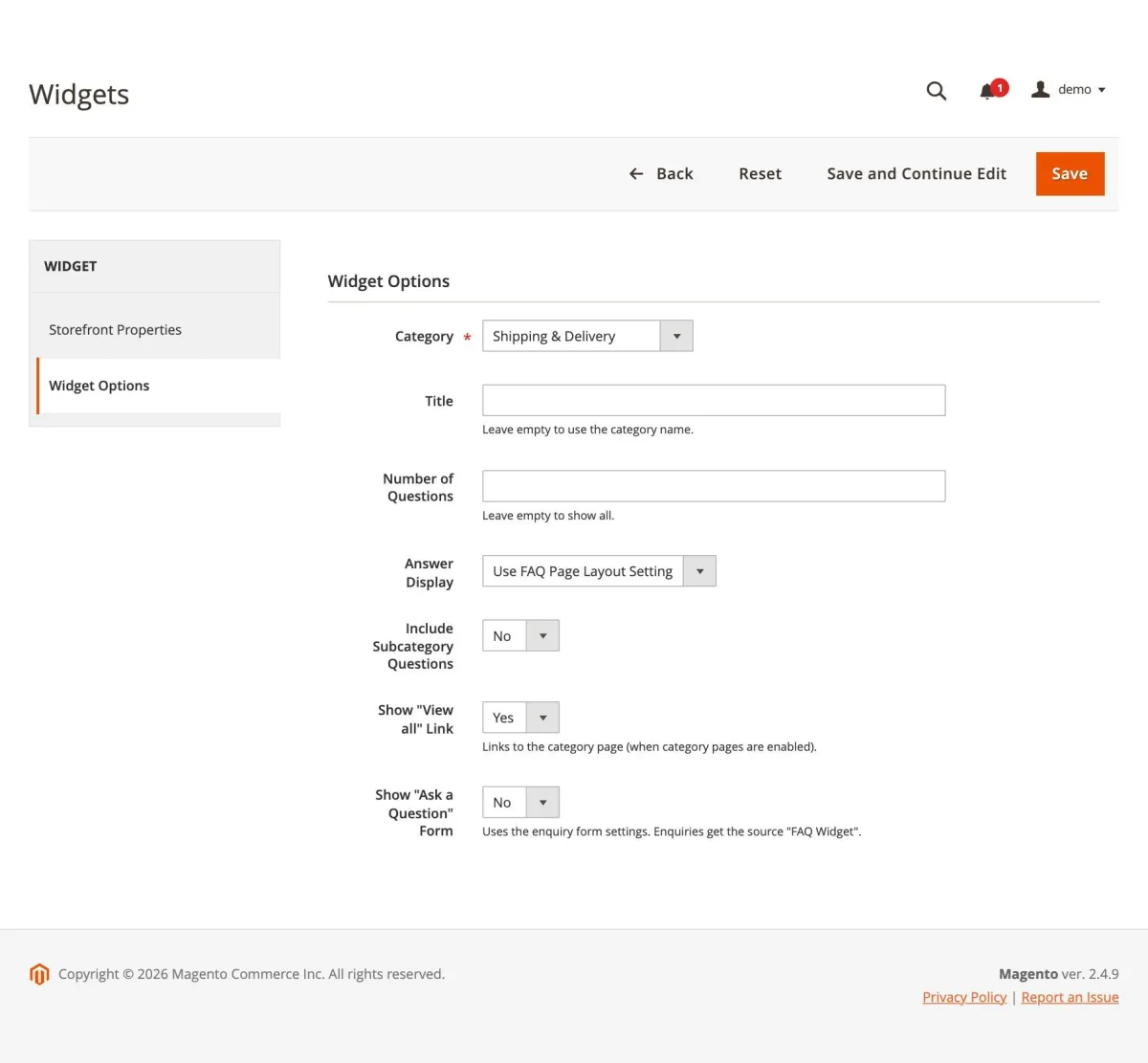
Show FAQs on any CMS page or block: go to Content > Widgets > Add Widget, or click Insert Widget in the CMS page or block editor, and choose one of the Advance FAQ widgets.
| Widget | Shows |
|---|---|
| Advance FAQ - All FAQs | All categories with their questions, like the FAQ page. Options: title, style (Cards / Tiles), columns, questions per category, answer display, search box and "Ask a Question" form. |
| Advance FAQ - Category FAQs | The questions of one category. Options: category, title, number of questions, answer display, include subcategory questions, "View all" link and "Ask a Question" form. |
| Advance FAQ - Product FAQs | The questions assigned to a product, chosen with the product picker or by product ID / SKU (or the current product when placed on a product page). Options: title, number of questions, answer display and "Ask a Question" form. |
Import and export
FAQ categories and questions can be imported and exported as CSV files through Magento's standard System > Data Transfer tools. Rows are matched by url_key, so you can export, edit and import the file again. Enquiries can be exported.
Importing
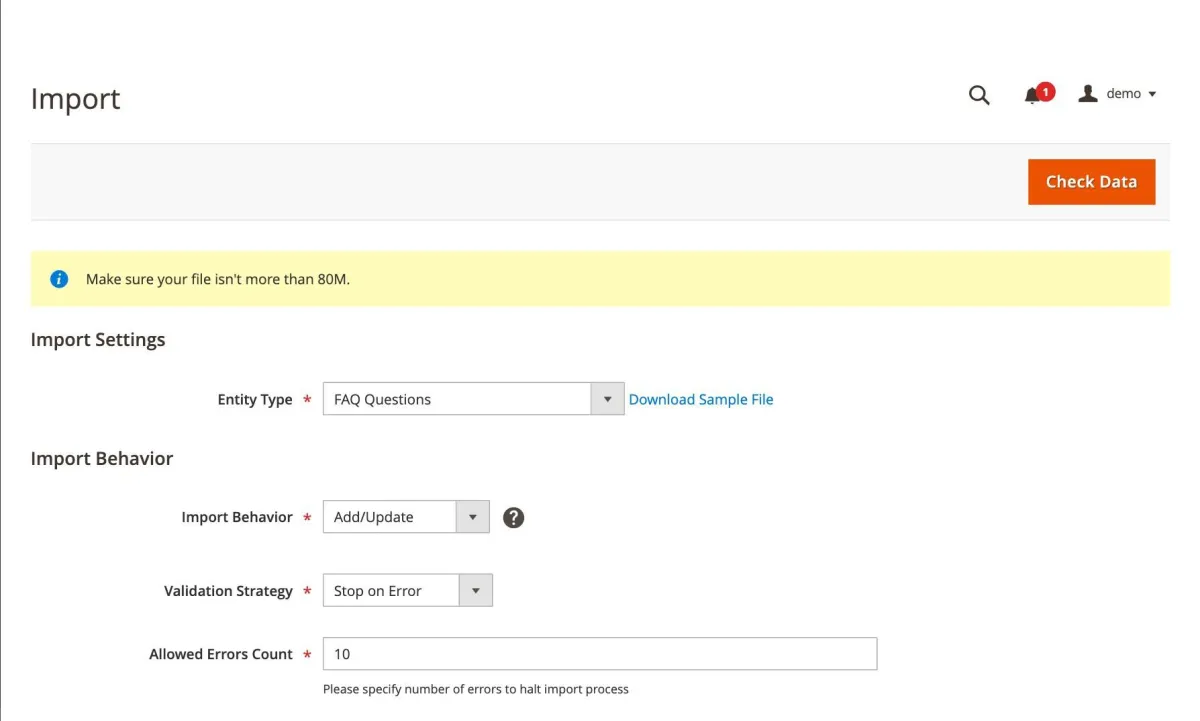
- Go to System > Data Transfer > Import (or click Import on the FAQ Categories / Questions & Answers grid).
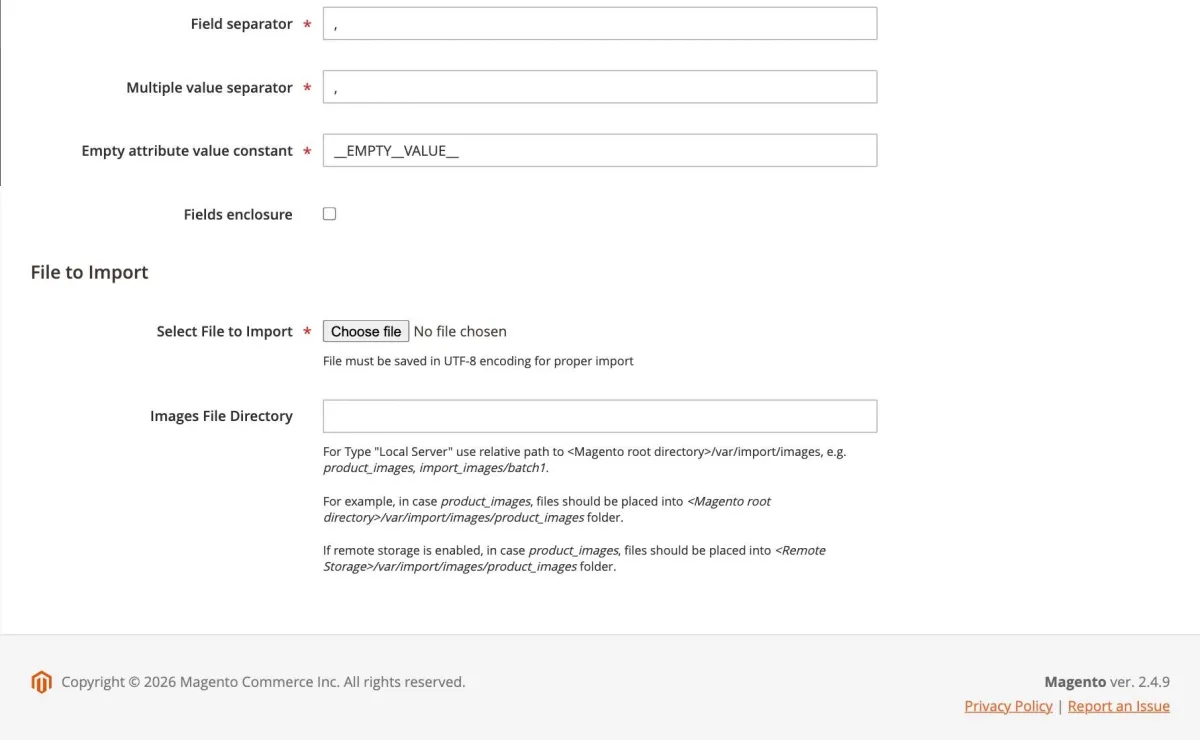
- Select Entity Type FAQ Categories or FAQ Questions. Click Download Sample File to get an example CSV.
- Choose the Import Behavior: Add/Update, Replace or Delete.
- Select your CSV file and click Check Data. Fix any errors reported, then click Import.
| Behavior | Result |
|---|---|
| Add/Update | Creates new entries and updates existing ones. Empty cells keep the current value. |
| Replace | Overwrites existing entries with the values in the file. Empty cells clear the value. |
| Delete | Deletes the entries whose url_key is listed in the file. |
| Column | Format |
|---|---|
url_key | Required. Identifies the category or question (lowercase letters, numbers, hyphens and underscores). |
parent_url_key | Categories: url_key of the parent category. It must exist or appear in an earlier row of the file. |
categories | Questions: comma-separated category url_keys. |
products | Questions: comma-separated product SKUs. Unknown SKUs are skipped with a warning; the rest of the row is imported. |
store_views | Comma-separated store view codes, or "all". |
customer_groups | Comma-separated customer group names or IDs, or "all". |
status / sort_order / show_in_widget | 1 = enabled / yes, 0 = disabled / no; sort order as a whole number. |
icon / banner_image | Categories: image file names. The files must already exist in the category media folders. |
Exporting
- Grid shortcut: click Export CSV on the FAQ Categories or Questions & Answers grid to download all entries immediately, in the import format.
- System > Data Transfer > Export: select FAQ Categories, FAQ Questions or FAQ Enquiries, optionally filter or exclude columns, and click Continue. The file is created in the background and appears in the export file list.
Note: exports from System > Data Transfer > Export are processed by Magento's message queue, so the Magento cron (or the exportProcessor consumer) must be running. The grid Export CSV buttons do not need cron.
Storefront behaviour
Once enabled and configured, shoppers experience the FAQ as follows:
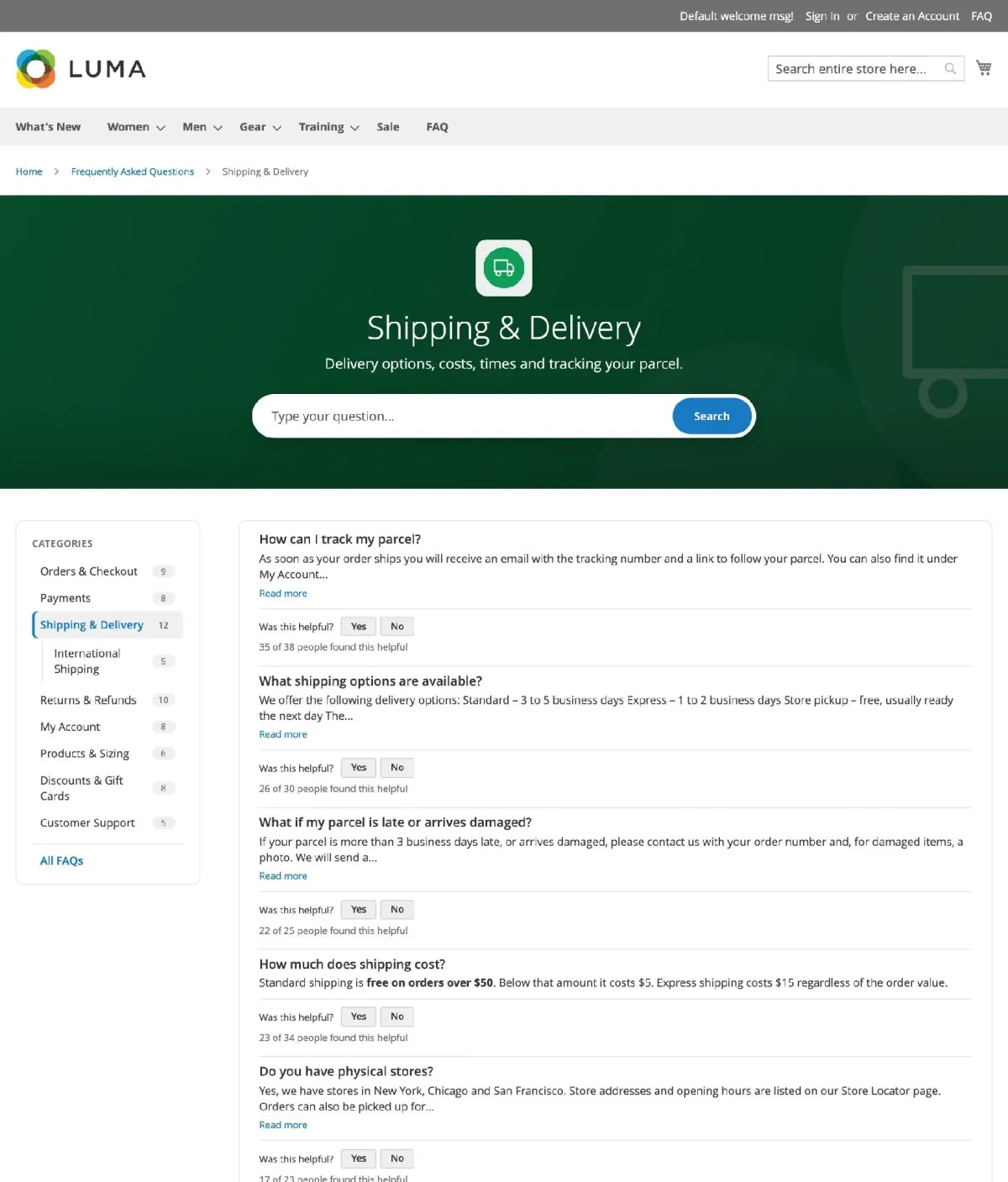
- The FAQ page lists the top-level categories and their questions. Each category links to its own page, which shows its questions followed by its subcategories.
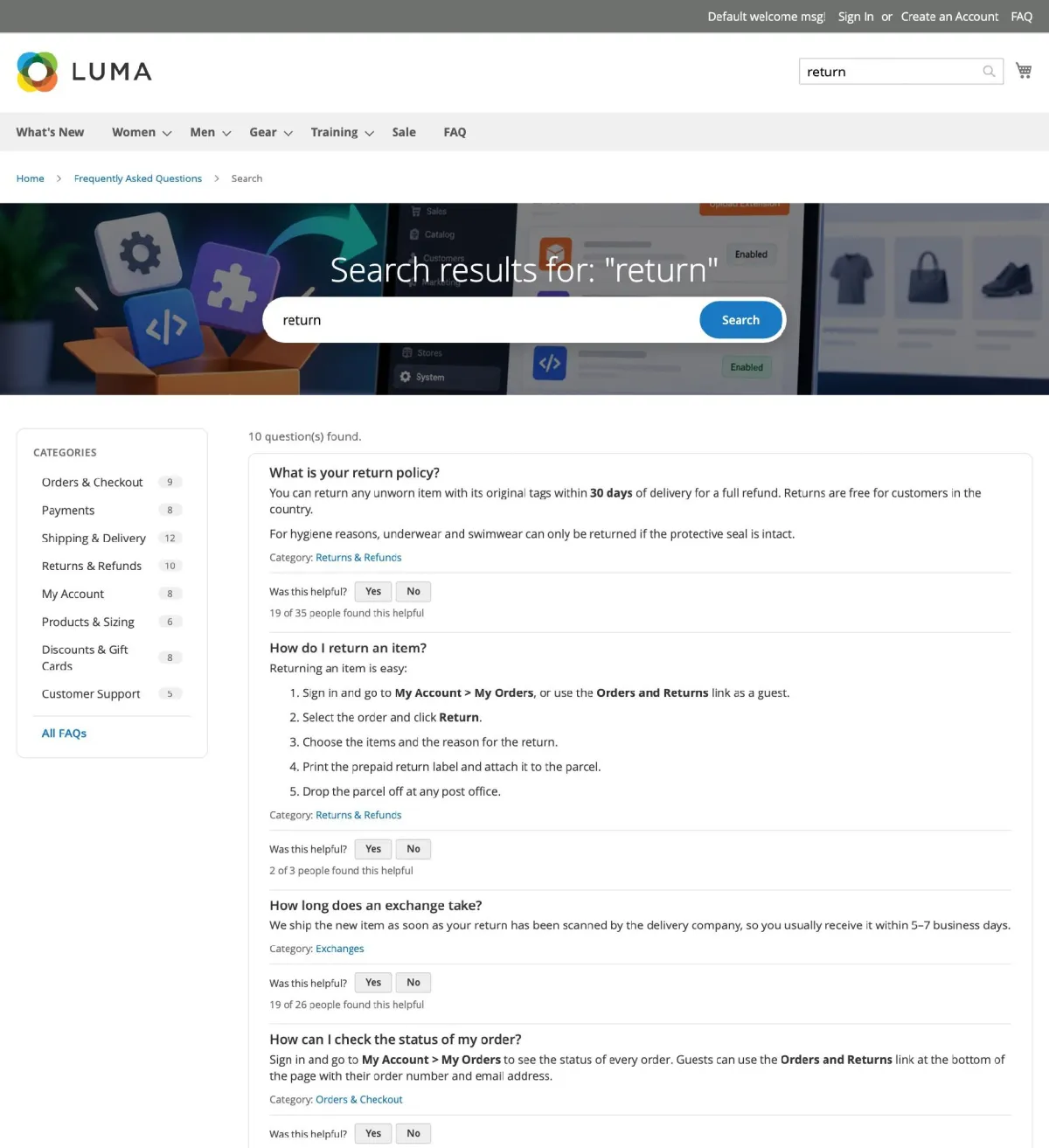
- Typing in the search box shows matching questions instantly; pressing Enter opens the full search results page.
- Answers open in an accordion or are shown in full, depending on the Page Layout, and long answers can be shortened to an excerpt with "Read more" / "Show more".
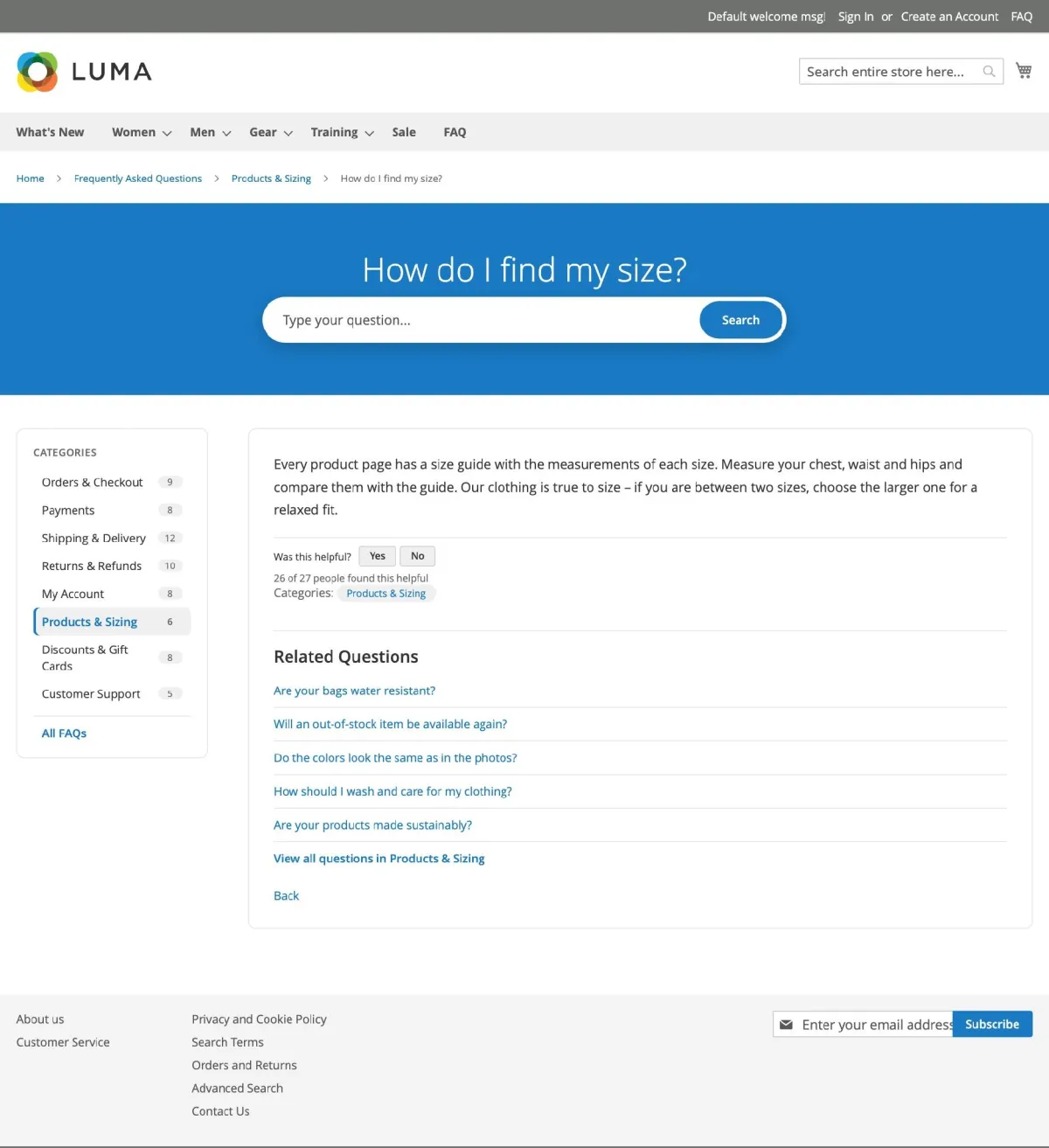
- Each question has its own page with related questions, breadcrumbs and "Was this helpful?" voting.
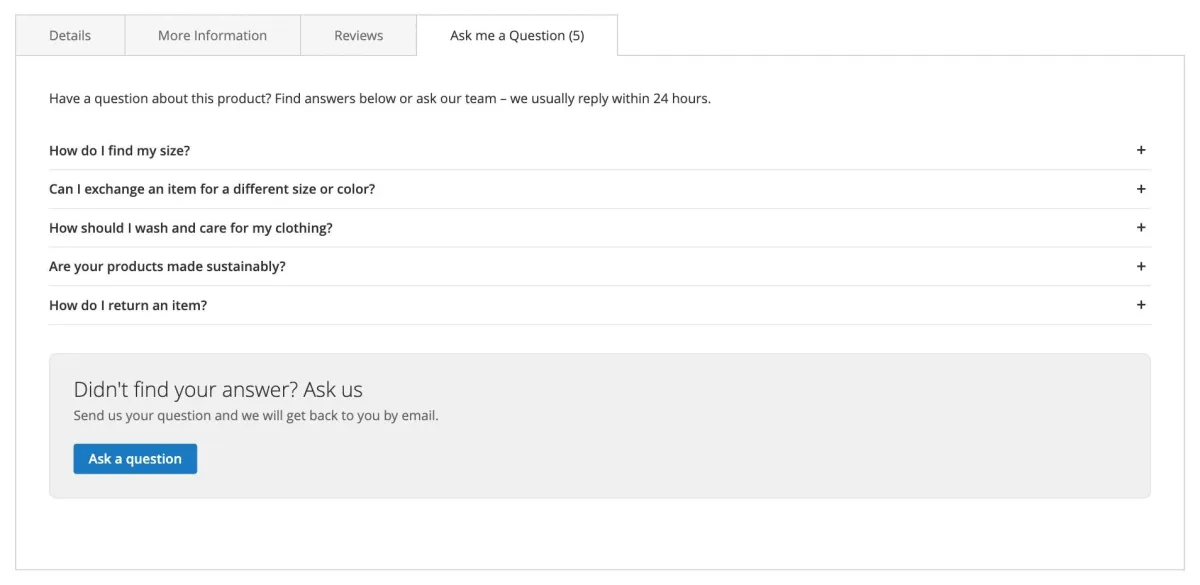
- Products with assigned questions show them in the product FAQ tab, together with the "Ask a question" form.
- The floating help widget lets shoppers search and read answers on any selected page without leaving it.
- Shoppers only see categories and questions assigned to their store view and customer group.
Category page
Single question page
Search results
Product FAQ tab
Floating help widget
Ask a question form
Uninstallation
php bin/magento module:disable Magexweb_Advancefaq- Remove the module files (
composer remove magexweb/advancefaq, or deleteapp/code/Magexweb/Advancefaq). php bin/magento setup:upgrade && php bin/magento cache:flush
Note: your FAQ data stays in the database (tables starting with magexweb_advancefaq_), so nothing is lost if you install it again. Remove these tables manually only if you no longer need the data, and back up your database first.
Troubleshooting and FAQ
The FAQ page shows "404 Not Found"
- Check that Enable Advance FAQ is set to Yes for the store view, that the Page URL is not used by a CMS page or product, and flush the Magento cache.
A category or question is not visible on the storefront
- Check that it is enabled and assigned to the current store view and customer group. A question must also belong to at least one enabled category that is visible to the shopper.
I don't see the banner, sidebar or banner images
- These are features of the Help Center page style. Set FAQ Page Settings > Page Style to Help Center and check the banner settings of each page type.
The FAQ link does not appear in the top menu
- Check Show FAQ Link in Top Menu in FAQ Page Settings, then flush the cache (the menu is cached as a block).
Enquiry emails are not received
- Check the Enquiry Email Notifications settings and that your store can send emails (Stores > Configuration > Advanced > System > Mail Sending Settings). Enquiries are always saved in the admin, even if an email fails.
Google reCAPTCHA is not shown on the enquiry form
- Enable it in Enquiry Form > Enable Google reCAPTCHA and enter your reCAPTCHA keys in Stores > Configuration > Security > Google reCAPTCHA Storefront.
My export file does not appear in System > Data Transfer > Export
- Exports run through the message queue. Make sure the Magento cron is running, or use the Export CSV buttons on the FAQ grids for an immediate download.
Can I show FAQs on a CMS page?
- Yes. Use the Advance FAQ CMS widgets.
Does the extension support multiple stores and languages?
- Yes. Most settings can be set per store view, and every category and question can be limited to specific store views and customer groups.
Support
For help, email info@magexweb.com.