
Overview
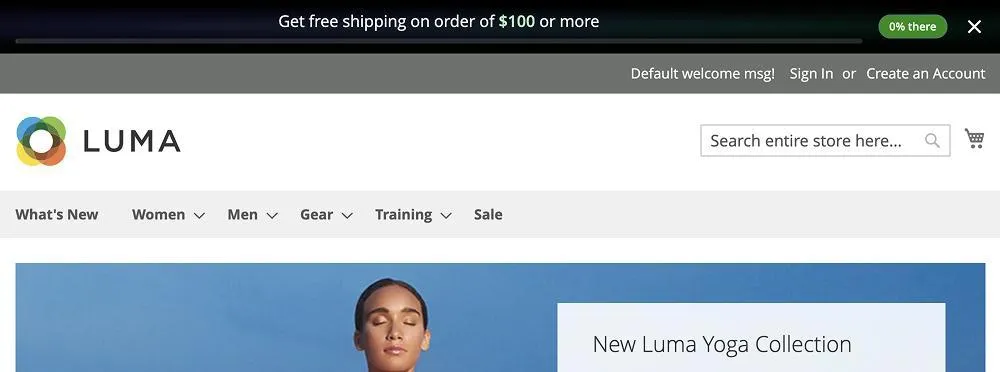
The Magexweb Free Shipping Bar extension adds a promotional notification bar to your Magento 2 storefront that encourages customers to add more products to their cart to unlock free shipping. As a customer shops, the bar shows how much more they need to spend to qualify, and switches to a congratulatory success message once they cross the threshold.
This nudges shoppers toward a higher order value by turning your free-shipping policy into a visible, real-time incentive, rather than a rule they only discover at checkout.
Important: this extension does not create shipping rates by itself. You still need a matching Free Shipping method (or a cart price rule) in Magento so the discount is actually applied at checkout. The bar's threshold amount should match that rule's minimum order amount.
Key features
- Live progress bar showing how close a customer is to free shipping
- Optional percentage badge (e.g. "65% there" / "Unlocked!")
- Different thresholds and messages per customer group (e.g. Guest, General, Wholesale)
- Fully customisable text for three states: initial (empty cart), in progress, and success
- Four display positions: page top, content top, content bottom, page bottom
- Sticky bar option that stays visible while scrolling
- Optional close (dismiss) button
- Auto-hide after a configurable number of seconds
- Choice of which pages the bar appears on (Home, Category, Product, Search, Cart, Checkout, CMS pages)
- Full design control: text alignment, font size, background, text and value colours, progress bar colour, badge colours
- Custom CSS field for advanced styling
- Updates live via AJAX when a product is added to the cart, with no page refresh
How it works
The bar reads the shopper's current cart subtotal and compares it with the threshold amount configured for their customer group. Depending on the result, one of three messages is displayed:
- Initial message: shown when the cart is empty. Typically invites the customer to start shopping toward free shipping.

- Progress message: shown once the cart has items but the subtotal is still below the threshold. Typically tells the customer how much more they need to spend.

- Success message: shown once the cart subtotal reaches or exceeds the threshold. Congratulates the customer on unlocking free shipping.

Each customer group can have its own threshold amount and its own wording for the initial and progress messages, so you could, for example, set a lower free-shipping threshold for logged-in customers than for guests.
Installation
Composer installation (recommended)
- Place the extension in your project (via a private Composer repository, Packagist, or by copying it under
app/code). - From the Magento root, run the following commands:
| Command | Purpose |
|---|---|
composer require magexweb/freeshippingbar | Only if distributed via a Composer repository |
php bin/magento module:enable Magexweb_Freeshippingbar | Registers and enables the module |
php bin/magento setup:upgrade | Runs the module's setup and schema updates |
php bin/magento setup:di:compile | Recommended for production mode |
php bin/magento setup:static-content:deploy -f | Required in production mode |
php bin/magento cache:flush | Clears the Magento cache |
Manual (ZIP) installation
- Copy the extension folder to
app/code/Magexweb/Freeshippingbarin your Magento installation. - Run the same
bin/magentocommands listed above (module:enable, setup:upgrade, di:compile, static-content:deploy, cache:flush). - Check the module is active:
php bin/magento module:status Magexweb_Freeshippingbar
Admin configuration
All settings are under Stores > Settings > Configuration > Magexweb Extensions > Free Shipping Bar Configuration.
General configuration
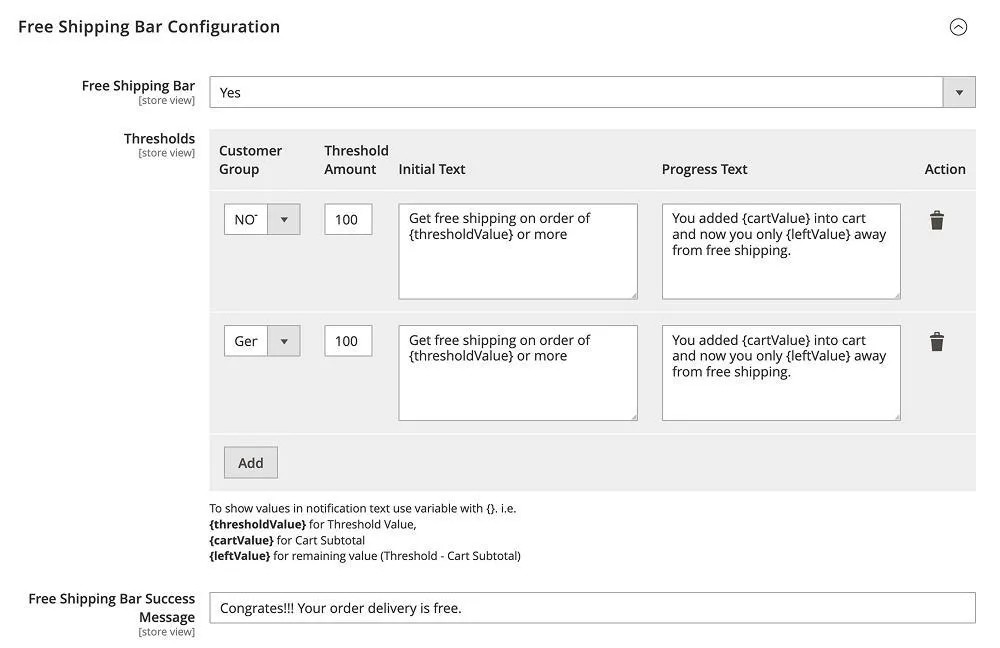
| Field | Description |
|---|---|
| Free Shipping Bar | Master switch. Set to Yes to show the bar on your storefront, or No to hide it completely. |
| Thresholds | A table where you define the free-shipping amount and messages per customer group. |
| Free Shipping Bar Success Message | The message shown once a customer's cart subtotal reaches the threshold. Leave blank to use the default: "You have unlocked Free Shipping!" |
Setting up thresholds
The Thresholds grid takes one row per customer group. Click Add to insert a new row, fill in the fields, and click Save Config.
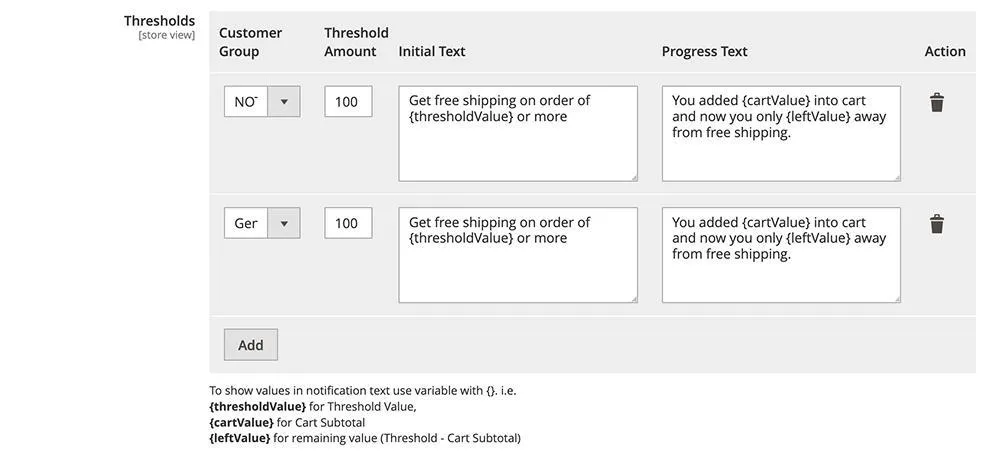
| Field | Description |
|---|---|
| Customer Group | The customer group this row applies to (e.g. NOT LOGGED IN, General, Wholesale, or ALL GROUPS). |
| Threshold Amount | The cart subtotal (in your store's base currency) a customer must reach to unlock free shipping for this group. |
| Initial Text | Message shown when the cart is empty for this customer group. |
| Progress Text | Message shown while the cart has items but is still below the threshold. |
Note: variables such as {thresholdValue}, {cartValue} and {leftValue} can be used in your message text. They are replaced with the live amounts, formatted with your store's currency symbol. See Message variables for the full list.
Free Shipping Bar settings
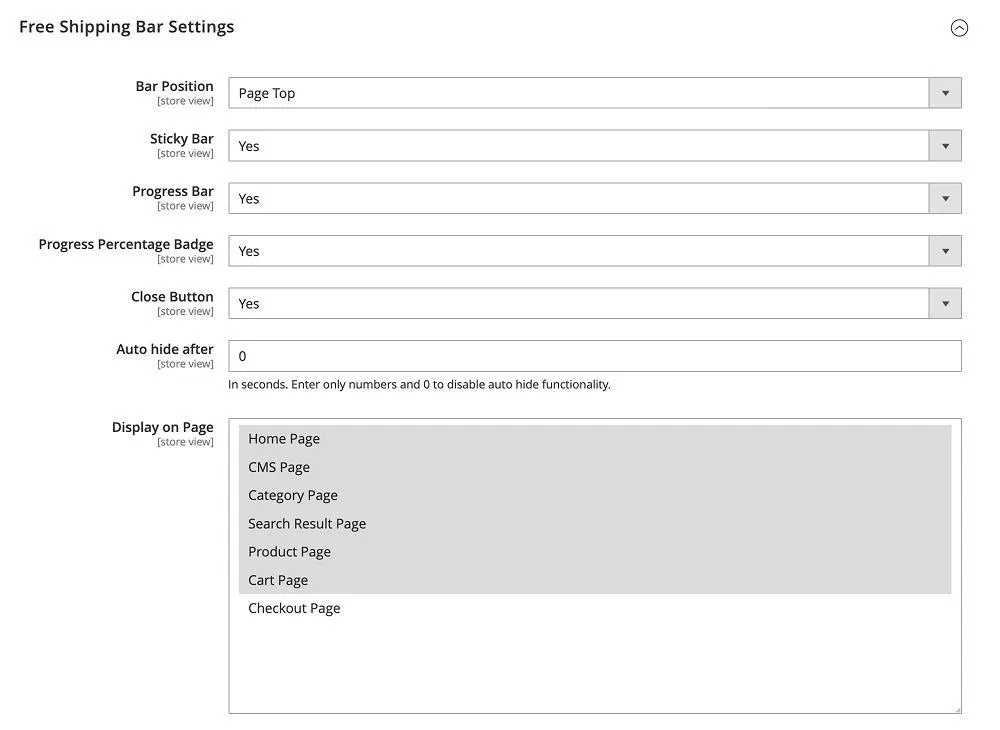
| Field | Description |
|---|---|
| Bar Position | Where the bar appears on the page: Page Top, Content Top, Content Bottom, or Page Bottom. |
| Sticky Bar | When set to Yes, the bar stays fixed and visible as the customer scrolls down the page. |
| Progress Bar | When set to Yes, shows a progress track that fills up as the cart subtotal approaches the threshold. |
| Progress Percentage Badge | When set to Yes, shows a small badge with the completion percentage (e.g. "65% there"), or "Unlocked!" once achieved. |
| Close Button | When set to Yes, adds a dismiss (×) button so customers can close the bar. |
| Auto hide after | Number of seconds after which the bar hides itself. Enter 0 to turn auto-hide off and keep the bar visible. |
| Display on Page | The page types the bar appears on: Home Page, CMS Page, Category Page, Search Result Page, Product Page, Cart Page, Checkout Page. |
Free Shipping Bar design
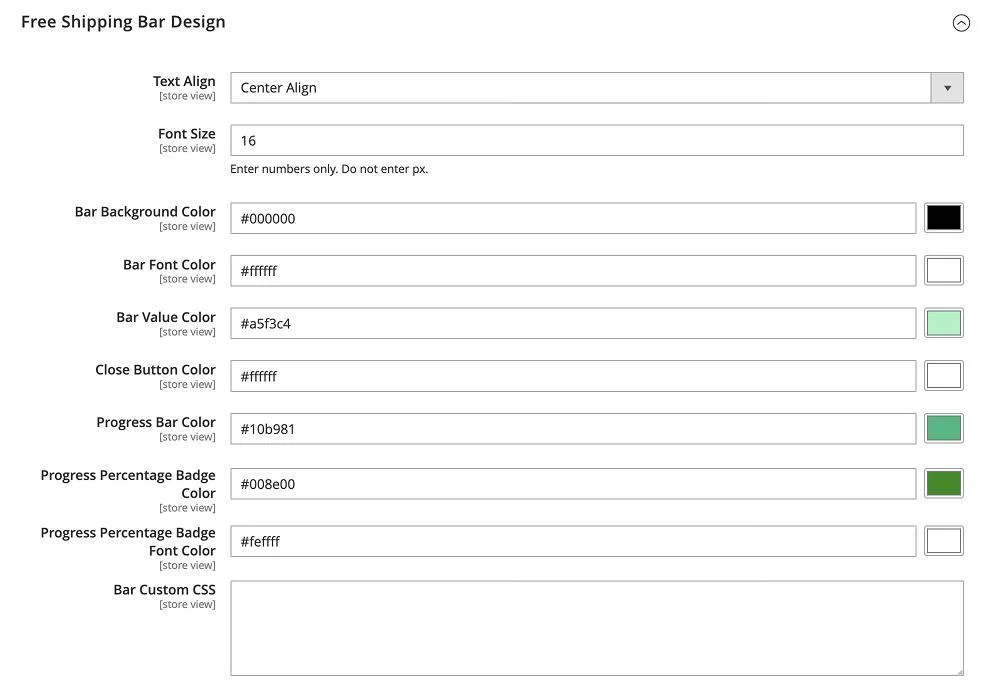
| Field | Description |
|---|---|
| Text Align | Aligns the bar's message text to the left, centre, or right. |
| Font Size | Font size of the message text, in pixels (numbers only, no "px"). |
| Bar Background Color | Background colour of the whole notification bar. |
| Bar Font Color | Colour of the message text. |
| Close Button Color | Colour of the dismiss (×) icon. |
| Progress Bar Color | Fill colour of the progress track. |
| Progress Percentage Badge Color | Background colour of the percentage badge. |
| Progress Percentage Badge Font Color | Text colour of the percentage badge. |
| Bar Custom CSS | Optional CSS for styling beyond the colour and font options above. |
Message variables
Use these placeholders anywhere in the Initial Text or Progress Text fields. They are replaced with live, currency-formatted values:
| Variable | Description |
|---|---|
{thresholdValue} | The free-shipping threshold amount configured for the customer's group. |
{cartValue} | The customer's current cart subtotal. |
{leftValue} | The amount still needed to reach the threshold (threshold minus current cart subtotal). |
Storefront behaviour
Once enabled and configured, the bar behaves like this for shoppers:
- It appears on every page type selected in Display on Page, at the position chosen in Bar Position.
- The message and progress bar update instantly (via AJAX) whenever a product is added to the cart, with no page reload.
- If Sticky Bar is enabled, it stays pinned in view while the customer scrolls.
- If Auto hide is set above 0 seconds, the bar slides away after that time, and reappears on the next page load.
- If Close Button is enabled, the customer can dismiss the bar at any time.
- Guests and logged-in customers can see different thresholds and wording, based on the customer group rules you configured.
Uninstallation
php bin/magento module:disable Magexweb_Freeshippingbar- Remove the module files (
composer remove magexweb/freeshippingbar, or deleteapp/code/Magexweb/Freeshippingbar). php bin/magento setup:upgrade && php bin/magento cache:flush
Troubleshooting and FAQ
Does this extension apply the free shipping discount automatically?
No. The bar is a notification and marketing tool only. You still need an active Free Shipping method or a cart price rule in Magento with a matching minimum order amount, so the discount is applied at checkout.
Can I show a different threshold for wholesale customers?
Yes. Add a separate row in the Thresholds grid for that customer group, with its own amount and messages.
Can I hide the bar on certain pages, like the checkout page?
Yes. Remove that page type from the Display on Page field.
Why is the bar not appearing on my storefront?
Check that Free Shipping Bar is set to Yes, that at least one threshold row exists, and that the current page type is selected in Display on Page.
Can I use HTML in the messages?
The message fields support basic inline HTML (such as <b> or <br/>), since they are rendered as HTML on the storefront. Avoid complex markup that could break the layout.
Support
For help, email info@magexweb.com.