
Overview
Image Cleaner is a Magento 2 admin tool from Magexweb that finds and removes orphaned image files in your media storage: files that exist under pub/media/catalog/product or pub/media/catalog/category but are no longer referenced by any product or category in Magento. These leftovers build up from deleted products and categories, replaced images and bulk imports, and over time they waste disk space and slow down backups and deployments.
The module adds an Image Cleaner menu to the admin panel with two grids, Product Image Clean and Category Image Clean. In them an administrator scans the file system, reviews the list of unused images (with thumbnail previews), and deletes them one by one or in bulk.
Key features
- Two admin grids, Product Image Clean and Category Image Clean, under one Image Cleaner menu
- One-click "Load Unused Images" scan that walks the product and category media folders and compares every file on disk with the images Magento actually uses
- Thumbnail preview column, so you can check an image before deleting it
- Image path column showing the exact file path under
pub/media - Delete action per row and a "Delete" mass action, both of which remove the file from disk and its grid record
- Skips Magento's generated cache, watermark and placeholder folders, so resized and cached copies are never listed or deleted
- Separate ACL resources for each grid, so access can be limited per admin role
How it works
The module (Magexweb_Imagecleaner) is a standard Magento 2 component. It adds:
- Two database tables,
magexweb_imagecleaner_productimgandmagexweb_imagecleaner_categoryimg, each storing an ID and the path of a file found to be unused. - Scan logic that lists the files on disk and compares them with the images in use, adding a row for every file that doesn't match.
- "In use" product images are read from
catalog_product_entity_media_galleryandcatalog_product_entity_media_gallery_value: the full product media gallery, not just the base image. - "In use" category images are read from the Image attribute of every category.
- Admin pages for each grid, the scan, single delete and mass delete.
Requirements and compatibility
| Item | Detail |
|---|---|
| Platform | Magento Open Source / Adobe Commerce 2.x |
| PHP | The PHP versions supported by your Magento version (check the module's composer.json before deploying to production) |
| Dependencies | magento/module-store, magento/module-backend, magento/framework |
| License | GPL-3.0-or-later |
| Module code | Magexweb_Imagecleaner |
| Version covered | 1.0.4 |
Installation
Composer installation (recommended)
- Place the extension in your project (via a private Composer repository, Packagist, or by copying it under
app/code). - From the Magento root, run the following commands:
| Command | Purpose |
|---|---|
composer require magexweb/imagecleaner | Only if distributed via a Composer repository |
php bin/magento module:enable Magexweb_Imagecleaner | Registers and enables the module |
php bin/magento setup:upgrade | Creates the module's tables |
php bin/magento setup:di:compile | Recommended for production mode |
php bin/magento setup:static-content:deploy -f | Required in production mode |
php bin/magento cache:flush | Clears the Magento cache |
Manual (ZIP) installation
- Copy the extension folder to
app/code/Magexweb/Imagecleanerin your Magento installation. - Run the same
bin/magentocommands listed above (module:enable, setup:upgrade, di:compile, static-content:deploy, cache:flush). - Check the module is active:
php bin/magento module:status Magexweb_Imagecleaner
After installation
- Check that a new Image Cleaner item appears in the main admin menu.
- Open Image Cleaner > Product Image Clean and check the grid loads with no errors.
- Open Image Cleaner > Category Image Clean and check the grid loads with no errors.
- Check your admin role has the
Magexweb_ImagecleanerACL resources (System > Permissions > User Roles).
Admin pages and permissions
| Menu item | Admin URL segment | ACL resource |
|---|---|---|
| Product Image Clean | magexweb_imagecleaner/productimg | Magexweb_Imagecleaner::productimg |
| Category Image Clean | magexweb_imagecleaner/categoryimg | Magexweb_Imagecleaner::categoryimg |
Cleaning product images
Go to Image Cleaner > Product Image Clean.
Scanning for unused product images
- Click the Load Unused Images button in the page header.
- The module scans
pub/media/catalog/product(leaving out the cache, watermark and placeholder folders). - Every file on disk that is not in the product media gallery is added as a row in the grid.
- You return to the grid, which now lists the unused files.
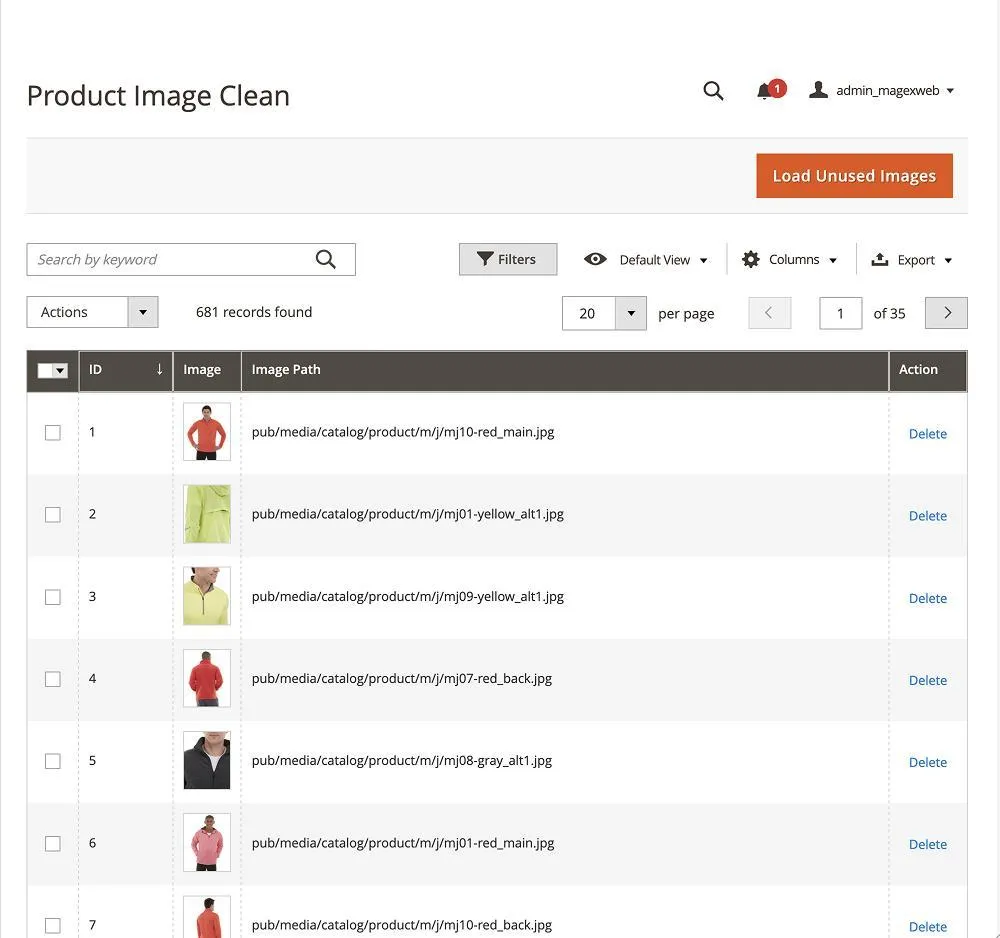
Grid columns
| Column | Description |
|---|---|
| ID | Internal record ID for the file found |
| Image | Thumbnail preview of the file |
| Image Path | Path of the file, shown as pub/media/catalog/product/<path> |
| Actions | Delete link to remove this one file |
Deleting unused product images
- Single delete: click Delete in the Actions column of a row and confirm. This removes both the file from
pub/media/catalog/productand its grid record. - Bulk delete: tick the checkboxes for several rows (or select all), choose Actions > Delete in the mass-action toolbar, and confirm. All selected files are removed from disk and from the grid.
Important: deletion is immediate and permanent. The module does not move files to a trash folder or keep a backup. Always take a media backup, or check the Image Path column carefully, before a mass delete.
Cleaning category images
Go to Image Cleaner > Category Image Clean. It works exactly like Product Image Clean, for pub/media/catalog/category.
Scanning for unused category images
- Click Load Unused Images.
- The module scans
pub/media/catalog/category(leaving out the cache, watermark and placeholder folders). - Every file on disk whose path doesn't match any category's Image attribute is added as a row in the grid.
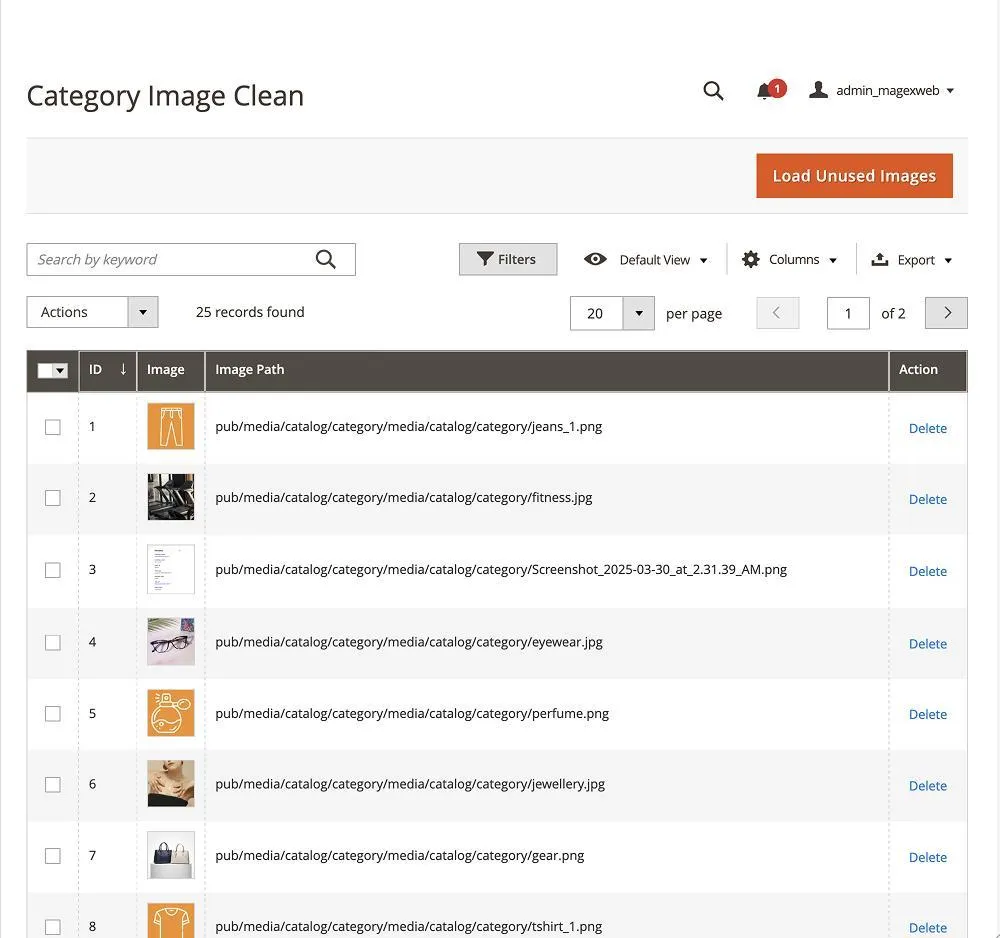
Deleting unused category images
Single and mass delete work the same way as for product images (see Cleaning product images).
Important: the scan only checks each category's native Image attribute. If you also run the Advance Category Page extension (which adds a separate Thumbnail Image field), images used only as a category thumbnail are not recognised as "in use" and may be listed as unused. If both modules are installed, compare the Image Path with Catalog > Categories > [Category] > Content > Thumbnail Image before deleting.
Known behaviour and limitations
These apply to version 1.0.4 and are worth knowing before you rely on the module for routine cleanup:
- Scans run in the browser request when you click Load Unused Images. There is no scheduled scan, and very large media folders may take a while.
- Repeated scans don't remove duplicates: clicking Load Unused Images again before deleting the rows already found can add duplicate rows for files that are still unused. Review and clear the grid before scanning again.
- Deletion is permanent and immediate. There is no built-in backup, export or "dry run" report before files are removed.
- For categories, only the single native Image attribute is checked, not per-store-view image overrides or third-party image fields.
- Only local file storage under
pub/mediais scanned. Remote or CDN storage (such as S3-backed media) is not supported. - A scan always covers the whole product or category media folder; it can't be limited to a date range, folder or subset.
Uninstallation
php bin/magento module:disable Magexweb_Imagecleaner- Remove the module files (
composer remove magexweb/imagecleaner, or deleteapp/code/Magexweb/Imagecleaner). php bin/magento setup:upgrade && php bin/magento cache:flush
Troubleshooting and FAQ
The scan finds no unused images
Check that there really are orphaned files under pub/media/catalog/product or pub/media/catalog/category, outside the cache, watermark and placeholder folders. Then run php bin/magento indexer:reindex and cache:flush and try again.
A file I need was deleted
Restore it from your media backup and attach it again to the product or category if needed. The module does not keep deleted files.
The grid shows a broken thumbnail
This happens when the file was already removed from disk (for example by another cleanup process) after it was listed. Delete the stale row to clear it.
Support
For help, email info@magexweb.com.