
Overview
Product Attachments is a Magento 2 extension from Magexweb that adds manuals, data sheets, certificates, warranty terms, drawings, links and videos to your product pages. Customers find everything they need on the product page, in a clear list, grid or table, and download files with one click.
Attachments are organised in three levels: document types (such as User Manual or Warranty) describe what a file is, attachments are the files, links and videos themselves, and attachment groups bundle attachments and are assigned to products. One group can be shown on thousands of products, and one attachment can be used in several groups, so a shared document is uploaded only once.
Important: Files are stored with random names in a protected folder and are only delivered through a download address that checks the status, the store view and the customer's access every time. On nginx, add the deny rule from Web server configuration so stored files cannot be opened directly.
Key features
- Three kinds of attachments: uploaded files (PDF, Word, Excel, PowerPoint, ZIP, images), external links and videos (YouTube, Vimeo or an MP4, WEBM or OGG file)
- Document types with 14 built-in icons, uploaded icons or icon classes from your theme
- Attachment groups in three display styles (list, grid, table), optionally grouped by document type
- Five product page positions: after the title, after the short description, before the tabs, after the tabs or in a new product tab
- Assign groups from the group (filterable product grid) or from the product edit page
- Access control per attachment and per group: everyone, logged-in customers only or chosen customer groups, plus store-wide rules
- Restricted attachments are hidden or shown with a "Log in to access" button
- Videos play in a popup on the product page; nothing is loaded from YouTube or Vimeo before the customer clicks
- Secure uploads: allowed file types, size limit, content (MIME) check, scripts always refused, random file names, protected storage
- Downloads save the file directly; PDFs and images can optionally open in the browser
- Store view assignment for attachments and groups
- REST API for document types, attachments (with file upload), groups and product assignments
- Sample data, granular admin permissions and full page cache support
How it works
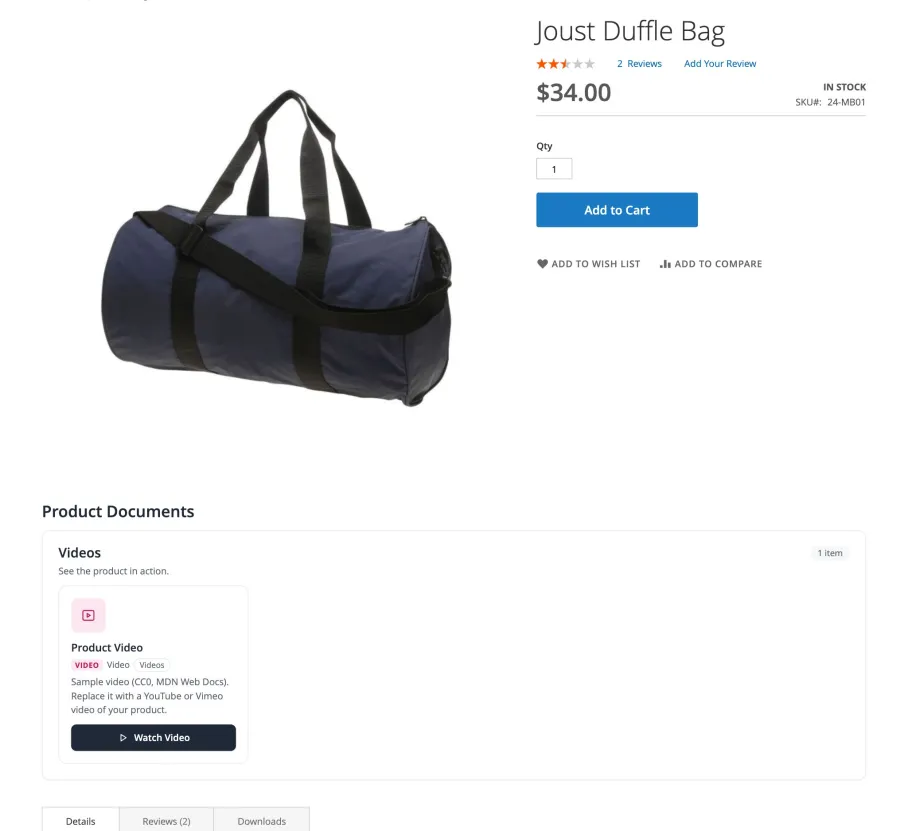
Create document types, attachments and a group, then assign the group to products. Each group appears on the product page in its position with its name, description and attachments. Here a grid group is shown below the product information, before the tabs:
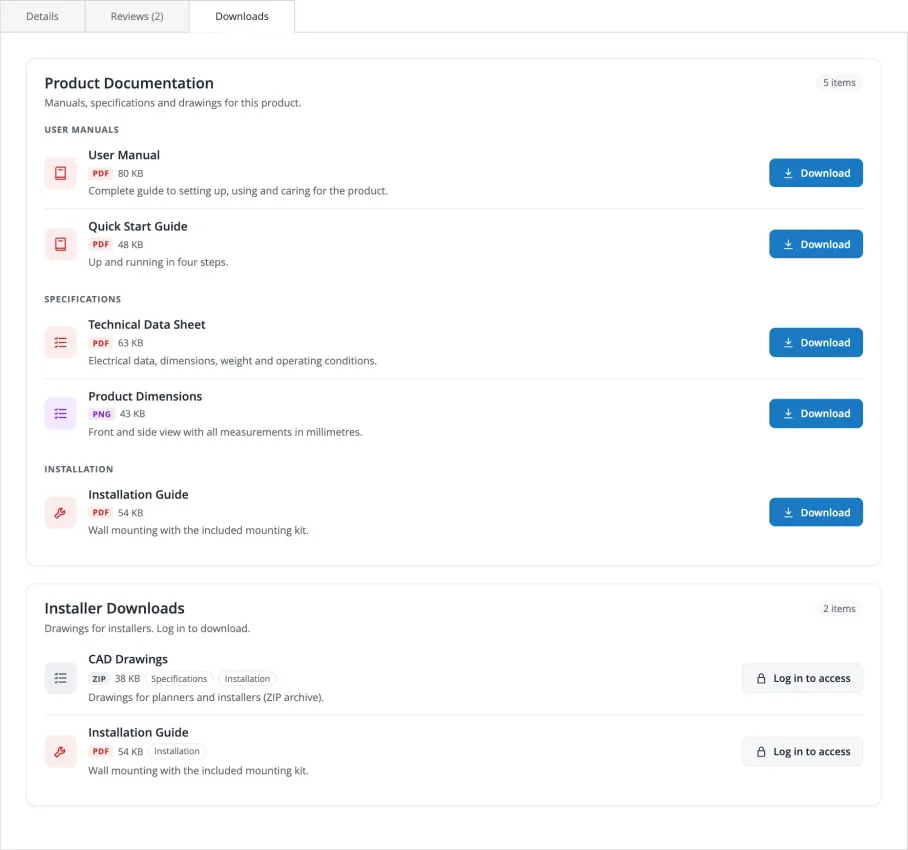
Groups in the New Product Tab position appear in their own tab, called "Downloads" by default. This group uses the list style and is grouped by document type; the second group is only available to logged-in customers:
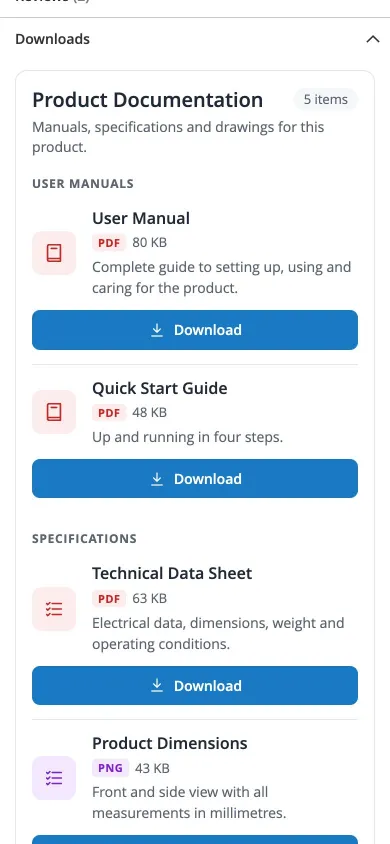
On phones, attachments and buttons use the full width of the screen:
Requirements and compatibility
- Magento Open Source or Adobe Commerce 2.4.8 or 2.4.9
- PHP 8.2 to 8.4 with the sodium extension (required by Magento)
- Luma, Blank and Luma-based themes
- Magento cron, which removes uploads that were never saved
Installation
Composer installation (recommended)
- Place the extension in your project: through the Adobe Commerce Marketplace, a private Composer repository, or by copying it under
app/code. - From the Magento root, run the commands below.
| Command | Purpose |
|---|---|
composer require magexweb/module-product-attachments | Only if installed from a Composer repository |
php bin/magento module:enable Magexweb_ProductAttachments | Registers and enables the module |
php bin/magento setup:upgrade | Creates the product attachment tables |
php bin/magento setup:di:compile | Recommended for production mode |
php bin/magento setup:static-content:deploy -f | Required in production mode |
php bin/magento cache:flush | Clears the Magento cache |
Manual (ZIP) installation
- Extract the ZIP package to
app/code/Magexweb/ProductAttachments, so thatapp/code/Magexweb/ProductAttachments/registration.phpexists. - Run the same
bin/magentocommands as above. - Check that the module is active:
php bin/magento module:status Magexweb_ProductAttachments
Sample data
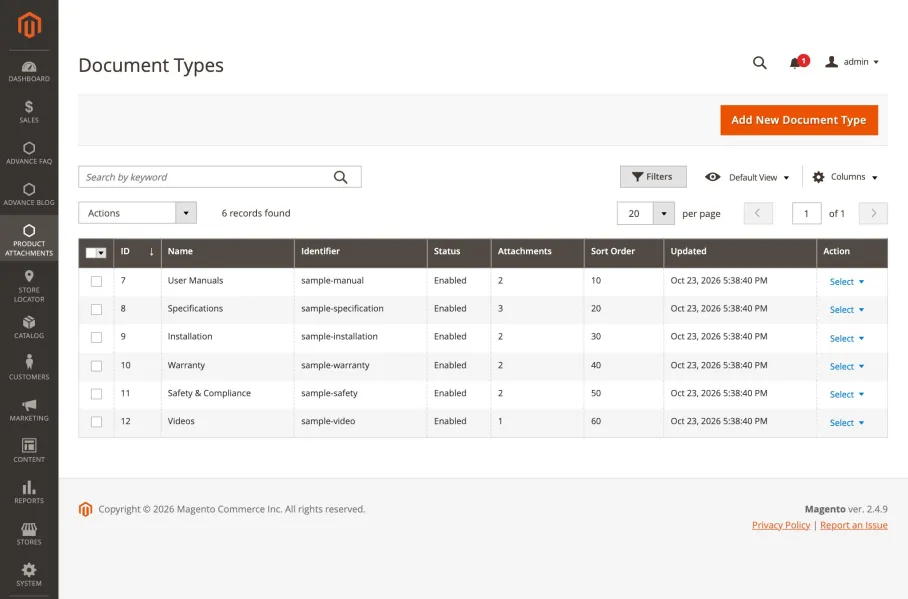
Install the sample data to see the extension in action straight away: 6 document types (User Manuals, Specifications, Installation, Warranty, Safety & Compliance, Videos), 11 attachments (9 sample PDF, PNG and ZIP files, a "Register Your Product" link and a sample video) and 4 groups, one per display style and position.
| Command | Purpose |
|---|---|
php bin/magento magexweb:productattachments:sample-data:install | Installs the sample data and assigns the groups to the first three enabled products visible in catalog and search |
php bin/magento magexweb:productattachments:sample-data:install --sku=24-MB01 --sku=24-MB04,24-WB01 | Assigns the groups to the products you choose (repeat --sku or separate SKUs with commas) |
php bin/magento magexweb:productattachments:sample-data:remove | Removes exactly what was installed, including the files. Your own attachments are never touched. |
Note: Sample identifiers start with sample-. If an identifier is already used in your store, the sample item gets a number added instead of replacing your content. Sample files of a type that is not in Allowed Extensions are skipped.
Web server configuration
Stored files are in pub/media/magexweb/productattachments/files/ and are only delivered through the protected download address.
- Apache: the module writes
.htaccessfiles that deny direct access to thefiles/andtmp/folders. Nothing else is needed. - nginx: nginx ignores
.htaccessfiles. Add this rule to the server block that servespub/, next to Magento's own rules for/media/customer/and/media/downloadable/:
location ~ ^/media/magexweb/productattachments/(files|tmp)/ {
    deny all;
}
After installing
- Check the upload limits and allowed file types in the configuration.
- Create document types, then attachments, then groups, and assign the groups to products.
- Make sure Magento cron runs: it removes uploads that were never saved.
Admin configuration
All settings live under Stores > Settings > Configuration > Magexweb Extensions > Product Attachments, also available from Product Attachments > Configuration. Use the scope switcher at the top of the page for different settings per website or store view; settings marked "global" apply to the whole installation.
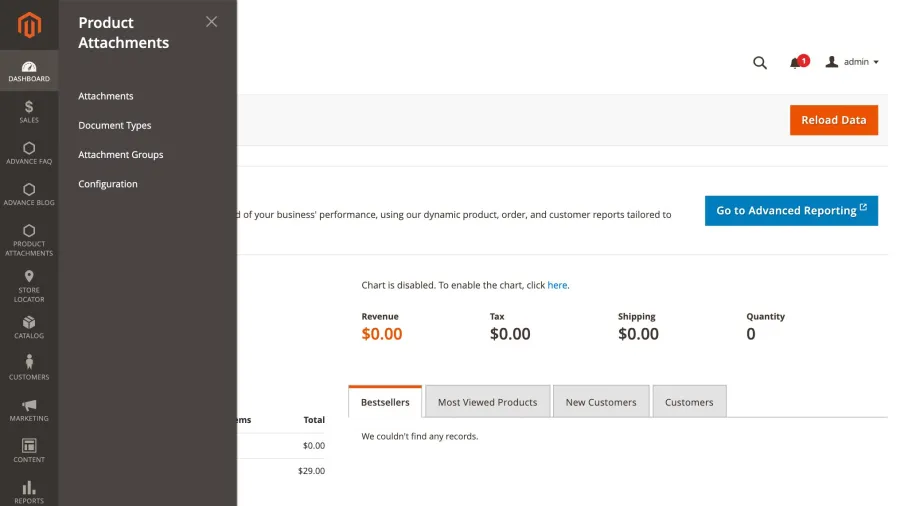
General
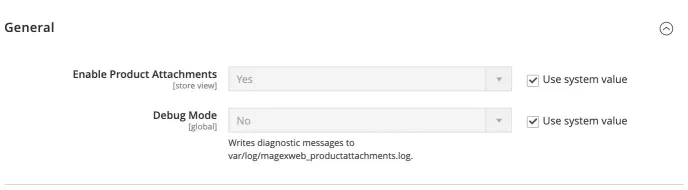
| Field | Description |
|---|---|
| Enable Product Attachments | Master switch. Set to No to hide all attachments and refuse downloads in this store view. Your data and files are kept. Default: Yes |
| Debug Mode | Writes diagnostic messages to var/log/magexweb_productattachments.log. Scope: global.Default: No |
File upload
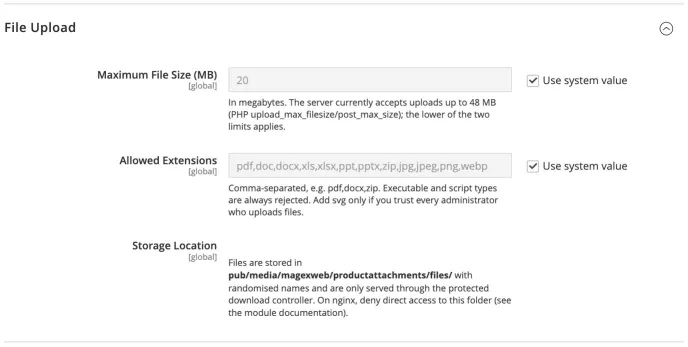
| Field | Description |
|---|---|
| Maximum File Size (MB) | Largest file accepted by uploads in the admin and through the API. PHP's upload_max_filesize and post_max_size must be at least as large (the admin shows the current limit). Scope: global.Default: 20 MB |
| Allowed Extensions | Comma-separated, for example pdf,docx,zip. Scope: global.Default: pdf,doc,docx,xls,xlsx,ppt,pptx,zip,jpg,jpeg,png,webp |
| Storage Location | Information only. Scope: global. |
Note: Executable and script file types (such as php, phtml, phar, js, html, exe and sh) are always refused, even if they are added to Allowed Extensions. Add svg only if you trust every administrator who uploads files.
Frontend
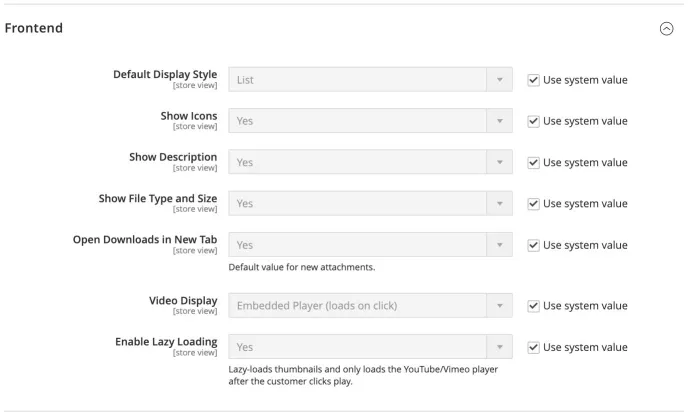
| Field | Description |
|---|---|
| Default Display Style | Style of groups set to "Use Default Display Style": List, Grid or Table. Default: List |
| Show Icons | Shows the document type icon or the coloured file type tile next to each attachment. Default: Yes |
| Show Description | Shows the description of attachments and groups. Default: Yes |
| Show File Type and Size | Shows the file type badge and the size, for example "PDF 2.4 MB". Default: Yes |
| Open Downloads in New Tab | Default of Open in New Tab for new attachments. It applies to links and videos; files download directly unless Open PDFs and Images in Browser is enabled. Default: Yes |
| Video Display | Embedded Player (loads on click): Watch Video plays the video in a popup on the page. Link to Video: the button opens the video on YouTube, Vimeo or the file URL. Default: Embedded Player (loads on click) |
| Enable Lazy Loading | Lazy-loads thumbnails and only loads the YouTube or Vimeo player after the customer clicks play. Default: Yes |
Access
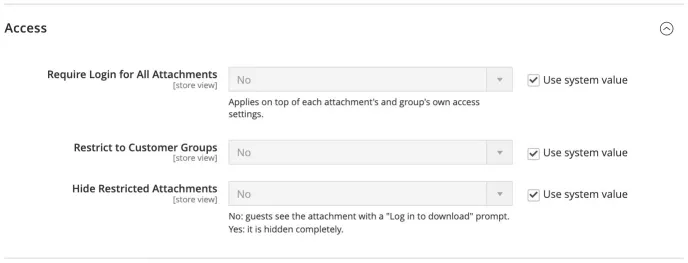
| Field | Description |
|---|---|
| Require Login for All Attachments | Applies on top of each attachment's and group's own access settings. Default: No |
| Restrict to Customer Groups | Limits all attachments to the customer groups selected below, on top of each attachment's and group's own rules. Default: No |
| Allowed Customer Groups | Customer groups that may see attachments when Restrict to Customer Groups is Yes. Include NOT LOGGED IN to allow guests. Default: None selected |
| Hide Restricted Attachments | No: visitors who may not open an attachment see it with a lock and a Log in to access button. Yes: such attachments are hidden completely. Default: No |
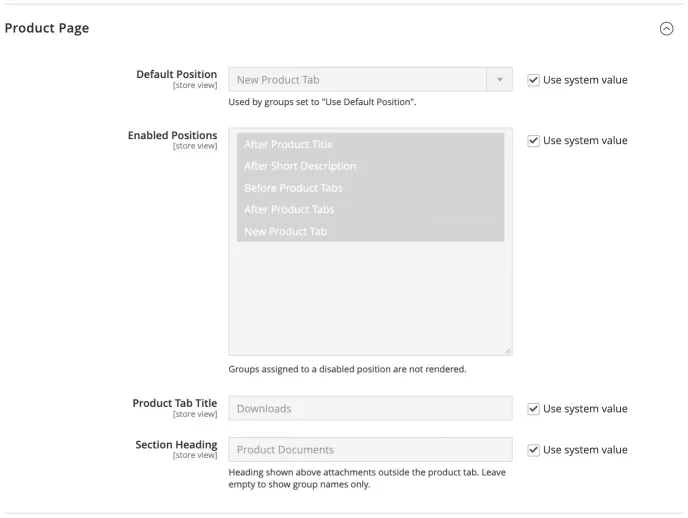
Product page
| Field | Description |
|---|---|
| Default Position | Used by groups set to "Use Default Position". Default: New Product Tab |
| Enabled Positions | Groups assigned to a disabled position are not shown. Default: All five positions |
| Product Tab Title | Title of the product tab used by groups in the New Product Tab position. Default: Downloads |
| Section Heading | Heading shown above attachments outside the product tab. Leave empty to show group names only. Default: Product Documents |
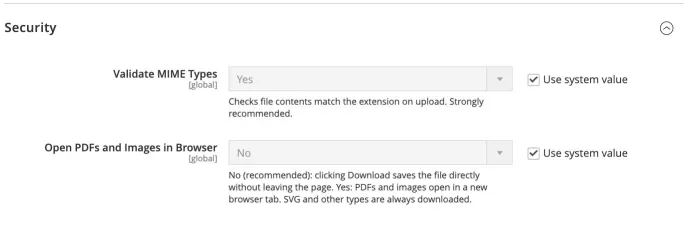
Security
| Field | Description |
|---|---|
| Validate MIME Types | Checks that file contents match the extension on upload. Strongly recommended. Scope: global. Default: Yes |
| Open PDFs and Images in Browser | No (recommended): clicking Download saves the file directly without leaving the page. Yes: PDFs and images open in a new browser tab. SVG and other types are always downloaded. Scope: global. Default: No |
Note: Some browsers (for example Firefox, Safari and Edge) open PDFs automatically after saving them. This is a browser setting: the extension tells the browser to save the file, and it is saved in the Downloads folder.
Document types
Document types describe what an attachment is, for example User Manual, Data Sheet or Warranty. They give attachments an icon, and groups can list their attachments under a heading per document type. Manage them in Product Attachments > Document Types.
Adding a document type
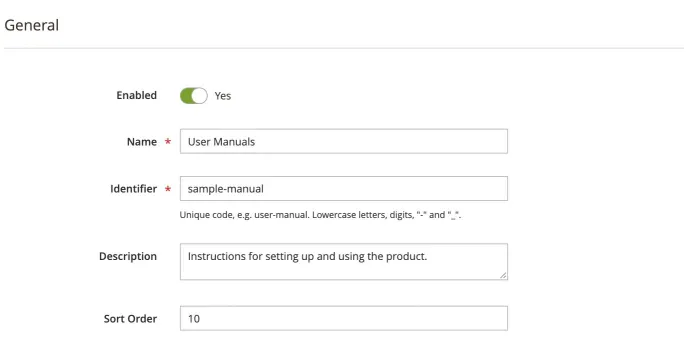
Click Add New Document Type and fill in:
| Field | Description |
|---|---|
| Enabled | Disabled document types are not shown as headings or chips on the storefront. |
| Name | Shown to customers, for example "User Manuals". |
| Identifier | Unique code with lowercase letters, digits, "-" and "_", for example user-manual. Used by the API. |
| Description | Internal description (optional). |
| Sort Order | Order of the document type headings when a group is grouped by document type. |
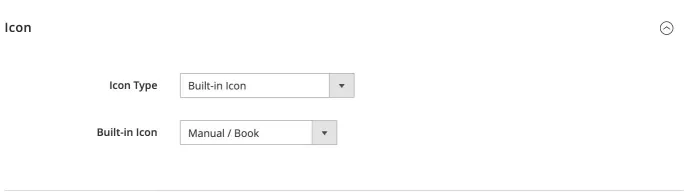
| Icon type | Description |
|---|---|
| No Icon | The file type icon is used (PDF, document, spreadsheet and so on). |
| Built-in Icon | One of 14 icons: Document, PDF, Spreadsheet, Presentation, Archive, Image, Video, Link, Manual / Book, Warranty / Shield, Installation / Tools, Specification / Checklist, Safety / Warning and Download. |
| Uploaded Image | Your own JPG, PNG, GIF or WEBP icon. SVG is not accepted, for security reasons. |
| CSS Class | A class from your theme's icon font, for example icon icon-warranty. |
Attachments
Attachments are the files, links and videos your customers see. Manage them in Product Attachments > Attachments. The grid shows each attachment's type, document types, status and the number of products it is shown on. Filter by type, status, access or document type, and use the Actions menu to enable, disable or delete several attachments at once.
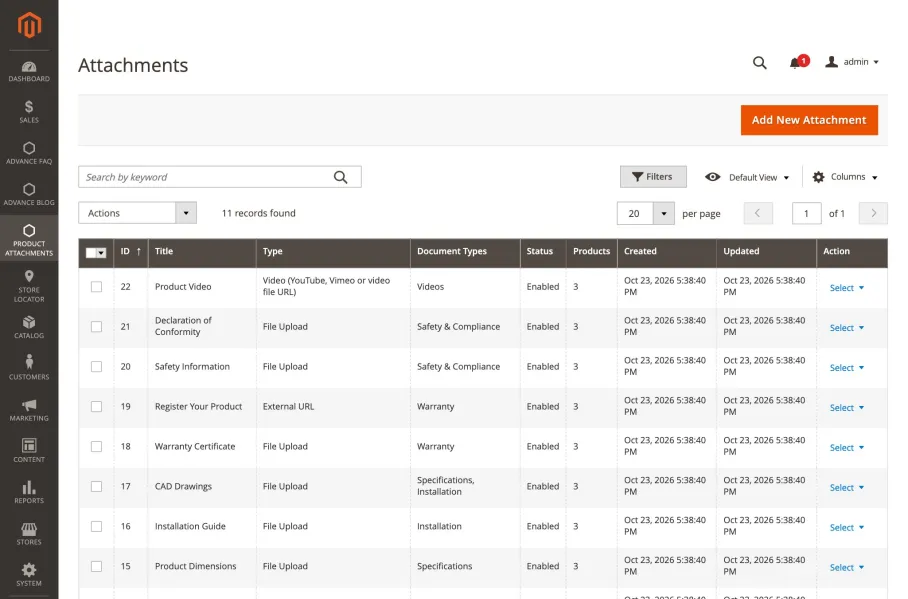
Adding an attachment
Click Add New Attachment. The form has four sections.
Attachment Information: the title, an optional description and the attachment itself.
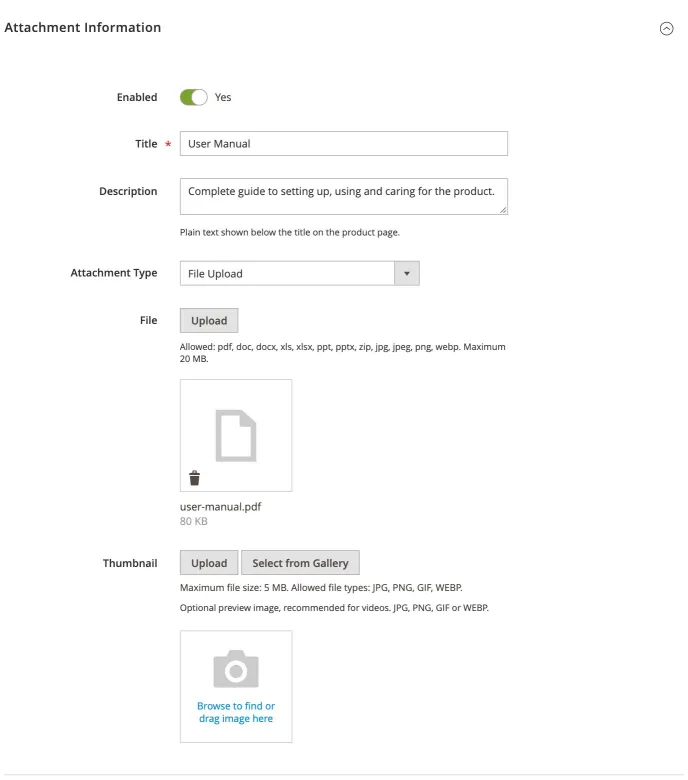
| Field | Description |
|---|---|
| Enabled | Disabled attachments are not shown and cannot be downloaded. |
| Title | Shown to customers and used as the button's accessible label. |
| Description | Plain text shown below the title. Line breaks are kept; HTML is shown as text. |
| Attachment Type | File Upload, External URL or Video. The fields below change with the type. |
| File | For File Upload. The allowed types and the maximum size are shown below the button. Uploading a new file replaces the old one. |
| Thumbnail | Optional preview image (JPG, PNG, GIF or WEBP, up to 5 MB), recommended for videos. |
For External URL and Video attachments, enter the address instead of uploading a file:
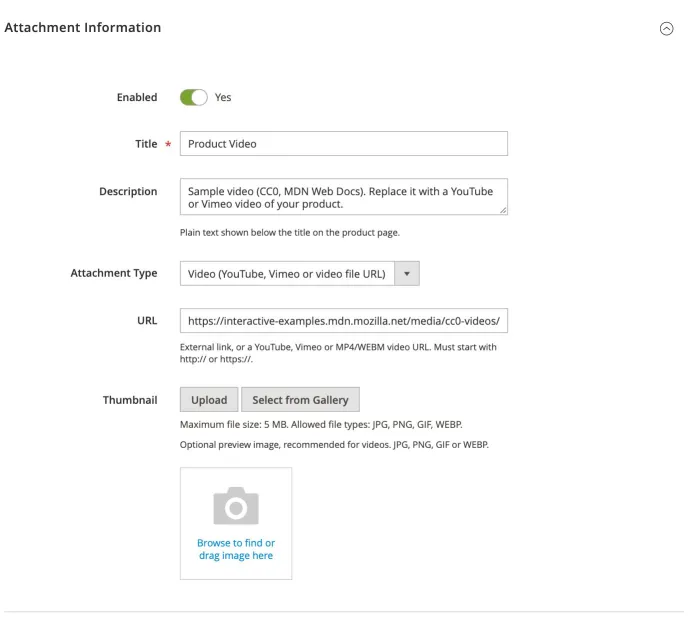
- URL: must start with
http://orhttps://. Addresses with a user name or password,javascript:anddata:addresses are refused. - Link Label (External URL only): optional button text, for example "Register Now". The default is "Open Link".
- Videos: YouTube (watch, youtu.be, shorts and embed links), Vimeo (including unlisted videos) or a direct link to an MP4, WEBM or OGG file.
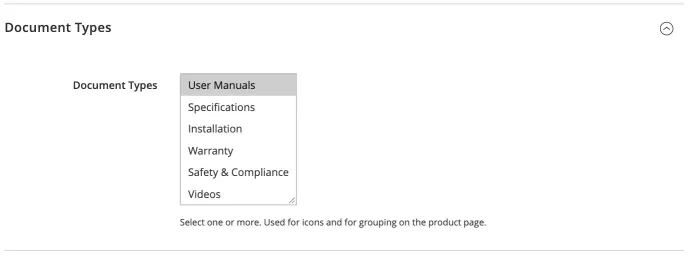
Document Types: choose one or more. The first one (lowest sort order) gives the attachment its icon and decides under which heading it is listed in grouped groups.
Frontend & Access:
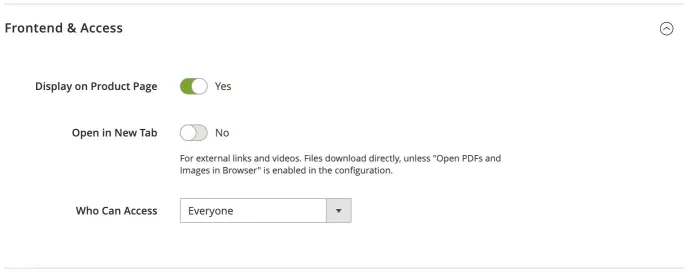
| Field | Description |
|---|---|
| Display on Product Page | Switch off to keep the attachment out of product pages, for example to use it through the API only. |
| Open in New Tab | For external links and videos. Files download directly, unless Open PDFs and Images in Browser is enabled in the configuration. |
| Who Can Access | Everyone, Logged-in Customers Only or Specific Customer Groups. With the last option a Customer Groups list appears; include NOT LOGGED IN to allow guests. See Customer access control. |
Store Views & Advanced:
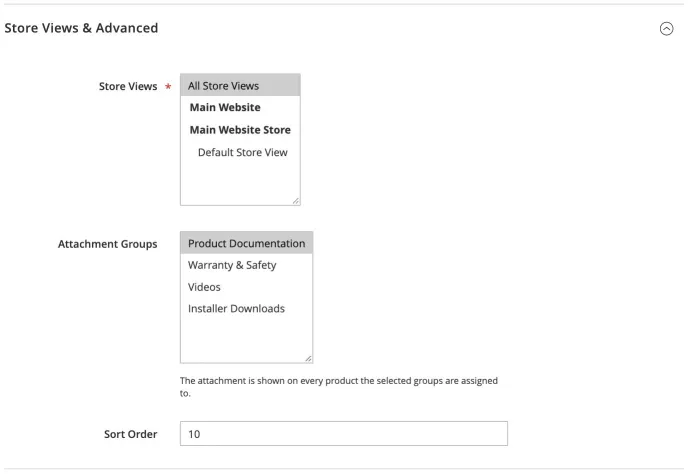
| Field | Description |
|---|---|
| Store Views | All Store Views or specific store views. |
| Attachment Groups | The groups this attachment belongs to. It is shown on every product these groups are assigned to. You can also add attachments from the group. |
| Sort Order | Default order of attachments; the order inside a group is set in the group. |
Supported files
The default allowed extensions are pdf, doc, docx, xls, xlsx, ppt, pptx, zip, jpg, jpeg, png and webp, up to 20 MB. You can change both in the configuration. Every upload, in the admin and through the API, is checked:
- The extension must be allowed; script and executable types are always refused.
- The file content must match the extension (a PDF must really be a PDF), and dangerous content types are refused.
- SVG, TXT, CSV and RTF files are scanned for scripts, event handlers and embedded objects.
- The file is stored under a random name; the original name is only used, cleaned, as the download name.
Attachment groups
A group bundles attachments, decides how and where they are shown, and is assigned to products. Manage groups in Product Attachments > Attachment Groups.
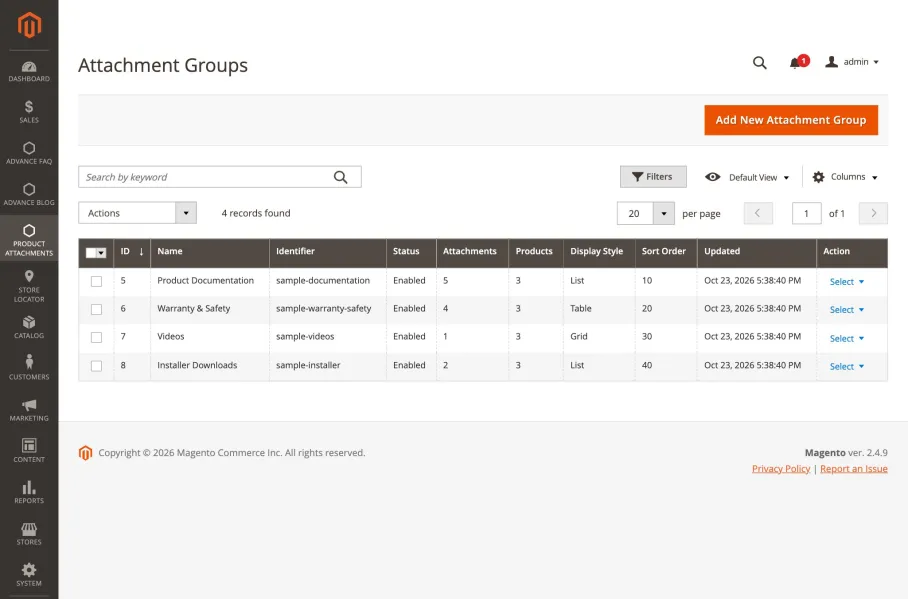
Adding a group
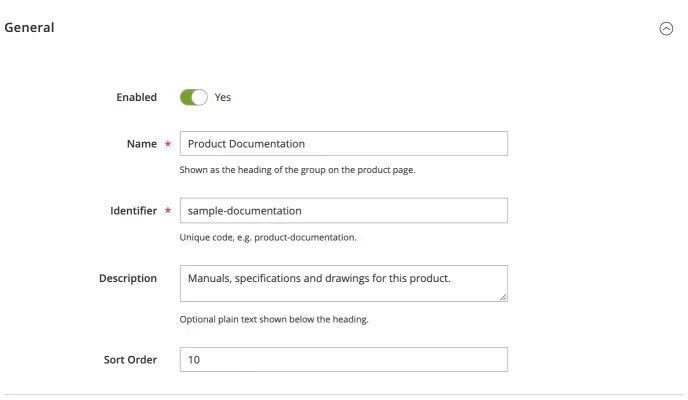
Click Add New Attachment Group. General:
| Field | Description |
|---|---|
| Enabled | Disabled groups are not shown, and their attachments cannot be downloaded through them. |
| Name | Shown as the heading of the group on the product page. |
| Identifier | Unique code, for example product-documentation. |
| Description | Optional plain text shown below the heading. |
| Sort Order | Default order of groups in the same position. |
Attachments of the group
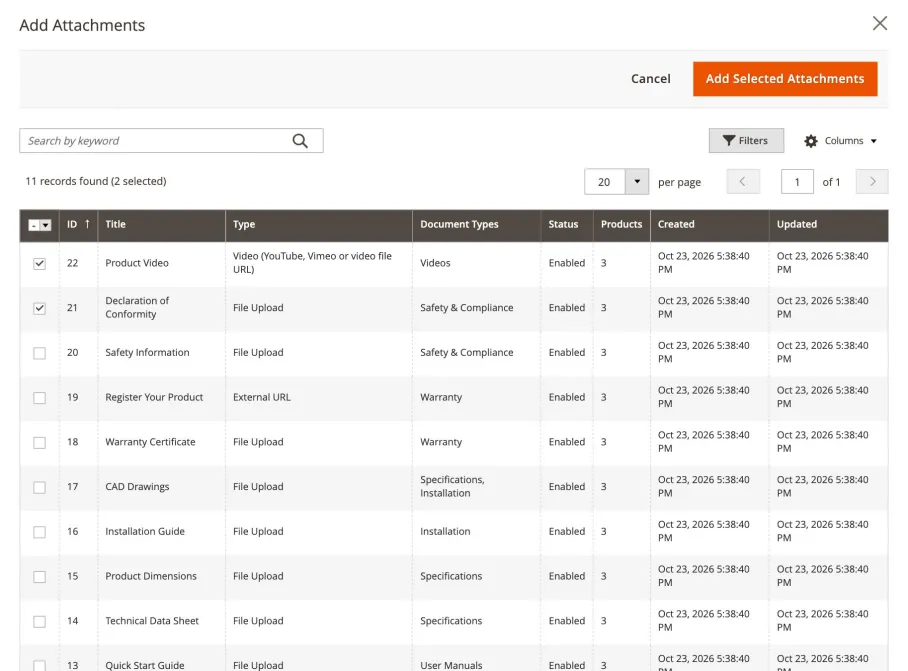
In the Attachments section, click Add Attachments, tick the attachments in the dialog and click Add Selected Attachments. Search and filter the dialog to find attachments quickly; attachments already in the group are not added twice.
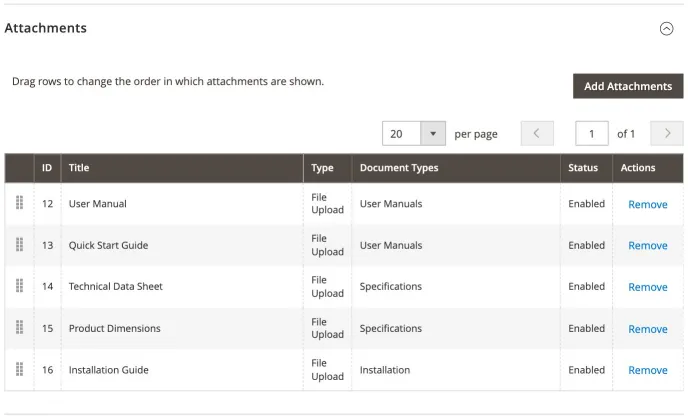
Drag the rows to change the order in which the attachments are shown, and use Remove to take an attachment out of the group. The attachment itself is not deleted.
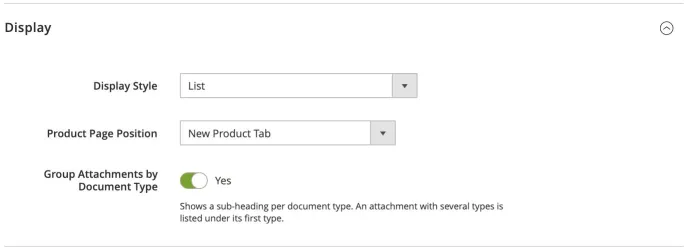
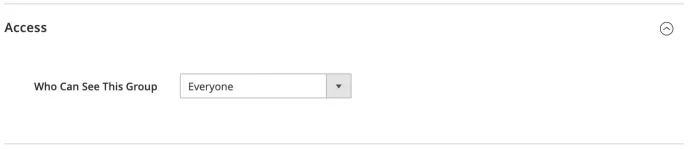
Display, access and store views
| Field | Description |
|---|---|
| Display Style | List: one attachment per row with a large button. Grid: cards side by side. Table: compact rows with type, size and button columns. Use Default Display Style follows the configuration. |
| Product Page Position | After Product Title, After Short Description, Before Product Tabs, After Product Tabs or New Product Tab. Use Default Position follows the configuration. |
| Group Attachments by Document Type | Shows a sub-heading per document type. An attachment with several types is listed under its first type. |
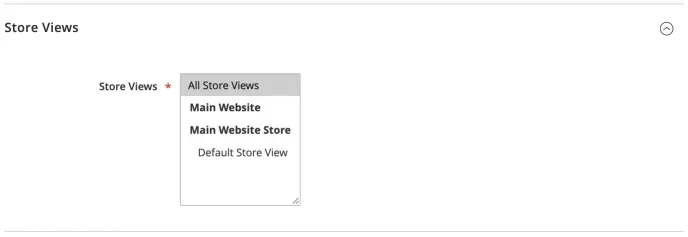
Who Can See This Group works as for attachments: a customer must be allowed by both the group and the attachment. Store Views limits the group to store views.
Assigning groups to products
There are two ways to choose the products a group is shown on. Both work for large catalogs.
From the group
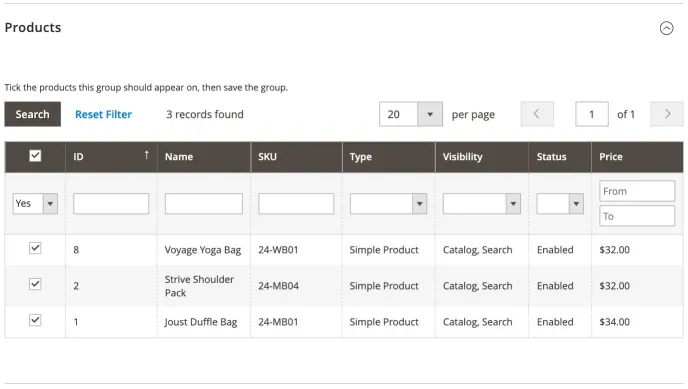
Open the Products section of the group. The grid first shows the products already assigned. Set the checkbox column filter to Any or No to find other products, filter by ID, name, SKU, type, visibility, status or price, and tick or untick products (clicking a row toggles it). Your ticks are kept while you filter and page. Click Save to apply them; this also works for a new group before its first save.
From the product
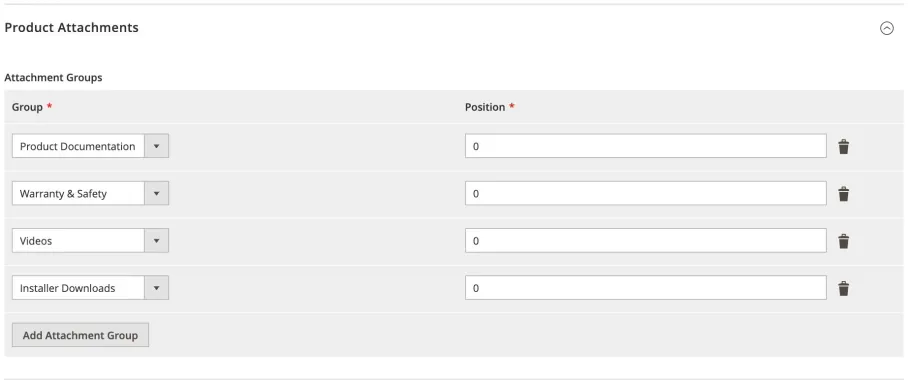
On the product edit page (Catalog > Products), open the Product Attachments section, click Add Attachment Group, choose a group and enter a position, then save the product. The position decides the order of several groups on that product; use the bin icon to remove a group from the product.
Note: Assigning groups requires the "Assign Groups to Products" permission (see Admin permissions). Without it the group's Products section shows a message instead of the grid, and the Product Attachments section is not shown on the product edit page.
Storefront behaviour
Positions
Each group is shown in its position on the product page. Positions can be switched off in Configuration > Product Page > Enabled Positions.
| Position | Where it appears |
|---|---|
| After Product Title | Below the product name, above the price |
| After Short Description | Below the short description in the product information area |
| Before Product Tabs | Below the product information and image gallery, above the tabs |
| After Product Tabs | Below the tabs (Details, Reviews and so on) |
| New Product Tab | In its own tab, titled "Downloads" by default (Product Tab Title) |
Outside the product tab, attachments get the heading set in Section Heading ("Product Documents" by default).
Display styles
List (shown in How it works): one attachment per row with icon, title, type badge, size, document types, description and a large button. Grid: cards side by side, ideal for videos and images:
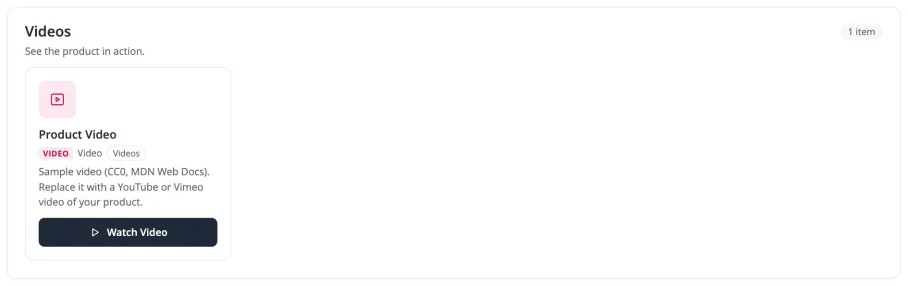
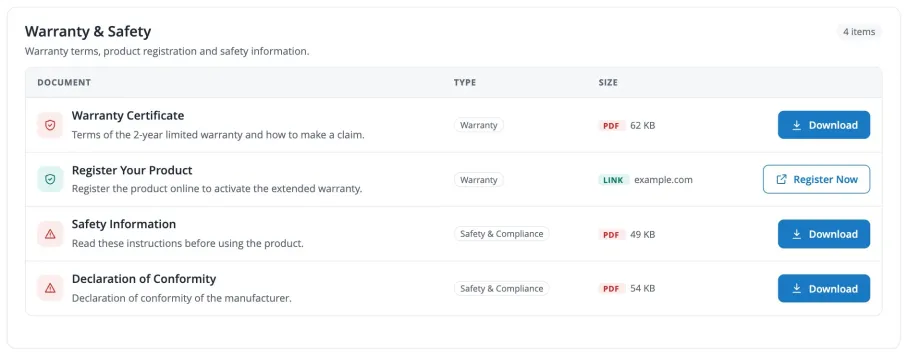
Table: compact rows for many documents, with document type, file type and size columns:
Downloads, links and videos
- Files: the Download button saves the file directly without leaving the page. With Open PDFs and Images in Browser enabled, PDFs and images open in a new tab instead.
- Links: the Open Link button (or your Link Label) opens the address, in a new tab if Open in New Tab is enabled.
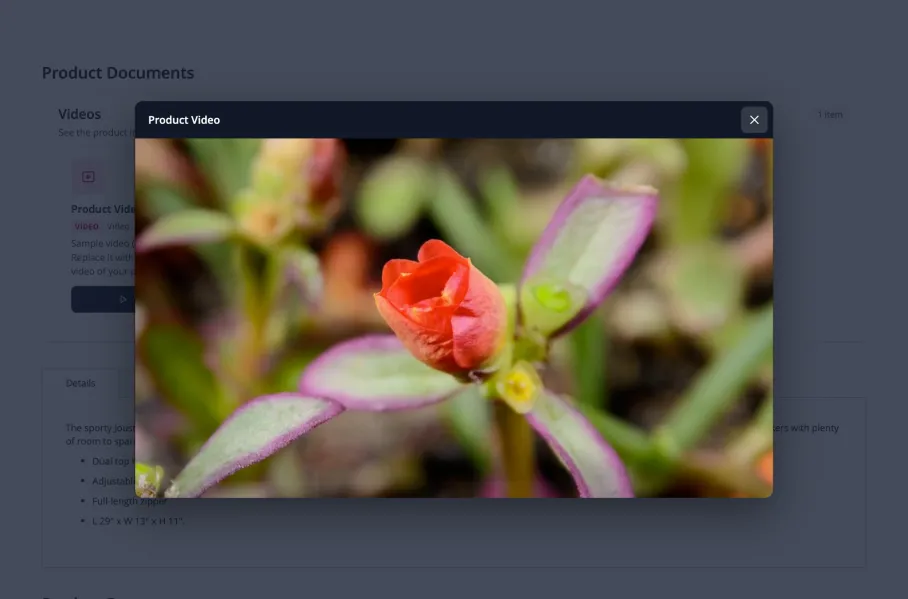
- Videos: Watch Video plays the video in a popup. Close it with the × button, the Esc key or a click outside the video; the video stops when the popup closes. Nothing is loaded from YouTube or Vimeo until the customer clicks, and YouTube videos use the privacy-enhanced youtube-nocookie.com domain.
Restricted attachments
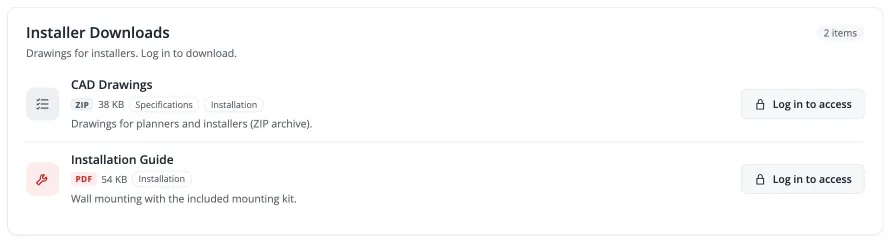
When a visitor may not open an attachment, it is shown with a lock and a Log in to access button that leads to the login page. After logging in, the customer can download it. Set Hide Restricted Attachments to Yes to hide such attachments completely.
Note: Downloads always go through the protected address /magexweb_attachments/download/index/id/<id>/. A file is only delivered when the attachment and at least one of its groups are enabled, assigned to the store view and allowed for the visitor; otherwise the visitor sees the 404 page (or, for login-only files, the login page).
Customer access control
Access is checked on three levels. A visitor can open an attachment only when all three allow it:
| Level | Where | Options |
|---|---|---|
| Store-wide | Configuration > Access | Require Login for All Attachments; Restrict to Customer Groups |
| Group | Attachment group > Access | Everyone, Logged-in Customers Only, Specific Customer Groups |
| Attachment | Attachment > Frontend & Access | Everyone, Logged-in Customers Only, Specific Customer Groups |
New attachments and groups are available to everyone. Examples:
| Goal | Setting |
|---|---|
| Price lists for wholesale customers only | Attachment: Specific Customer Groups > Wholesale |
| CAD drawings for registered customers | Group or attachment: Logged-in Customers Only |
| Hide all attachments from guests | Configuration: Require Login for All Attachments = Yes |
| Guests should not even see restricted items | Configuration: Hide Restricted Attachments = Yes |
An attachment that is in several groups can be opened when at least one of its groups allows the visitor. The rules also apply to direct download links: copying a link does not get around them.
Multiple store views
- Assign attachments and groups to All Store Views or to specific store views.
- Titles and descriptions of attachments, groups and document types are the same in every store view. For text in another language, create a separate attachment and assign it to that store view.
- Configuration settings can be changed per website or store view where the scope switcher allows it.
Security
- Uploads: allowed extensions only, executable and script types always refused, size limit, content (MIME) check, scripts in SVG, TXT, CSV and RTF refused, random file names, protected storage folder.
- Downloads: status, store view and customer access are checked for every download. Files are sent with headers that stop browsers from running them (
X-Content-Type-Options: nosniff, a sandbox Content Security Policy), are never cached by proxies (Cache-Control: private, no-store) and are not indexed by search engines (X-Robots-Tag: noindex). - Admin: every screen and action has its own permission; saving, deleting, uploading and mass actions require a POST request with Magento's form key.
- API: every endpoint requires the matching permission. File size, type and extension are always read from the stored file, and storage paths are never returned.
- Output: titles, descriptions and labels are escaped; links must be http(s) and get
rel="nofollow noopener noreferrer"; video players are built from validated video IDs only. - Logging: only IDs, sizes and errors are logged, never customer data or file contents. Debug messages are written only when Debug Mode is on.
Admin permissions
In System > Permissions > User Roles > Role Resources > Product Attachments, each area is a separate permission, so you can give staff exactly the access they need:
| Resource | Allows |
|---|---|
| Attachments | View attachments; Save Attachments and Delete Attachments are separate permissions |
| Document Types | View document types; Save Document Types; Delete Document Types |
| Attachment Groups | View groups; Save Attachment Groups; Delete Attachment Groups |
| Assign Groups to Products | Assign groups in the group's Products section, on the product edit page and through the API |
| Product Attachments Configuration | Stores > Configuration > Product Attachments |
REST API
All endpoints are under /rest/V1/productattachments and need an admin or integration token (Authorization: Bearer <token>) with the matching Product Attachments permission. Use /rest/<store_code>/V1/... for a store view context.
| Endpoint | Description |
|---|---|
GET /document-types, /document-types/:id, /document-types/code/:code | List or get document types |
POST /document-types, PUT /document-types/:id, DELETE /document-types/:id | Create, update or delete a document type |
GET /attachments, /attachments/:id | List or get attachments |
POST /attachments | Create a link or video attachment |
POST /attachments/with-file | Create a file attachment with its file (base64) |
PUT /attachments/:id, PUT /attachments/:attachmentId/file | Update an attachment or replace its file |
DELETE /attachments/:id | Delete an attachment and its file |
GET /groups, /groups/:id, /groups/code/:code | List or get groups |
POST /groups, PUT /groups/:id, DELETE /groups/:id | Create, update or delete a group |
GET, POST /groups/:groupId/products | Get or replace the products of a group ([{sku, position}]) |
GET, POST /products/:sku/groups | Get or replace the groups of a product ([{group_id, position}]) |
Example: create a file attachment with POST /rest/V1/productattachments/attachments/with-file:
{
  "attachment": {"title": "Installation Guide", "is_active": true, "document_type_ids": [3], "store_ids": [0]},
  "file": {"name": "installation-guide.pdf", "base64_encoded_data": "JVBERi0xLjQK..."}
}- PUT changes only the fields you send; relations (document types, store views, groups) are replaced only when they are sent.
- API uploads go through the same checks as admin uploads. Validation errors return 400 with every problem listed; unknown records return 404.
file_size,file_mimeandfile_extensionare read-only and always describe the stored file;file_nameis the download name and keeps the extension of the stored file.
Note: Bearer tokens require the web server to pass the Authorization header to PHP. Magento's pub/.htaccess does this; check your setup if the document root is not pub.
Cron jobs and commands
| Cron job | Schedule | Purpose |
|---|---|---|
magexweb_productattachments_clean_tmp | Daily at 03:15 | Deletes uploads that were never saved (older than 24 hours) |
| Command | Purpose |
|---|---|
magexweb:productattachments:sample-data:install / :remove | Install or remove the sample data |
magexweb:productattachments:clean-tmp | Delete abandoned uploads now (--hours=1 for uploads older than one hour) |
Uninstallation
To switch the extension off but keep everything, set Configuration > General > Enable Product Attachments to No, or run php bin/magento module:disable Magexweb_ProductAttachments. Data and files are kept.
To remove it completely:
- Optional:
php bin/magento magexweb:productattachments:sample-data:remove php bin/magento module:disable Magexweb_ProductAttachments- Composer:
composer remove magexweb/module-product-attachments. Manual installation: delete theapp/code/Magexweb/ProductAttachmentsfolder. - Optionally delete the data: the tables starting with
magexweb_productattachment_, the configuration (core_config_datapaths starting withmagexweb_productattachments/), the module'ssetup_modulerow and the folderpub/media/magexweb/productattachments/. php bin/magento setup:upgrade,php bin/magento setup:di:compileandphp bin/magento cache:flush
Important: Back up your database and the pub/media folder before deleting data: attachments, groups and files are deleted permanently.
Troubleshooting and FAQ
| Question | Answer |
|---|---|
| Nothing appears on the product page | Check that the extension is enabled, the group is enabled and assigned to the product and store view, its position is enabled in the configuration, and the attachments are enabled with Display on Product Page. Then refresh the Page Cache. |
| The Download button shows a 404 page | The attachment or all of its groups are disabled or not in this store view, the visitor is not allowed, or the file is missing. Debug Mode writes details to var/log/magexweb_productattachments.log. |
| An upload is refused | The file type is not in Allowed Extensions, the file is larger than the limit (also check PHP's upload_max_filesize and post_max_size), or its content does not match the extension. |
| A PDF opens in the browser although Open PDFs and Images in Browser is No | Your browser opens PDFs after saving them (Firefox, Safari and Edge can do this). The file is saved; change the browser's download setting for PDF files. |
| Stored files can be opened directly on nginx | Add the deny rule from Web server configuration. |
| Old uploads pile up in the tmp folder | Cron is not running. Run php bin/magento magexweb:productattachments:clean-tmp. |
| The video does not play in the popup | Check the URL (YouTube, Vimeo or an MP4, WEBM or OGG file). With Content Security Policy in restrict mode, add youtube-nocookie.com, player.vimeo.com or your video host to the CSP whitelist (frame-src or media-src). |
| Changes are not visible on the product page | Flush the Page Cache in System > Cache Management. |
Support
For help, contact Magexweb at info@magexweb.com. Please include your Magento version, PHP version, a description of the problem and, if possible, var/log/magexweb_productattachments.log (enable General > Debug Mode for details).