
Overview
Store Locator is a Magento 2 extension from Magexweb that helps customers find your physical stores, dealers or partners. Visitors search by address or their current location, filter by category, service or opening hours, and see the results on a map (Google Maps or OpenStreetMap) and in a list. Every store gets its own SEO-friendly page with address, opening hours, directions, photos and a contact form.
Stores are managed in the Magento admin like any other content: add them one by one, import them from a CSV file, or let visitors suggest new ones for you to approve.
Important: Store Locator pages are cached by Magento's full page cache, and the search uses its own Store Locator cache type and search index. After installing, enable the Store Locator cache type in System > Cache Management, and make sure the Magento cron is running (geocoding, background imports and the search index use it).
Key features
- Store search by address, place, ZIP/postal code or the visitor's location, with a distance radius and store name search
- Filters for categories, services, country, region, city, "Open now" and your own custom attributes
- Google Maps with marker clustering, custom marker images per store or category, Map ID / Advanced Markers and custom map styles
- OpenStreetMap as an alternative without an API key: Leaflet maps with clustering and info windows, address suggestions, automatic coordinates and Google, OpenStreetMap or Apple Maps directions
- Six layouts: Map + List, List + Map, Full Map, Grid, List and Map + Grid
- Store pages with image gallery, opening hours with live open/closed status, holiday hours, directions, contact links, custom attributes and nearby stores
- Weekly opening hours with several periods per day, after-midnight closing and per-date holiday hours, each store in its own timezone
- Categories, services and custom attributes (text, number, yes/no, date, URL, dropdown, multiple select)
- Store view translations, store view assignment and customer group visibility per store
- "Contact this store" and "Suggest a store" forms with email notifications, spam protection and optional Google reCAPTCHA
- CSV import and export with validation, background and scheduled imports (file or HTTPS URL)
- Automatic coordinates (geocoding) for stores without latitude and longitude
- SEO: URL rewrites with 301 redirects, meta templates, canonical URLs, JSON-LD structured data and XML sitemap
- Usage reports (searches, page views, directions, calls, emails) and optional Google Tag Manager events
- CMS widget, REST API, CLI commands, sample data and granular admin permissions
- Full page cache compatible
How it works
Once installed, the store locator is available at www.yourstore.com/store-locator (the path is configurable). Customers can:
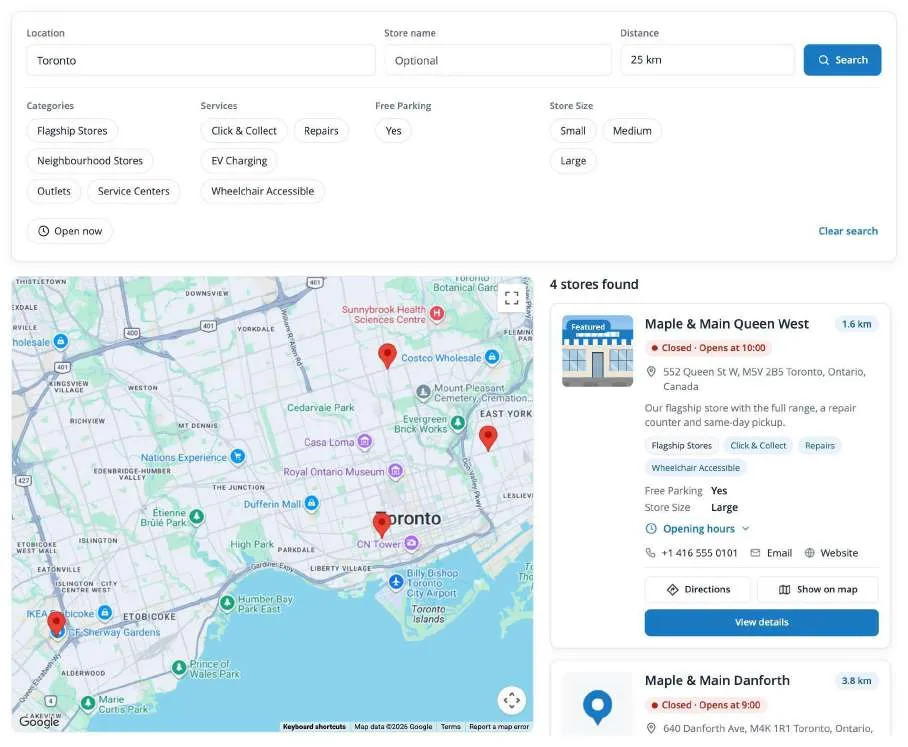
- Search for stores near an address or their location. Results are sorted by distance and shown on the map and in the list, with each store's opening status, services and quick actions.
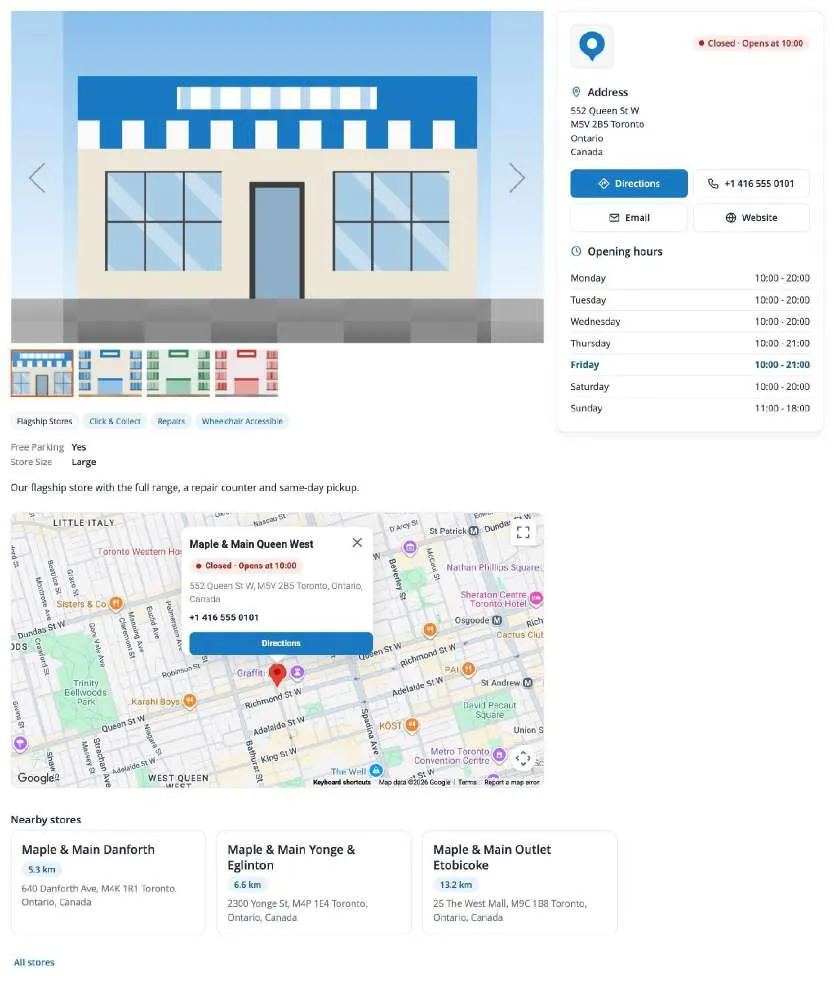
- Open a store page with photos, address, contact buttons, opening hours, a map with directions and the nearest other stores.
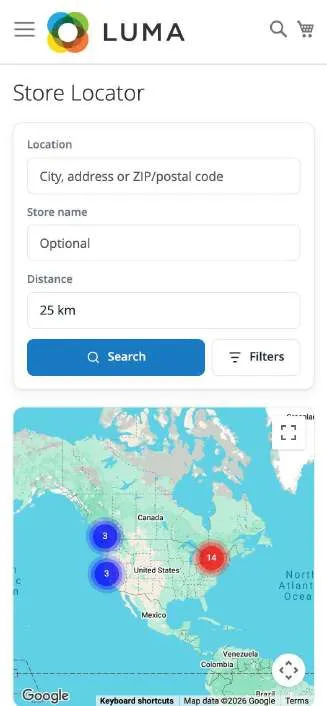
- Use the store locator on a phone: the search panel, filters and results adapt to small screens.
Requirements and compatibility
| Item | Detail |
|---|---|
| Platform | Magento Open Source or Adobe Commerce 2.4.8 and 2.4.9 |
| PHP | 8.1 to 8.5 (as supported by your Magento version) |
| Database | MySQL 8 or MariaDB 10.6+ |
| Cron | Magento cron must be running (geocoding, background and scheduled imports, message clean-up) |
| Maps | A Google Maps Platform account, or OpenStreetMap without an account (see Map setup) |
| Module code | Magexweb_StoreLocator |
| Composer package | magexweb/storelocator |
| License | Open Software License 3.0 (OSL-3.0) |
Installation
Composer installation (recommended)
- Place the extension in your project (via the Adobe Commerce Marketplace, a private Composer repository, or by copying it under
app/code). - From the Magento root, run the following commands:
| Command | Purpose |
|---|---|
composer require magexweb/storelocator | Only if distributed via a Composer repository |
php bin/magento module:enable Magexweb_StoreLocator | Registers and enables the module |
php bin/magento setup:upgrade | Creates the store locator tables and URL rewrites |
php bin/magento setup:di:compile | Recommended for production mode |
php bin/magento setup:static-content:deploy -f | Required in production mode |
php bin/magento cache:enable magexweb_storelocator | Enables the Store Locator cache type (new cache types are disabled on existing installations) |
php bin/magento cache:flush | Clears the Magento cache |
Manual (ZIP) installation
- Extract the ZIP package to
app/code/Magexweb/StoreLocatorin your Magento installation, so thatapp/code/Magexweb/StoreLocator/registration.phpexists. - Run the same
bin/magentocommands listed above (module:enable, setup:upgrade, di:compile, static-content:deploy, cache:enable, cache:flush). - Check the module is active:
php bin/magento module:status Magexweb_StoreLocator
Sample data
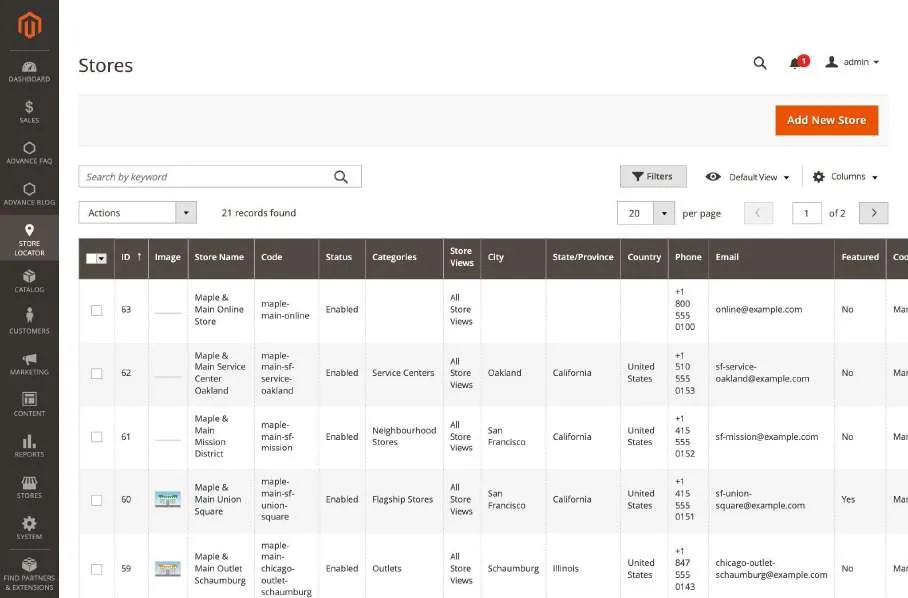
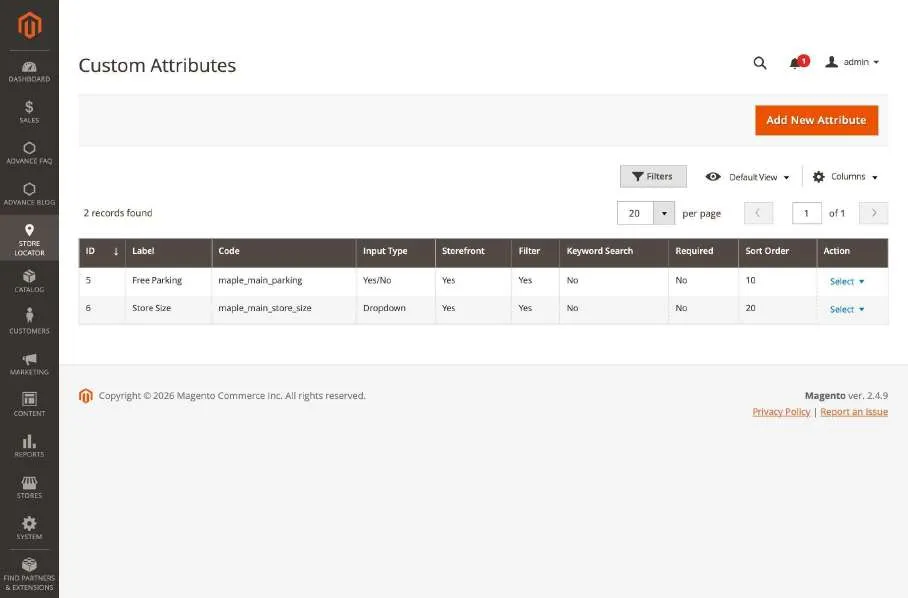
Install the sample data to see the store locator in action straight away: 21 stores of a fictional brand ("Maple & Main") in Toronto, Montreal, Vancouver, New York, Chicago and San Francisco plus an online store, with opening hours (including split, late-night and 24/7 hours), upcoming holidays, 4 categories, 4 services, 2 custom attributes ("Free Parking", "Store Size") and placeholder images.
| Command | Purpose |
|---|---|
php bin/magento magexweb:storelocator:sample-data:install | Installs the sample stores, categories, services, attributes and images |
php bin/magento magexweb:storelocator:sample-data:remove | Removes exactly what was installed (your own stores are never touched) |
Note: sample codes start with maple-main-. If a code is already used in your store, the sample item gets a number added instead of replacing your content. Phone numbers use 555 numbers and email addresses use example.com.
After installing
- Choose the map provider and, for Google Maps, enter the API keys (see Map setup).
- Add stores, or import them, under Store Locator > Stores (see Managing stores and Import and export).
- Open the store locator at
www.yourstore.com/store-locator(the path is configurable). - On production stores, set System > Index Management > Store Locator Search to "Update by Schedule" (changes are applied by cron within a minute), or keep "Update on Save".
Map setup
Maps, address suggestions and the automatic store coordinates use one of two map providers. Choose it in Store Locator > Configuration > Map > Map Provider; the settings of that group change with the provider (see Admin configuration).
| Google Maps | OpenStreetMap | |
|---|---|---|
| Account / API key | Google Cloud project with billing and two API keys | Not needed |
| Map | Google Maps, Advanced Markers with a Map ID, custom map style | Leaflet with OpenStreetMap tiles or the tile server of your choice |
| Address suggestions | Google Places API (New) | Photon (photon.komoot.io or your own service) |
| Store coordinates | Google Geocoding API | Nominatim (nominatim.openstreetmap.org or your own service) |
| Directions links | Google Maps | Google Maps, OpenStreetMap or Apple Maps |
Google Maps
Create two API keys in the Google Cloud console (billing must be enabled on the project) and enter them in Store Locator > Configuration > Map.
| Key | APIs to enable | Restriction | Where to enter it |
|---|---|---|---|
| Browser key | Maps JavaScript API, Places API (New), Geocoding API | Websites (HTTP referrers): your storefront and admin domains | Map > Browser API Key |
| Server key | Geocoding API | IP addresses of your server | Map > Server Geocoding API Key (stored encrypted) |
Important: the browser key is visible in the page source. Always restrict it to your own domains (for example https://www.yourstore.com/* and your admin domain). If a domain is missing from the list, Google shows "This page can't load Google Maps correctly" and the map stays grey.
Map ID (optional). Create a Map ID in Google Cloud > Map Management (map type JavaScript) and enter it in Map > Map ID to use Google's Advanced Markers and cloud map styling. A Map Style (JSON) takes precedence over the Map ID, because Google cannot combine both; with a style, the map uses classic markers.
OpenStreetMap
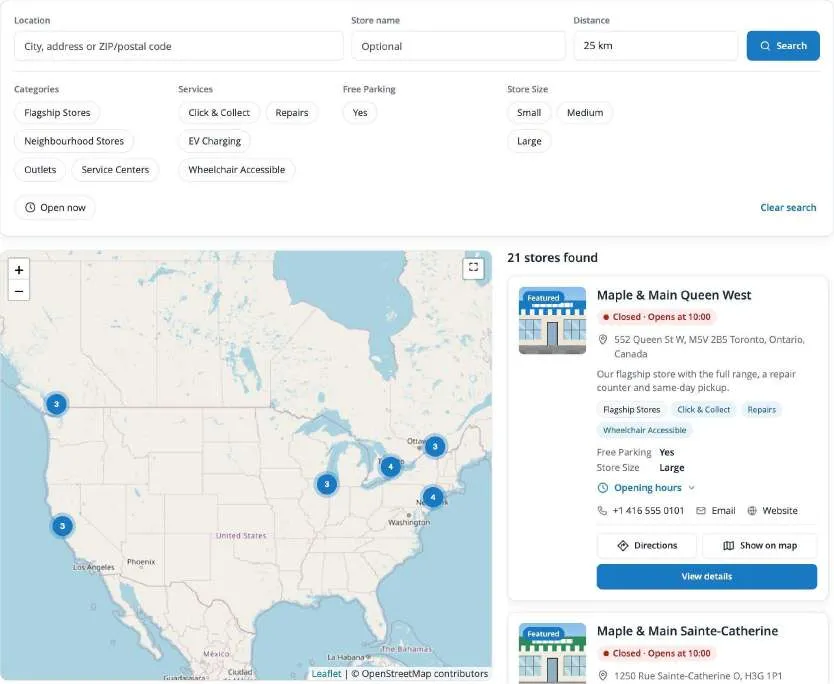
Choose OpenStreetMap as the Map Provider. No account or API key is needed: the defaults work straight away. The maps use Leaflet (included in the extension) with the same features as with Google: marker clustering, info windows, the search radius, "Use my location", address suggestions and the map picker in the store form.
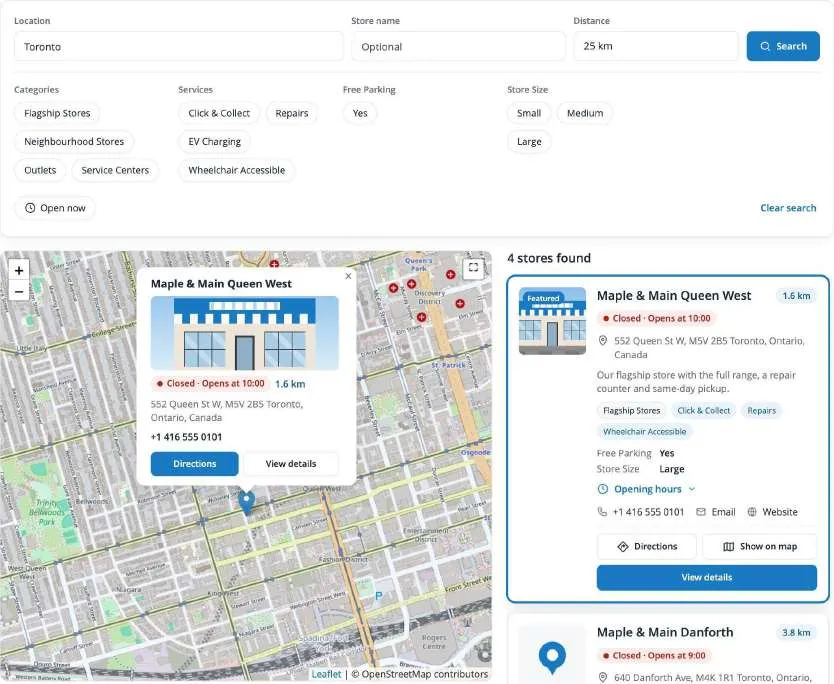
| Setting | Default | Notes |
|---|---|---|
| Tile Server URL | https://tile.openstreetmap.org/{z}/{x}/{y}.png | The map images. Use a tile provider (e.g. MapTiler, Stadia Maps, Thunderforest, with its key in the URL) or your own tile server for busy shops. |
| Place Search URL | https://photon.komoot.io/api/ | Photon compatible service for the address suggestions and the visitors' address search. Empty: no address search. |
| Geocoding URL | https://nominatim.openstreetmap.org/search | Nominatim compatible service that finds store coordinates (cron, Find Coordinates, command line); at most one request per second. |
| Geocoding Contact Email | (empty) | Your email, sent with geocoding requests as the Nominatim usage policy asks. |
| Directions Service | Google Maps | Route planner opened by the Directions links: Google Maps, OpenStreetMap or Apple Maps. |
Important: the public OpenStreetMap tile server, Photon and Nominatim are free services for light use with fair use policies. For a busy shop, enter the URLs of a commercial provider or of your own servers. When Magento's Content Security Policy is in restrict mode, add a tile, search or geocoding host other than the defaults to the CSP whitelist.
Map ID, Map Style (JSON) and Minimum Cluster Size are Google Maps settings; with OpenStreetMap the tile provider decides the map style and clusters start at 2 stores.
Store coordinates
Every store needs a latitude and longitude to appear on the map and in distance searches:
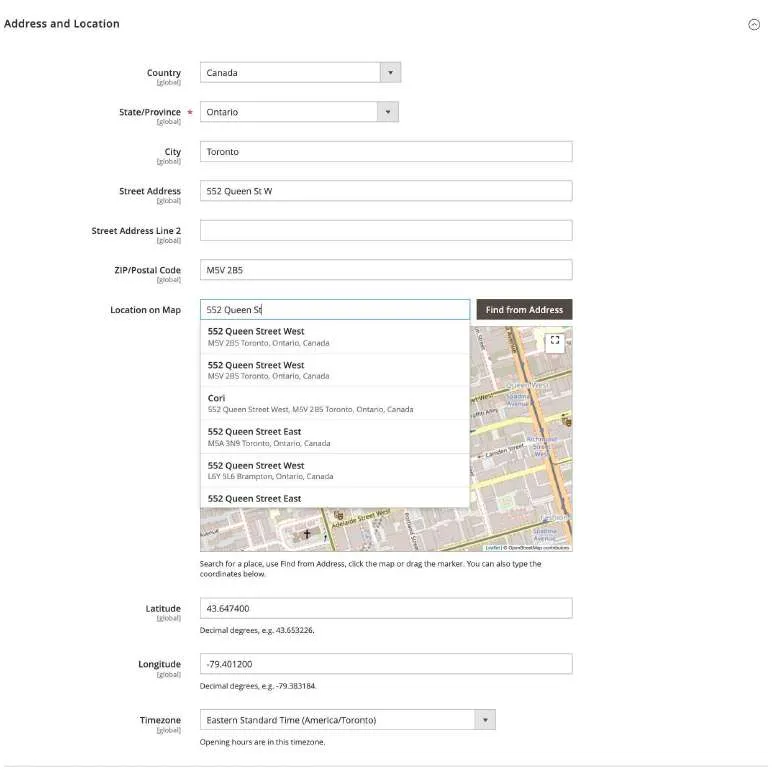
- In the store form, use the map under Address and Location: type a place or address in the search box and choose a suggestion, click Find from Address, click the map or drag the marker.
- Stores saved or imported with an address but without coordinates are looked up by cron (every 5 minutes, 50 stores per run) with the map provider's geocoding service (Google: the server key; OpenStreetMap: the Geocoding URL).
- The Coordinates column of the store grid shows the state: Pending, Found, Not Found or Manual. The grid action Find Coordinates queues the selected stores again.
- Run the lookup right away:
php bin/magento magexweb:storelocator:geocode [--limit=500] [--retry-failed]
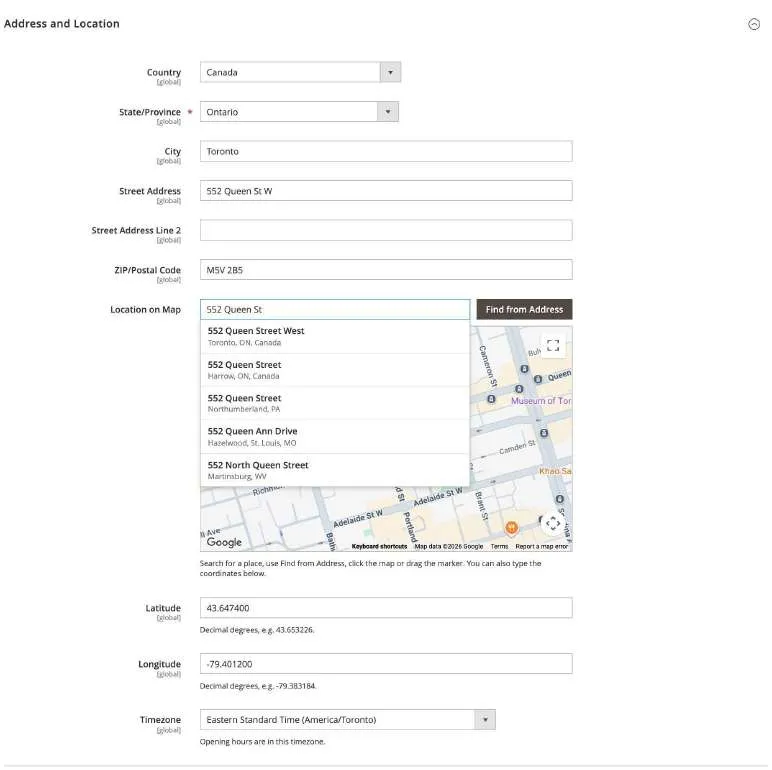
The same field with OpenStreetMap:
Admin configuration
All settings live under Stores > Settings > Configuration > Magexweb Extensions > Store Locator (also available from Store Locator > Configuration). Use the Scope switcher at the top of the page to use different settings for a website or store view.
General
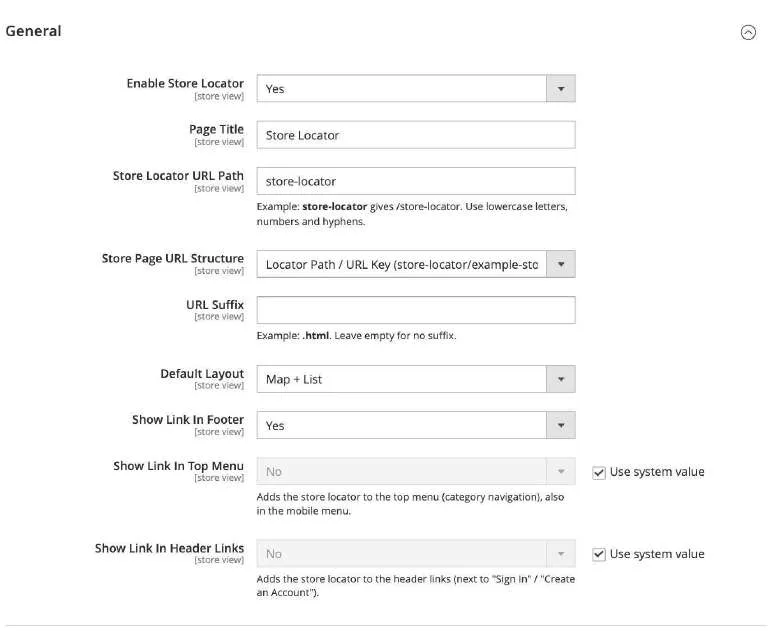
| Field | Description |
|---|---|
| Enable Store Locator | Master switch. Set to No to hide the store locator, store pages and links for this store view. Default: Yes |
| Page Title | Heading of the store locator page, also used in breadcrumbs and as the default link label. Default: Store Locator |
| Store Locator URL Path | Example: store-locator gives /store-locator. Use lowercase letters, numbers and hyphens.Default: store-locator |
| Store Page URL Structure | URL of store pages: the locator path plus the store URL key, or with an extra segment in between. Default: Locator Path / URL Key ( store-locator/example-store) |
| Store Page URL Segment | The extra segment when the URL structure includes one (e.g. store gives /store-locator/store/example-store).Default: store |
| URL Suffix | Example: .html. Leave empty for no suffix.Default: (empty) |
| Default Layout | Layout of the store locator page: Map + List, List + Map, Full Map, Grid, List or Map + Grid. Default: Map + List |
| Show Link In Footer | Adds a link to the store locator in the footer links. Default: Yes |
| Show Link In Top Menu | Adds the store locator to the top menu (category navigation), also in the mobile menu. Default: No |
| Top Menu Link Label | Leave empty to use the Page Title. Default: (empty) |
| Top Menu Link Position | Shows the top menu link first or last. Default: Last |
| Show Link In Header Links | Adds the store locator to the header links (next to "Sign In" / "Create an Account"). Default: No |
| Header Link Label | Leave empty to use the Page Title. Default: (empty) |
| Header Link Position | Shows the header link first or last. Default: Last |
Map
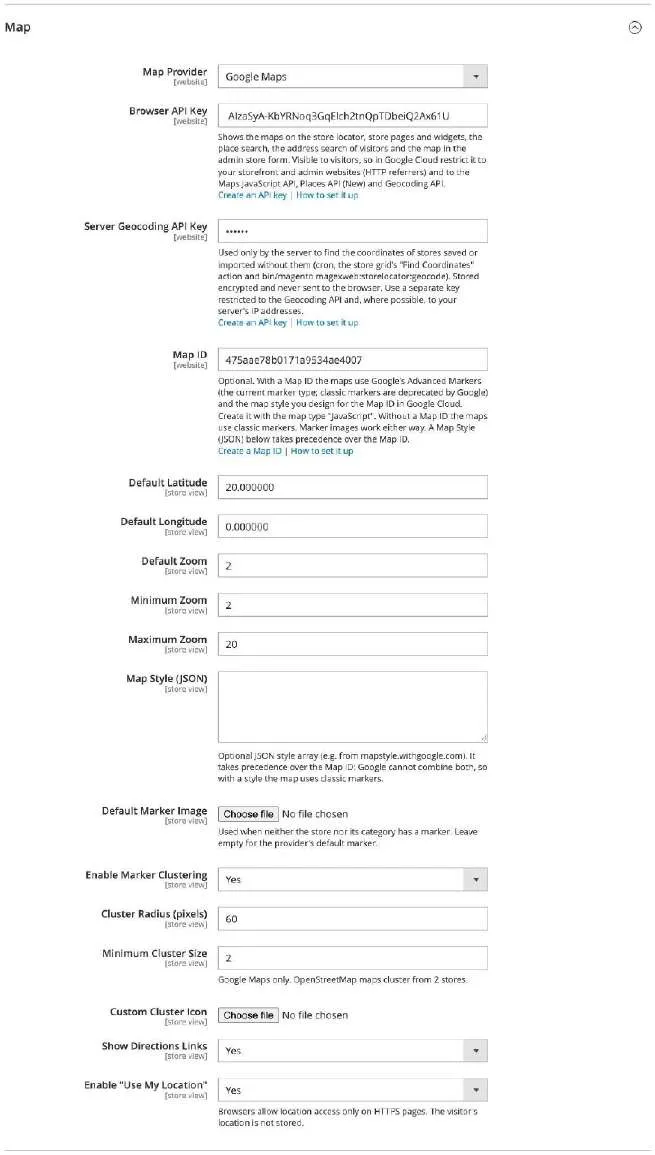
With Google Maps as the Map Provider:
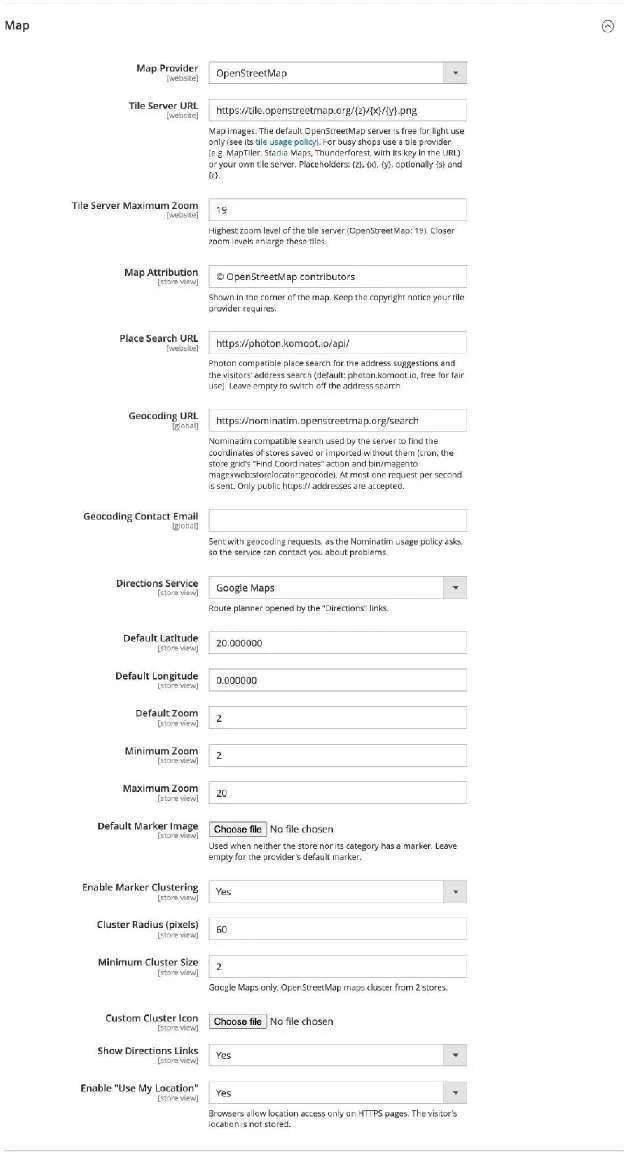
With OpenStreetMap as the Map Provider:
| Field | Description |
|---|---|
| Map Provider | Map service used for maps, place search and geocoding: Google Maps (API key needed) or OpenStreetMap (no API key). The settings below change with the provider. Default: Google Maps |
| Tile Server URL | OpenStreetMap only. Map images. The default OpenStreetMap server is free for light use only (see its tile usage policy). For busy shops use a tile provider (e.g. MapTiler, Stadia Maps, Thunderforest, with its key in the URL) or your own tile server. Placeholders: {z}, {x}, {y}, optionally {s} and {r}. Default: https://tile.openstreetmap.org/{z}/{x}/{y}.png |
| Tile Server Maximum Zoom | OpenStreetMap only. Highest zoom level of the tile server (OpenStreetMap: 19). Closer zoom levels enlarge these tiles. Default: 19 |
| Map Attribution | OpenStreetMap only. Shown in the corner of the map. Keep the copyright notice your tile provider requires. Default: © OpenStreetMap contributors |
| Place Search URL | OpenStreetMap only. Photon compatible place search for the address suggestions and the visitors' address search (default: photon.komoot.io, free for fair use). Leave empty to switch off the address search. Default: https://photon.komoot.io/api/ |
| Geocoding URL | OpenStreetMap only. Nominatim compatible search used by the server to find the coordinates of stores saved or imported without them (cron, the store grid's "Find Coordinates" action and bin/magento magexweb:storelocator:geocode). At most one request per second is sent. Only public https:// addresses are accepted.Default: https://nominatim.openstreetmap.org/search |
| Geocoding Contact Email | OpenStreetMap only. Sent with geocoding requests, as the Nominatim usage policy asks, so the service can contact you about problems. Default: (empty) |
| Directions Service | OpenStreetMap only. Route planner opened by the "Directions" links. Default: Google Maps |
| Browser API Key | Google Maps only. Shows the maps on the store locator, store pages and widgets, the place search, the address search of visitors and the map in the admin store form. Visible to visitors, so in Google Cloud restrict it to your storefront and admin websites (HTTP referrers) and to the Maps JavaScript API, Places API (New) and Geocoding API. Default: (empty) |
| Server Geocoding API Key | Google Maps only. Used only by the server to find the coordinates of stores saved or imported without them. Stored encrypted and never sent to the browser. Use a separate key restricted to the Geocoding API and, where possible, to your server's IP addresses. Default: (empty) |
| Map ID | Google Maps only. Optional. With a Map ID the maps use Google's Advanced Markers (the current marker type; classic markers are deprecated by Google) and the map style you design for the Map ID in Google Cloud. Create it with the map type "JavaScript". Without a Map ID the maps use classic markers. Marker images work either way. A Map Style (JSON) takes precedence over the Map ID. Default: (empty) |
| Default Latitude / Default Longitude | Center of the map before a search, in decimal degrees. Default: 20.000000 / 0.000000 |
| Default Zoom | Zoom level of the map before a search (1 = world, 20 = buildings). Default: 2 |
| Minimum Zoom / Maximum Zoom | Visitors cannot zoom out or in further than these levels. Default: 2 / 20 |
| Map Style (JSON) | Google Maps only. Optional JSON style array (e.g. from mapstyle.withgoogle.com). It takes precedence over the Map ID: Google cannot combine both, so with a style the map uses classic markers. Default: (empty) |
| Default Marker Image | Used when neither the store nor its category has a marker. Leave empty for the provider's default marker. Default: (empty) |
| Enable Marker Clustering | Groups nearby markers into a numbered cluster at low zoom levels. Default: Yes |
| Cluster Radius (pixels) | Markers within this distance on screen are grouped into one cluster. Default: 60 |
| Minimum Cluster Size | Smallest number of markers shown as a cluster. Default: 2 |
| Custom Cluster Icon | Optional image for clusters. Leave empty for the default cluster icon. Default: (empty) |
| Show Directions Links | Shows a Directions link (route planner) on store cards, info windows and store pages. Default: Yes |
| Enable "Use My Location" | Browsers allow location access only on HTTPS pages. The visitor's location is not stored. Default: Yes |
Search
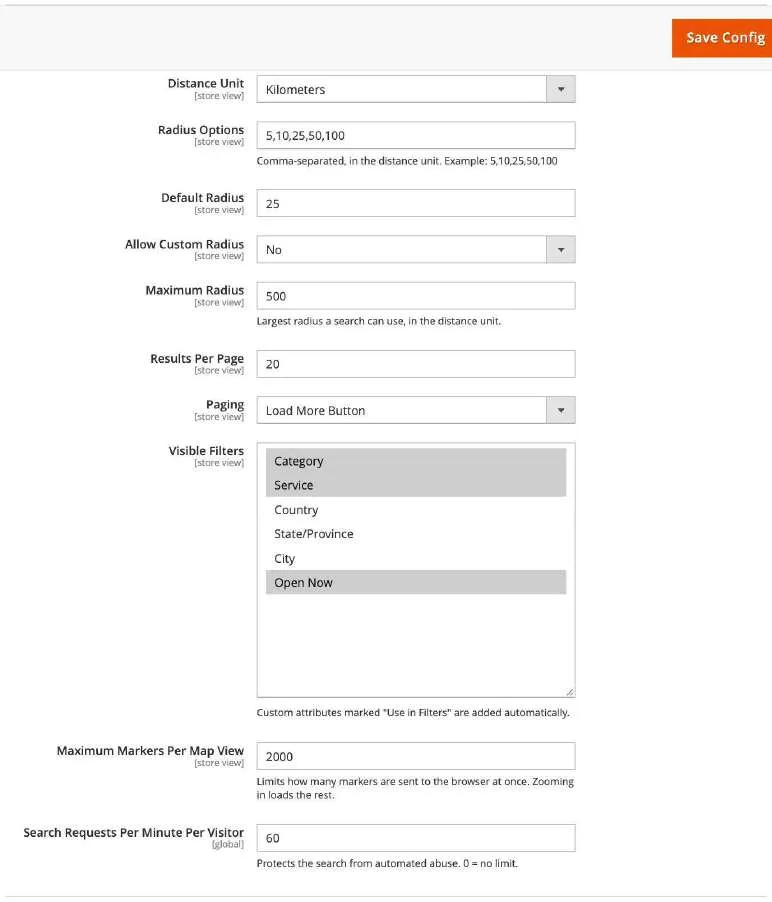
| Field | Description |
|---|---|
| Distance Unit | Unit of radius options and distances shown to visitors. Default: Kilometers |
| Radius Options | Comma-separated, in the distance unit. Example: 5,10,25,50,100 Default: 5,10,25,50,100 |
| Default Radius | Radius used when the visitor does not choose one. Default: 25 |
| Allow Custom Radius | Yes: visitors may search any radius up to the maximum. No: only the Radius Options are accepted. Default: No |
| Maximum Radius | Largest radius a search can use, in the distance unit. Default: 500 |
| Results Per Page | Number of stores in each page of results. Default: 20 |
| Paging | Load further results with page numbers or with a "Show more stores" button. Default: Load More Button |
| Visible Filters | Custom attributes marked "Use in Filters" are added automatically. Default: Category, Service, Open Now |
| Maximum Markers Per Map View | Limits how many markers are sent to the browser at once. Zooming in loads the rest. Default: 2000 |
| Search Requests Per Minute Per Visitor | Protects the search from automated abuse. 0 = no limit. Default: 60 |
Opening Hours
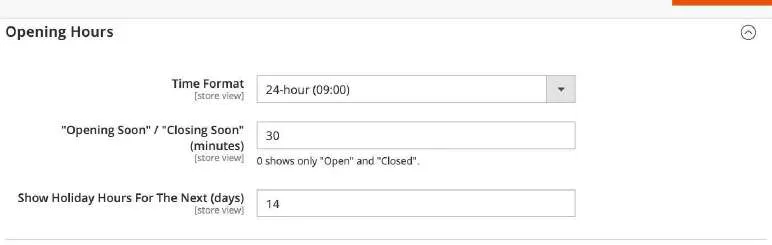
| Field | Description |
|---|---|
| Time Format | How opening times are shown on the storefront. Default: 24-hour (09:00) |
| "Opening Soon" / "Closing Soon" (minutes) | 0 shows only "Open" and "Closed". Default: 30 |
| Show Holiday Hours For The Next (days) | Upcoming holiday hours within this number of days are listed on store pages. Default: 14 |
Store Page
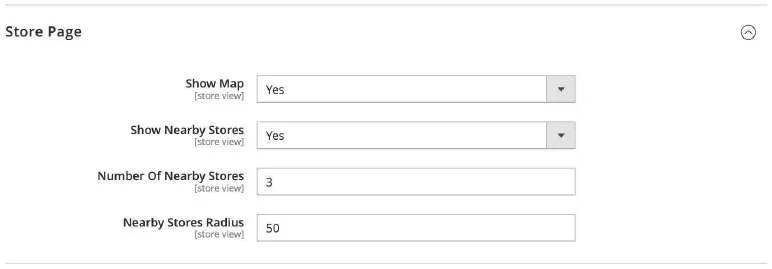
| Field | Description |
|---|---|
| Show Map | Shows a map with the store's location on the store page. Default: Yes |
| Show Nearby Stores | Lists the closest other stores at the bottom of the store page. Default: Yes |
| Number Of Nearby Stores | Maximum number of nearby stores shown. Default: 3 |
| Nearby Stores Radius | Only stores within this distance are listed as nearby. Default: 50 |
SEO
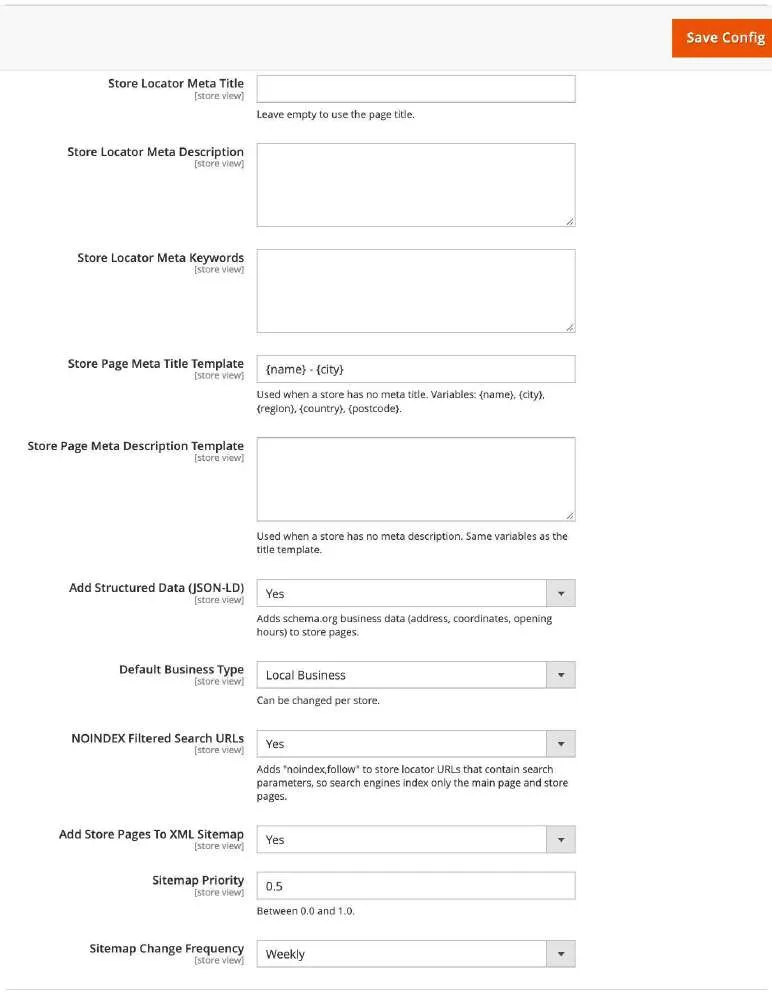
| Field | Description |
|---|---|
| Store Locator Meta Title | Leave empty to use the page title. Default: (empty) |
| Store Locator Meta Description | Meta description of the store locator page. Default: (empty) |
| Store Locator Meta Keywords | Meta keywords of the store locator page (optional; most search engines ignore them). Default: (empty) |
| Store Page Meta Title Template | Used when a store has no meta title. Variables: {name}, {city}, {region}, {country}, {postcode}. Default: {name} - {city} |
| Store Page Meta Description Template | Used when a store has no meta description. Same variables as the title template. Default: (empty) |
| Add Structured Data (JSON-LD) | Adds schema.org business data (address, coordinates, opening hours) to store pages. Default: Yes |
| Default Business Type | Can be changed per store. Default: Local Business |
| NOINDEX Filtered Search URLs | Adds "noindex,follow" to store locator URLs that contain search parameters, so search engines index only the main page and store pages. Default: Yes |
| Add Store Pages To XML Sitemap | Adds store pages to the XML sitemap generated in Marketing > Site Map. Default: Yes |
| Sitemap Priority | Between 0.0 and 1.0. Default: 0.5 |
| Sitemap Change Frequency | How often search engines should expect store pages to change. Default: Weekly |
Statistics
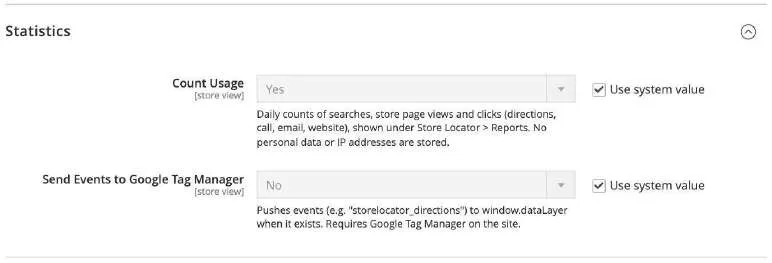
| Field | Description |
|---|---|
| Count Usage | Daily counts of searches, store page views and clicks (directions, call, email, website), shown under Store Locator > Reports. No personal data or IP addresses are stored. Default: Yes |
| Send Events to Google Tag Manager | Pushes events (e.g. storelocator_directions) to window.dataLayer when it exists. Requires Google Tag Manager on the site.Default: No |
Contact Store Form
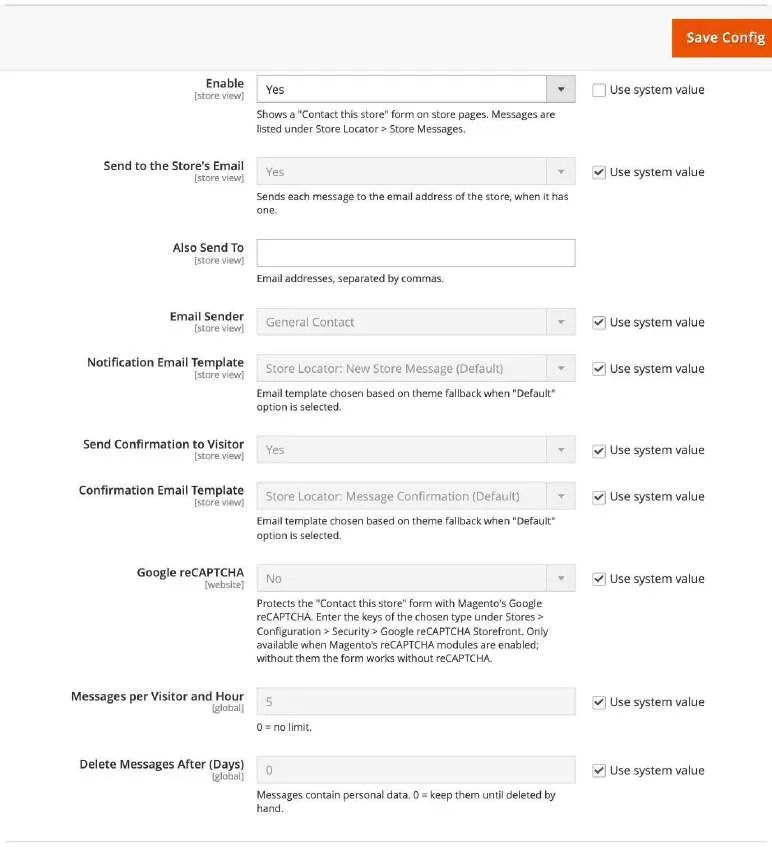
| Field | Description |
|---|---|
| Enable | Shows a "Contact this store" form on store pages. Messages are listed under Store Locator > Store Messages. Default: No |
| Send to the Store's Email | Sends each message to the email address of the store, when it has one. Default: Yes |
| Also Send To | Email addresses, separated by commas. Default: (empty) |
| Email Sender | Store email identity used as the sender of message emails. Default: General Contact |
| Notification Email Template | Email template; customize it in Marketing > Email Templates. Default: Default template |
| Send Confirmation to Visitor | Sends the visitor a copy of their message. Default: Yes |
| Confirmation Email Template | Email template; customize it in Marketing > Email Templates. Default: Default template |
| Google reCAPTCHA | Protects the "Contact this store" form with Magento's Google reCAPTCHA. Only available when Magento's reCAPTCHA modules are enabled; without them the form works without reCAPTCHA. Default: No |
| Messages per Visitor and Hour | 0 = no limit. Default: 5 |
| Delete Messages After (Days) | Messages contain personal data. 0 = keep them until deleted by hand. Default: 0 |
Note: to protect the form with Google reCAPTCHA, enter your reCAPTCHA keys in Stores > Configuration > Security > Google reCAPTCHA Storefront, then choose the same reCAPTCHA type in the form's Google reCAPTCHA setting.
Suggest a Store Form
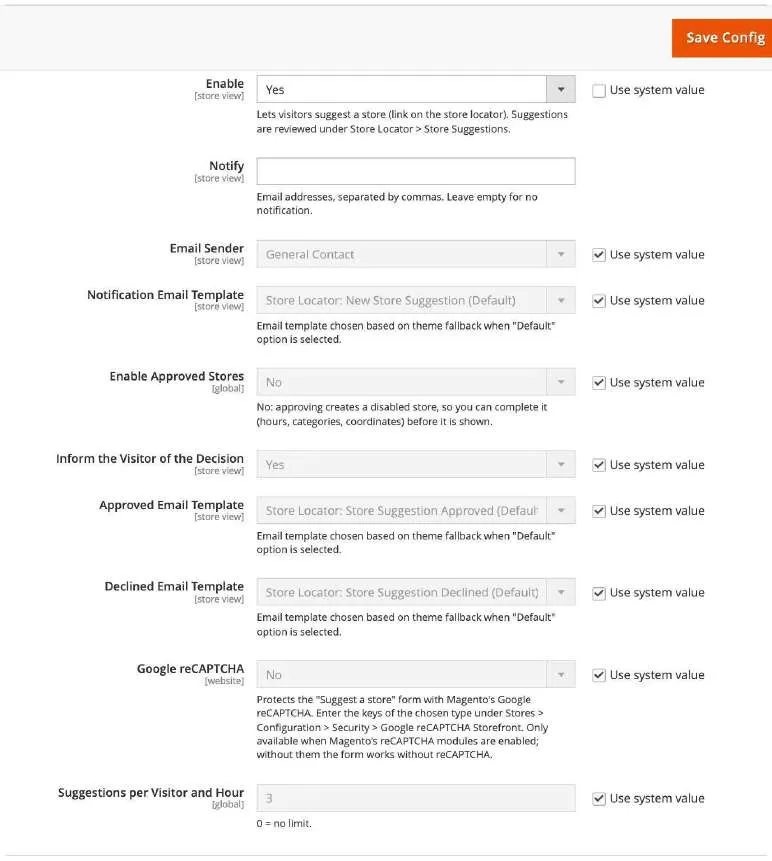
| Field | Description |
|---|---|
| Enable | Lets visitors suggest a store (link on the store locator). Suggestions are reviewed under Store Locator > Store Suggestions. Default: No |
| Notify | Email addresses, separated by commas. Leave empty for no notification. Default: (empty) |
| Email Sender | Store email identity used as the sender of suggestion emails. Default: General Contact |
| Notification Email Template | Email template; customize it in Marketing > Email Templates. Default: Default template |
| Enable Approved Stores | No: approving creates a disabled store, so you can complete it (hours, categories, coordinates) before it is shown. Default: No |
| Inform the Visitor of the Decision | Emails the visitor when their suggestion is approved or declined. Default: Yes |
| Approved Email Template / Declined Email Template | Email templates; customize them in Marketing > Email Templates. Default: Default template |
| Google reCAPTCHA | Protects the "Suggest a store" form with Magento's Google reCAPTCHA. Only available when Magento's reCAPTCHA modules are enabled. Default: No |
| Suggestions per Visitor and Hour | 0 = no limit. Default: 3 |
Import
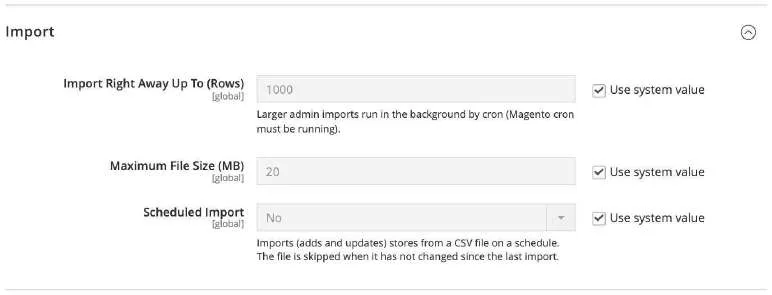
| Field | Description |
|---|---|
| Import Right Away Up To (Rows) | Larger admin imports run in the background by cron (Magento cron must be running). Default: 1000 |
| Maximum File Size (MB) | Largest CSV file accepted by uploads, scheduled imports and URL downloads. Default: 20 |
| Scheduled Import | Imports (adds and updates) stores from a CSV file on a schedule. The file is skipped when it has not changed since the last import. Default: No |
| Source | Read the scheduled import from a file in var/import_export or from an https:// URL.Default: File on the server |
| File | Path inside var/import_export, e.g. storelocator/stores.csv.Default: (empty) |
| URL | Public https:// address of the CSV file. Addresses of private or local networks are refused, redirects are not followed. Default: (empty) |
| Schedule | Cron expression (server time), e.g. 0 2 * * * for every night at 2:00.Default: 0 2 * * * |
Developer
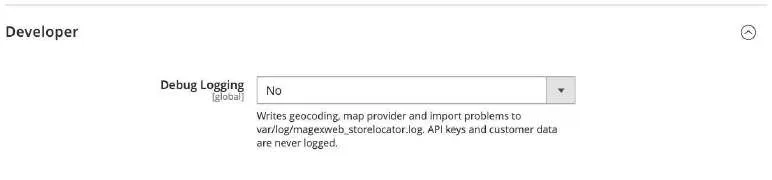
| Field | Description |
|---|---|
| Debug Logging | Writes geocoding, map provider and import problems to var/log/magexweb_storelocator.log. API keys and customer data are never logged.Default: No |
Managing stores
Everything is managed from the Store Locator menu in the Magento admin: Stores, Categories, Services, Custom Attributes, Store Messages, Store Suggestions, Reports, Import / Export and a link to the configuration.
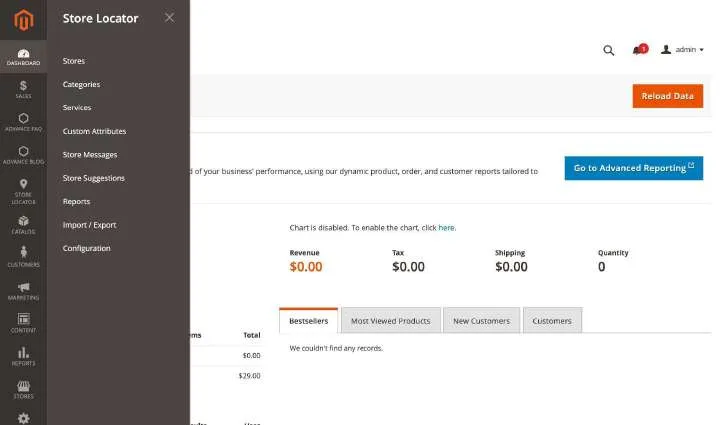
Stores grid
Go to Store Locator > Stores. The grid supports keyword search, filters (including store view, category, customer group and coordinates state), column selection and mass actions: Enable, Disable, Find Coordinates, Export to CSV and Delete. Each row also has Edit, Duplicate, Enable/Disable and Delete actions. Click Add New Store to create a store.
Adding and editing a store
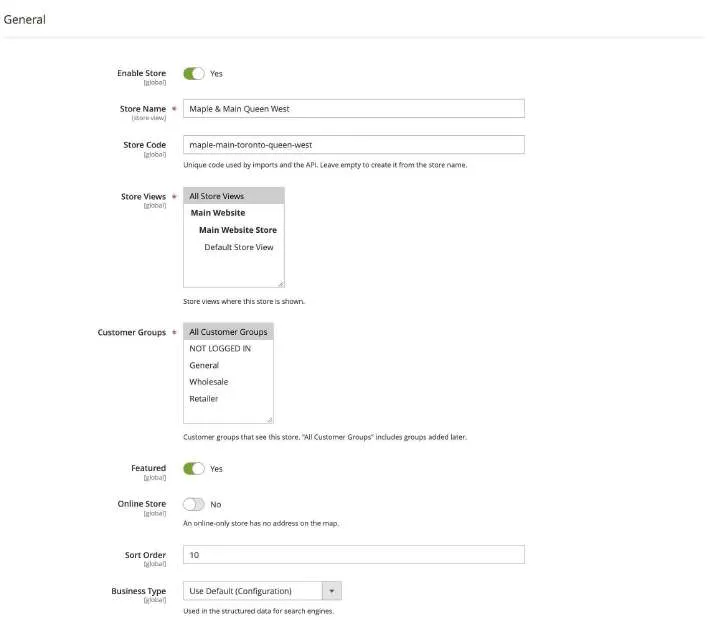
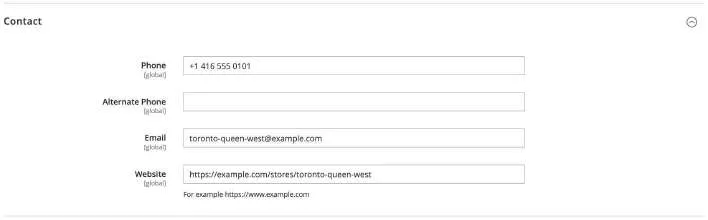
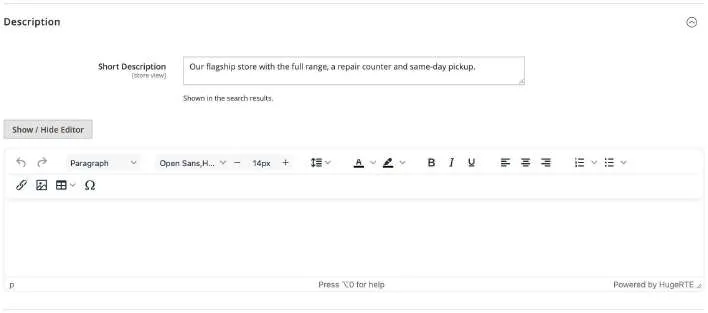
The store form is divided into sections:
| Section | Fields |
|---|---|
| General | Enable Store, Store Name, Store Code (used by imports and the API), Store Views, Customer Groups, Featured (shown first, with a badge), Online Store (no address on the map), Sort Order, Business Type (structured data) |
| Address and Location | Country, State/Province, City, Street Address (2 lines), ZIP/Postal Code, Location on Map (search box with place suggestions, Find from Address and a map with a draggable marker), Latitude, Longitude, Timezone |
| Contact | Phone, Alternate Phone, Email (also receives contact form messages), Website |
| Description | Short Description (store list and info windows) and Description (WYSIWYG, store page) |
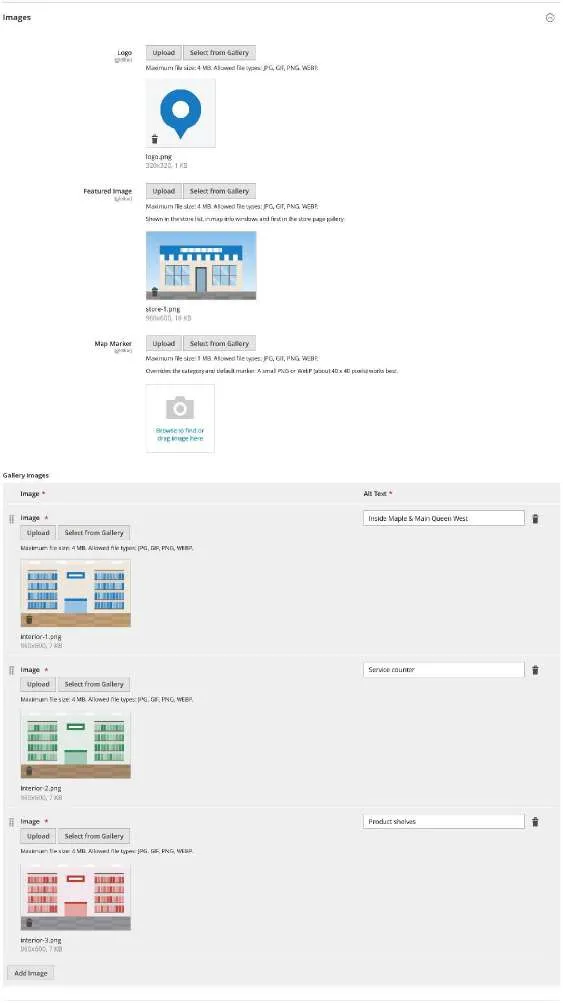
| Images | Logo, Featured Image (store list, info windows, first on the store page), Map Marker, and up to 20 Gallery Images with alt text and drag-to-sort |
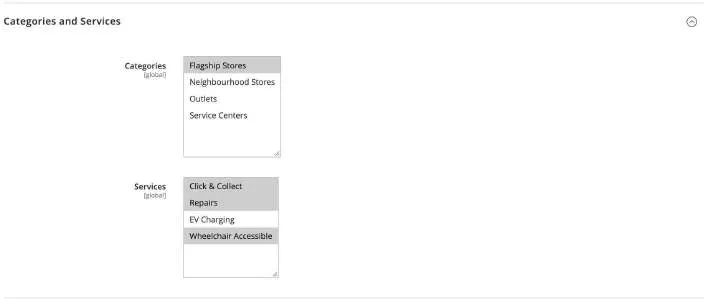
| Categories and Services | The categories and services the store belongs to (used by filters and widgets) |
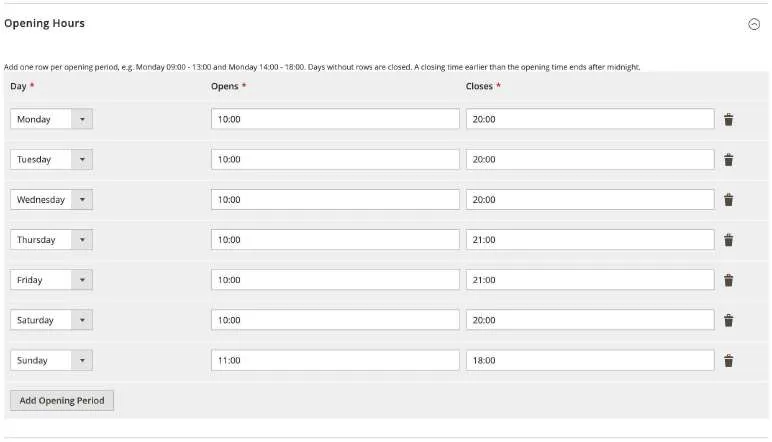
| Opening Hours | One row per opening period, e.g. Monday 09:00 – 13:00 and Monday 14:00 – 18:00. Days without rows are closed. A closing time earlier than the opening time ends after midnight. |
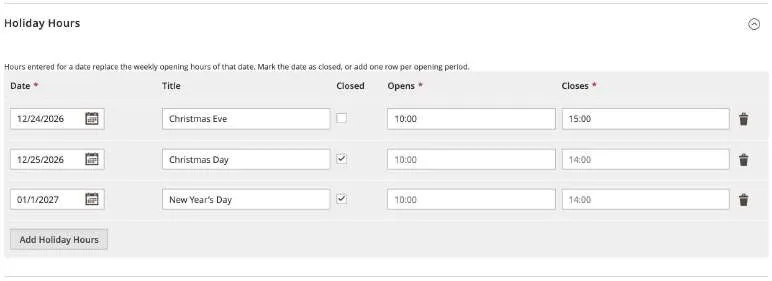
| Holiday Hours | Rows for a date replace the weekly hours of that date: mark the date as Closed or enter its hours, with a title such as "Christmas Eve" |
| Custom Attributes | Values of your custom attributes (see Custom attributes) |
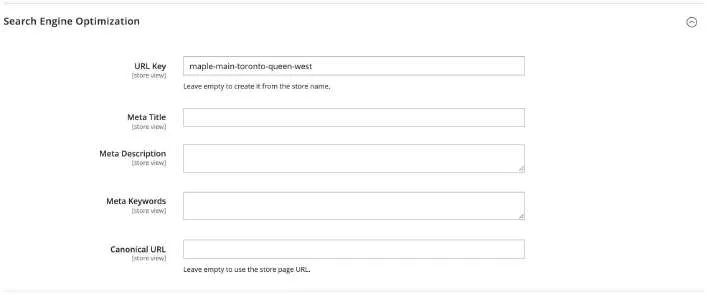
| Search Engine Optimization | URL Key, Meta Title, Meta Description, Meta Keywords, Canonical URL |
Note: choose a store view in the scope switcher of the form to translate the name, descriptions, URL key and meta data. Fields left on "Use Default Value" follow the default text.
Categories, services and custom attributes
Categories
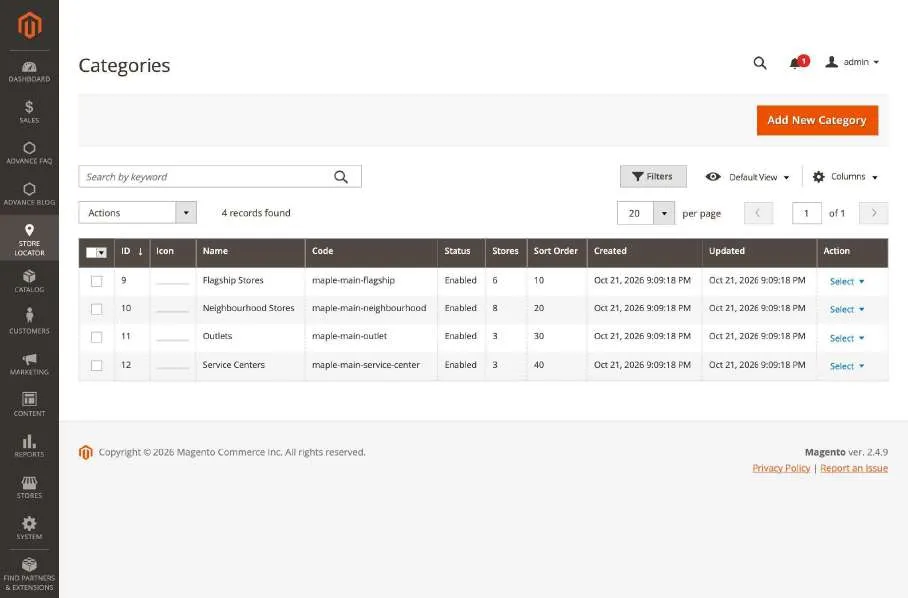
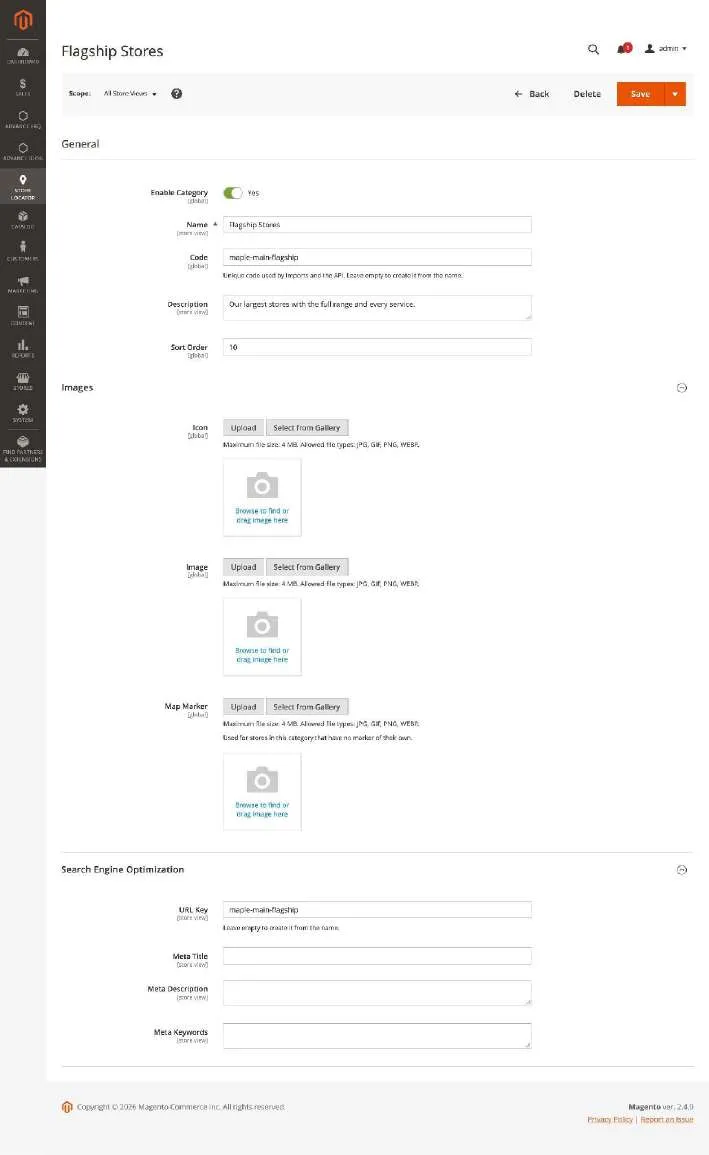
Go to Store Locator > Categories to group stores, for example Flagship Stores, Outlets or Service Centers. Each category has a name, code, status, description, sort order, an icon, an image, a map marker (used for its stores that have no marker of their own) and SEO fields. Categories appear as filters on the store locator and can limit a widget to certain stores.
Services
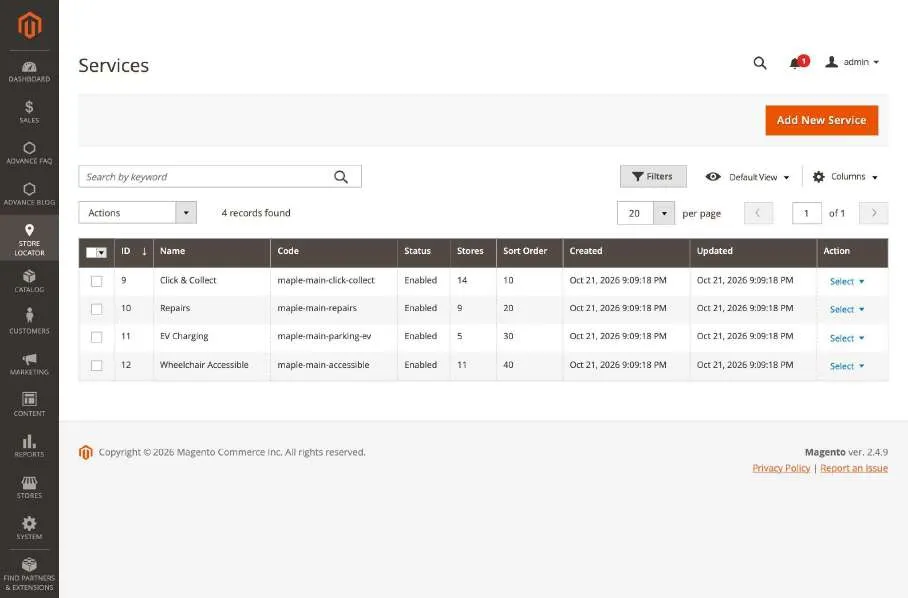
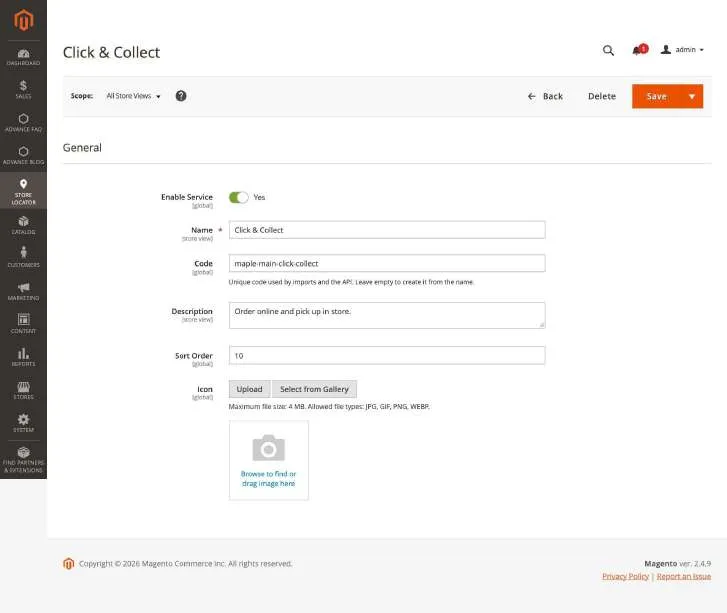
Go to Store Locator > Services to manage what stores offer, for example Click & Collect, Repairs or EV Charging. Each service has a name, code, status, description, sort order and icon. Services are shown on store cards and store pages and can be used as filters.
Custom attributes
Go to Store Locator > Custom Attributes to add your own store fields. Choose the input type (text, text area, number, yes/no, date, URL, dropdown or multiple select) and whether the attribute is:
- Required when a store is saved,
- Shown on the storefront (store cards and store pages),
- Used in search filters (yes/no, dropdown and multiple select),
- Used in keyword search.
Dropdown and multiple select attributes have a list of options, and every attribute can have its own label per store view.
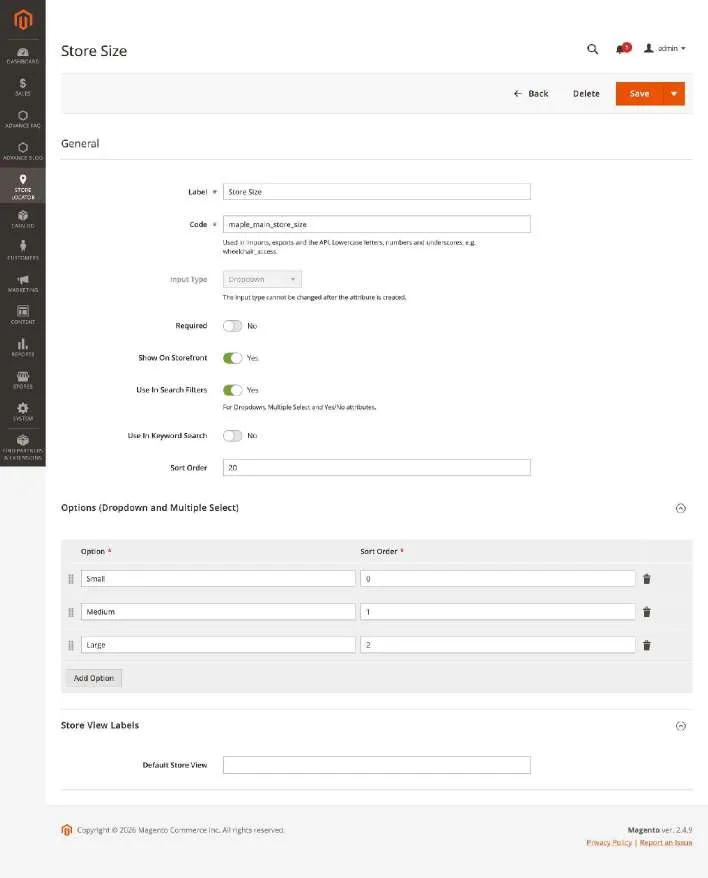
Note: the input type cannot be changed after the attribute is created. Create a new attribute instead.
Store messages and suggestions
Contact this store
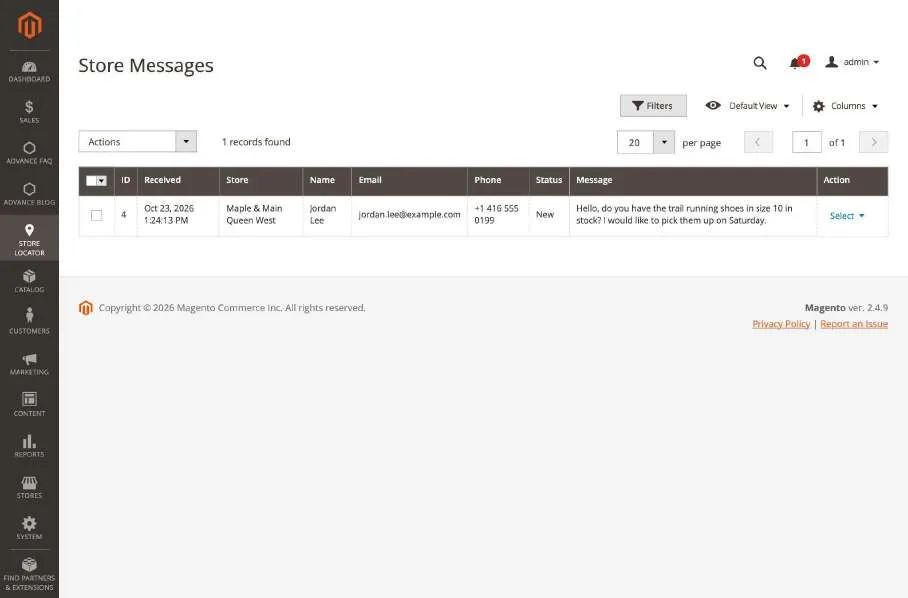
When the Contact Store Form is enabled in the configuration, store pages show a "Contact this store" form. Messages are emailed to the store's email address and/or other recipients, optionally confirmed to the visitor, and listed under Store Locator > Store Messages.
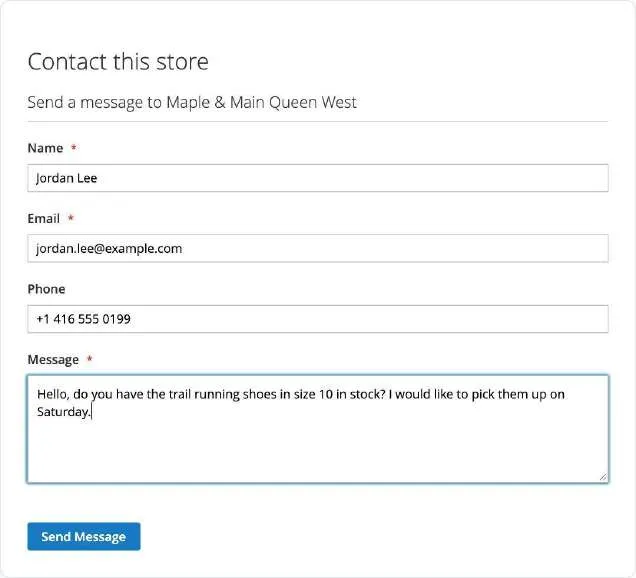
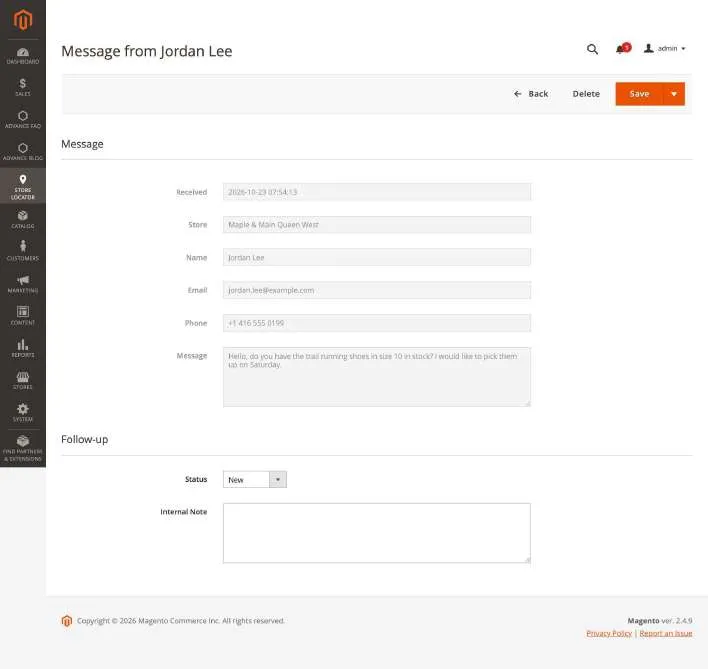
In Store Messages, filter messages by store or status, open a message to read it, set its status (New, Contacted, Closed) and add an internal note. Messages can be deleted automatically after a number of days (Configuration > Contact Store Form > Delete Messages After).
Suggest a store
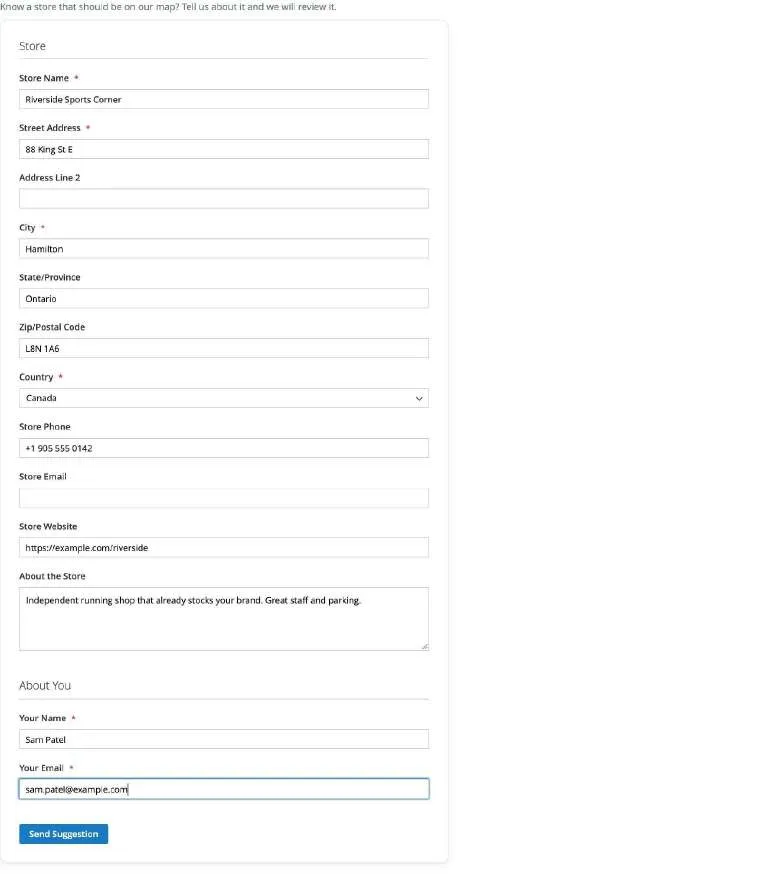
When the Suggest a Store Form is enabled, the store locator links to a page where visitors can suggest a store, for example a shop that sells your products.
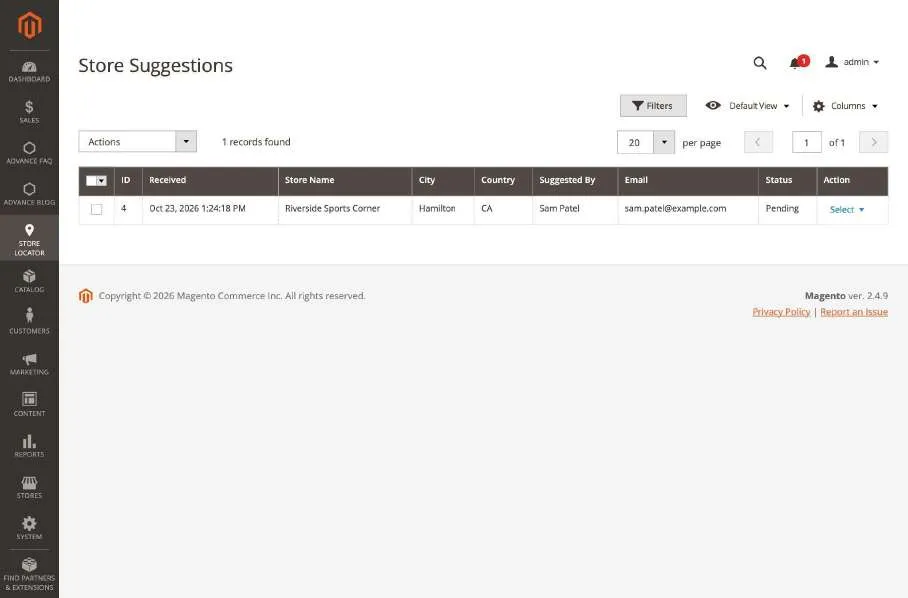
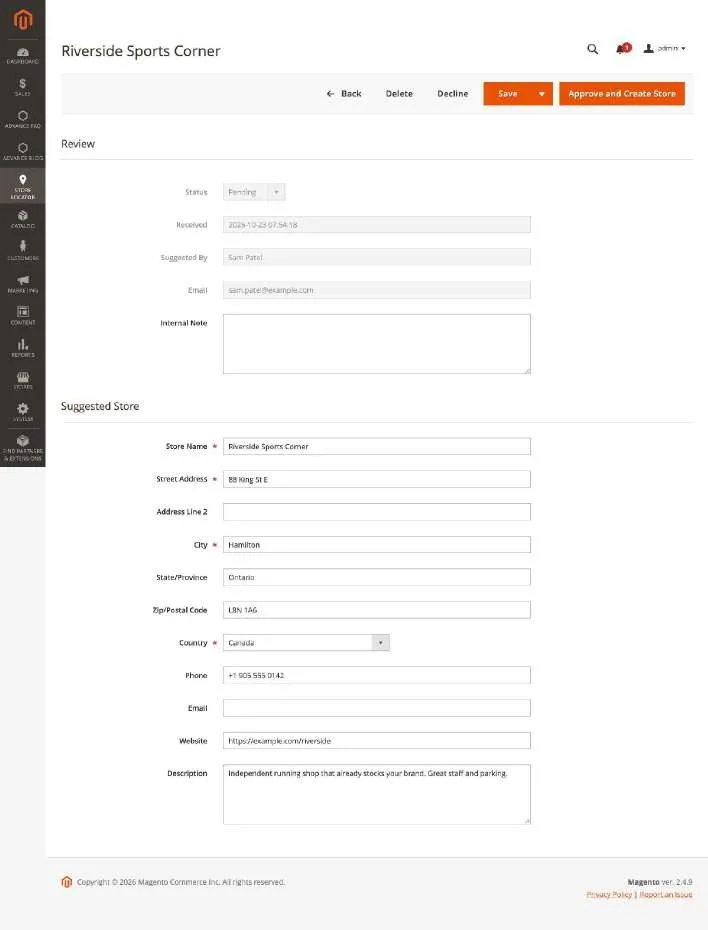
Review suggestions under Store Locator > Store Suggestions. Correct the data if needed, then click Approve and Create Store to create the store (disabled by default, so you can complete its hours, categories and coordinates) or Decline. The visitor can be informed of the decision by email.
Spam protection and Google reCAPTCHA
Both forms are protected by Magento's form key, a hidden anti-spam field and a limit of submissions per visitor and hour. They can also use Magento's own Google reCAPTCHA:
- Enter the keys of the reCAPTCHA type you want (v2 "I am not a robot", v2 Invisible or v3 Invisible) under Stores > Configuration > Security > Google reCAPTCHA Storefront.
- Choose that type in Google reCAPTCHA of the Contact Store Form and/or the Suggest a Store Form. "No" switches it off for that form.
Note: reCAPTCHA is optional. When Magento's reCAPTCHA modules are disabled or removed, the setting only offers "No" and both forms keep working with their other protections. Email templates can be customized in Marketing > Email Templates (templates starting with "Store Locator").
Import and export
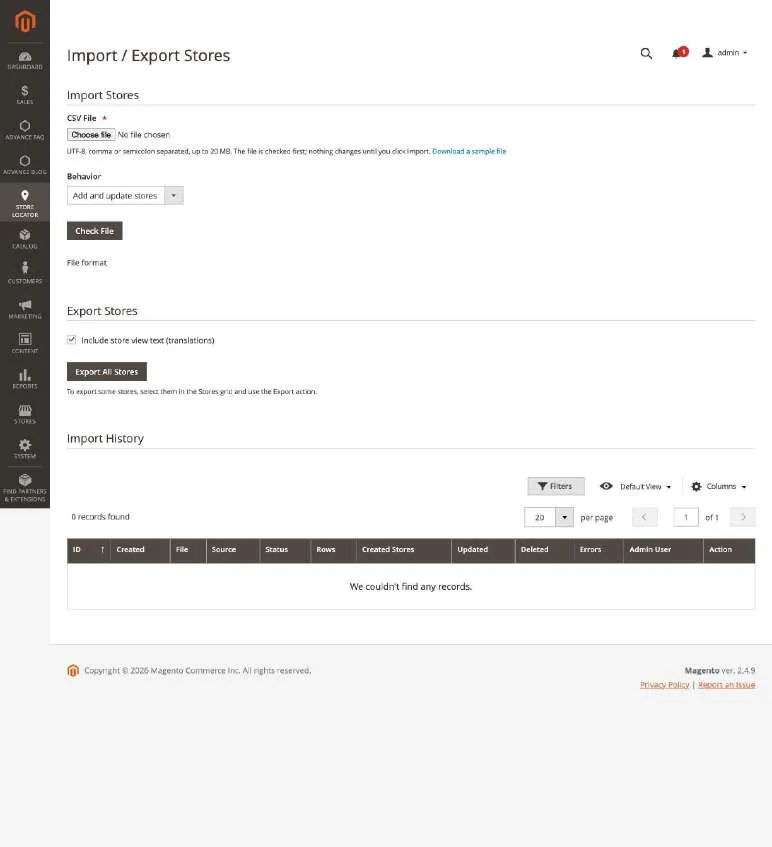
Go to Store Locator > Import / Export to add or update many stores at once:
- Click Download a sample file to see all columns.
- Choose a CSV file (UTF-8, comma or semicolon separated) and a behavior, then click Check File. The file is validated first; errors are listed by line and nothing is changed until the whole file is valid.
- Click Import. Files with more rows than "Import Right Away Up To" are imported in the background by cron.
Every import is listed in the Import History with its result and errors. Exports (all stores on this page, or the selected stores with the grid action Export to CSV) use the same format and can be imported again.
CSV format
| Column | Content |
|---|---|
identifier | Required. Unique store code; existing stores are updated |
store_view | Empty for the store row; a store view code for a row with translated text (name, url_key, descriptions, meta fields) |
stores | Store view codes where the store is shown, separated by |, or all (default for new stores) |
categories, services | Category and service codes separated by | |
hours | Mon 09:00-12:00,13:00-17:00|Tue 09:00-17:00 (days not listed are closed) |
special_hours | 2026-12-24 09:00-13:00 Christmas Eve|2026-12-25 closed Christmas Day |
attr:<code> | Custom attributes: text, Yes/No, or option labels (separated by | for multiple select) |
customer_groups | Customer group names separated by |, or all (default for new stores) |
logo, image | Path of an image already in pub/media, e.g. magexweb/storelocator/location/shop.jpg (image = featured image) |
images | Gallery images: paths separated by |, each optionally followed by ::alt text |
Note: an empty cell keeps the current value; __EMPTY__VALUE__ clears it. The behavior "Delete the listed stores" deletes the stores whose identifiers are in the file. Cells starting with =, +, - or @ are exported with a leading apostrophe so spreadsheet programs do not run them as formulas; the import removes it.
Scheduled import
In Configuration > Import > Scheduled Import, import a CSV file from var/import_export or from a public https:// URL on a cron schedule. Unchanged files are skipped. URLs on private or local networks are refused and redirects are not followed.
Command line
| Command | Purpose |
|---|---|
php bin/magento magexweb:storelocator:import stores.csv [--behavior=append|delete] [--validate-only] | Imports (or only checks) a CSV file |
php bin/magento magexweb:storelocator:export stores.csv [--ids=1,2,3] [--no-store-views] | Exports all or selected stores |
php bin/magento magexweb:storelocator:import:process [--scheduled] [--force] | Runs queued and scheduled imports now |
Reports
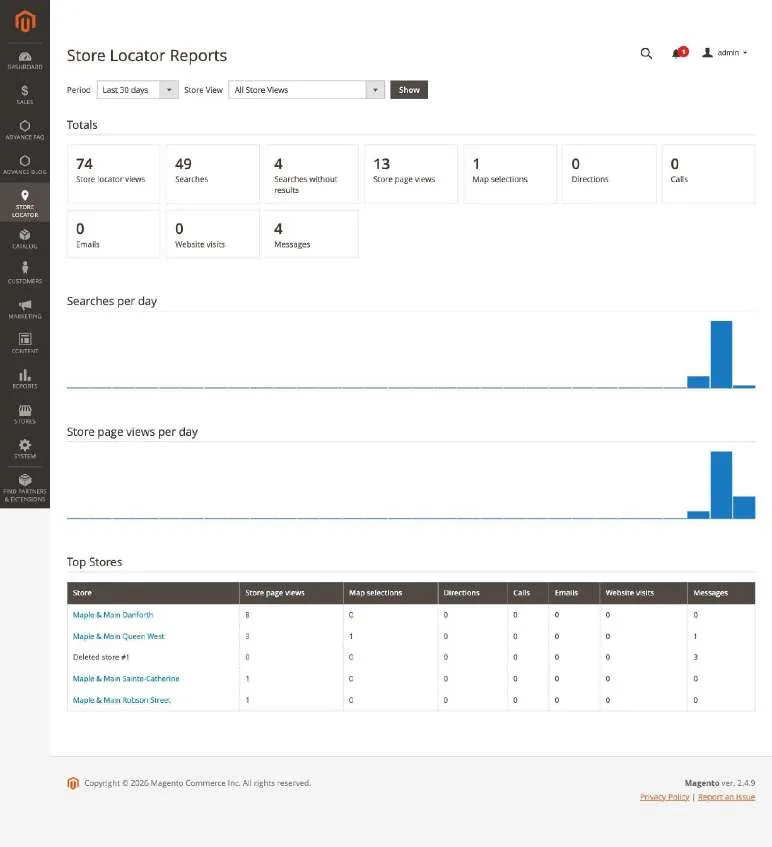
Go to Store Locator > Reports to see, per period and store view: store locator and store page views, searches, searches without results, map selections, directions, calls, emails, website visits and messages, daily charts and the most active stores.
Note: only daily counts are stored: no IP addresses, search terms or visitor identifiers. Optionally the events are also pushed to Google Tag Manager (window.dataLayer) as storelocator_<event>, for example storelocator_directions, with the store ID and name.
Storefront behaviour
Once enabled and configured, the store locator behaves as follows for shoppers:
- The store locator is available at
/store-locator(or the URL path you configured), with links in the footer and optionally in the top menu and header links. - Visitors search by address or place (with suggestions), "Use my location" (HTTPS only), distance and store name, and refine the results with filters.
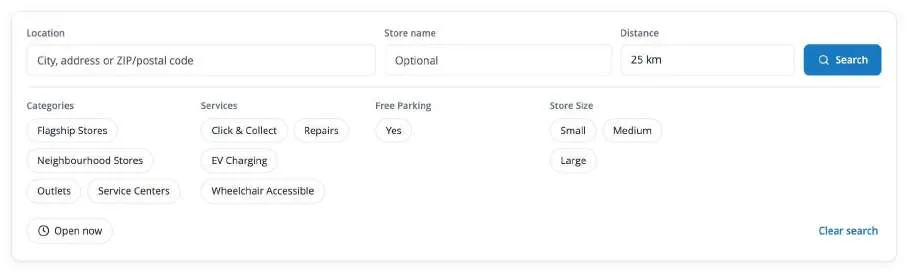
- The search is kept in the page URL, so results can be shared and the browser back button works.
- Only enabled stores assigned to the current store view and visible to the visitor's customer group are shown, on the map, in the list, in widgets, in the REST search and in the sitemap.
- Store cards show distance, live open/closed status ("Opens at 10:00", "Closing soon"), categories, services, custom attributes, opening hours and quick actions: call, email, website, directions and show on map.
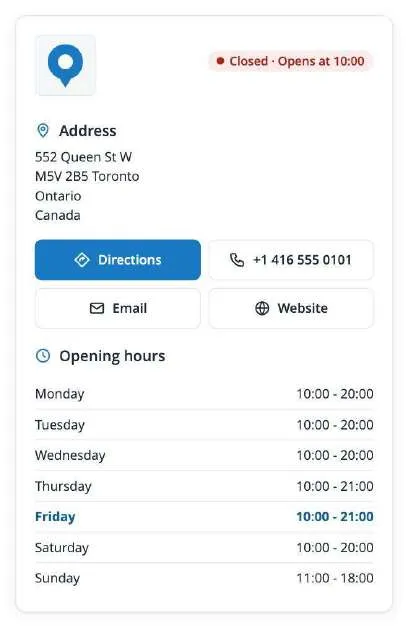
- Store pages show the gallery, address, contact buttons, opening hours (today highlighted), holiday hours, map with info window, description, custom attributes, nearby stores and the contact form.

CMS widget
Add a store locator to any CMS page or block with Insert Widget > Store Locator in the editor, or in Content > Widgets. Choose a title, limit it to categories and/or services (for example a "Dealers" page), choose the layout and whether to show filters. Several widgets can be placed on one page.
| Widget option | Description |
|---|---|
| Title | Heading shown above the widget (optional) |
| Only Stores in Categories | Shows only stores of the selected categories |
| Only Stores With Services | Shows only stores offering the selected services |
| Layout | Map + List, List + Map, Full Map, Grid, List or Map + Grid |
| Show Filters | Shows or hides the search filters. Default: Yes |
SEO and URLs
| Page | URL |
|---|---|
| Store locator | /store-locator |
| Store page | /store-locator/store-url-key (or /store-locator/store/store-url-key) |
| Suggest a store | /magexweb_storelocator/submission |
| Filtered search | /store-locator?lat=…&lng=…&radius=…&category=… |
- The URL path, store page URL structure and optional URL suffix (for example
.html) are set in General configuration. - When a URL key or URL setting changes, store page URLs are rebuilt and old URLs redirect (301) to the new ones. Rebuild them by hand with
php bin/magento magexweb:storelocator:urls:regenerate. - Every store has its own meta title, meta description, meta keywords and canonical URL; empty values use the templates from SEO configuration (
{name} - {city}by default). - Store pages include JSON-LD structured data (LocalBusiness or the chosen business type, with address, coordinates and opening hours) and BreadcrumbList.
- Search URLs with parameters can be set to "noindex,follow" so search engines index only the main page and store pages.
- Store pages are added to the XML sitemap generated in Marketing > Site Map.
Admin permissions
In System > Permissions > User Roles > Role Resources > Store Locator, each area is a separate permission, so you can give staff exactly the access they need:
| Resource | Allows |
|---|---|
| Stores | View stores; Save Store, Delete Store, Duplicate Store, Edit Store Hours and Edit Holiday Hours are separate permissions |
| Categories / Services / Custom Attributes | View, save and delete each |
| Store Messages | View messages; Edit Message Status; Delete Messages |
| Store Suggestions | View suggestions; Edit, Approve and Decline Suggestions; Delete Suggestions |
| Reports | View the usage reports |
| Import / Export | Import Stores and Export Stores |
| Store Locator Configuration | Stores > Configuration > Store Locator |
REST API
The store search is public and returns only enabled stores of the store view in the URL (/rest/<store_code>/V1/...) that are visible to guests (or, with a customer token, to the customer's group). Page size, radius and filters are limited to the store settings, and the search is rate limited. Management endpoints need an admin or integration token with the matching Store Locator permission.
| Endpoint | Description |
|---|---|
GET, POST /V1/storelocator/search | Store search (public) |
GET /V1/storelocator/locations, /locations/:locationId | List or get stores (Stores permission) |
POST /V1/storelocator/locations, PUT /locations/:locationId | Create or update a store (Save Store) |
DELETE /V1/storelocator/locations/:locationId | Delete a store (Delete Store) |
/V1/storelocator/categories, /services | GET, POST, PUT and DELETE categories and services (Category and Service permissions) |
Example: GET /rest/default/V1/storelocator/search?request[latitude]=43.65&request[longitude]=-79.38&request[radius]=25&request[sort]=distance
Note: bearer tokens require the web server to pass the Authorization header to PHP (Magento's pub/.htaccess does this; check your setup if the document root is not pub).
Cron jobs and commands
| Cron job | Schedule | Purpose |
|---|---|---|
magexweb_storelocator_geocode_pending | Every 5 minutes | Finds coordinates of new stores |
magexweb_storelocator_import_process | Every minute | Runs queued admin imports |
magexweb_storelocator_import_scheduled | Configured schedule | Scheduled CSV import |
magexweb_storelocator_leads_clean | Daily | Deletes old store messages (if configured) |
| Command | Purpose |
|---|---|
magexweb:storelocator:sample-data:install / :remove | Install or remove the sample stores |
magexweb:storelocator:geocode | Find missing coordinates now |
magexweb:storelocator:import / :export | CSV import and export |
magexweb:storelocator:import:process | Run queued and scheduled imports now |
magexweb:storelocator:urls:regenerate | Rebuild the store page URL rewrites |
Uninstallation
Composer installation
- Optional:
php bin/magento magexweb:storelocator:sample-data:remove php bin/magento module:uninstall Magexweb_StoreLocator --remove-data(removes the module's tables, configuration, URL rewrites and media files)
Manual (app/code) installation
php bin/magento module:disable Magexweb_StoreLocator- Delete the
app/code/Magexweb/StoreLocatorfolder. php bin/magento setup:upgrade && php bin/magento cache:flush. The tables stay until you remove them by hand.
Important: back up your database before uninstalling with --remove-data: stores, messages and suggestions are deleted permanently.
Troubleshooting and FAQ
The map is grey or shows "This page can't load Google Maps correctly"
- Check the Browser API Key, that billing is enabled, that the Maps JavaScript API, Places API (New) and Geocoding API are enabled, and that your domain is in the key's website restrictions.
The OpenStreetMap map stays grey or shows no tiles
- Check the Tile Server URL (https:// with {z}, {x} and {y}) and the key of your tile provider. With Content Security Policy in restrict mode, add the tile host to the CSP whitelist (img-src).
No address suggestions with OpenStreetMap
- Check the Place Search URL (empty switches the address search off). With Content Security Policy in restrict mode, add its host to the CSP whitelist (connect-src).
Coordinates are not found with OpenStreetMap
- Check the Geocoding URL and Contact Email and that cron is running. Requests are sent at most once per second, so large imports take a while; problems are logged in
var/log/magexweb_storelocator.log.
A store does not appear on the storefront
- Check that it is enabled, assigned to the store view, visible to the customer group and has coordinates. Then make sure the Store Locator Search index is up to date (cron must run when it is "Update by Schedule").
A store has no coordinates
- Enter the Server Geocoding API Key, check the Coordinates column in the grid, run Find Coordinates or
bin/magento magexweb:storelocator:geocode, and look invar/log/magexweb_storelocator.log.
Configuration changes do not show
- Flush the cache in System > Cache Management (Full Page Cache and Store Locator).
"Use my location" does nothing
- Browsers allow location access only on HTTPS pages, and the visitor must allow it.
An import stays queued
- Large imports run in the background: make sure Magento cron is running, or run
bin/magento magexweb:storelocator:import:process.
Store page URLs return 404 after changing the URL path
- Run
bin/magento magexweb:storelocator:urls:regenerateand flush the cache.
Searches return "Too many searches"
- Increase Search > Search Requests Per Minute Per Visitor, or set it to 0. Behind a proxy or CDN, configure Magento to use the visitor's real IP address.
Support
For help, email info@magexweb.com. Please include your Magento version, PHP version, a description of the problem and, if possible, var/log/magexweb_storelocator.log (enable Developer > Debug Logging for details).